
1
Go to Your Assistant
Navigate to your Assistant in the sidebar.
2
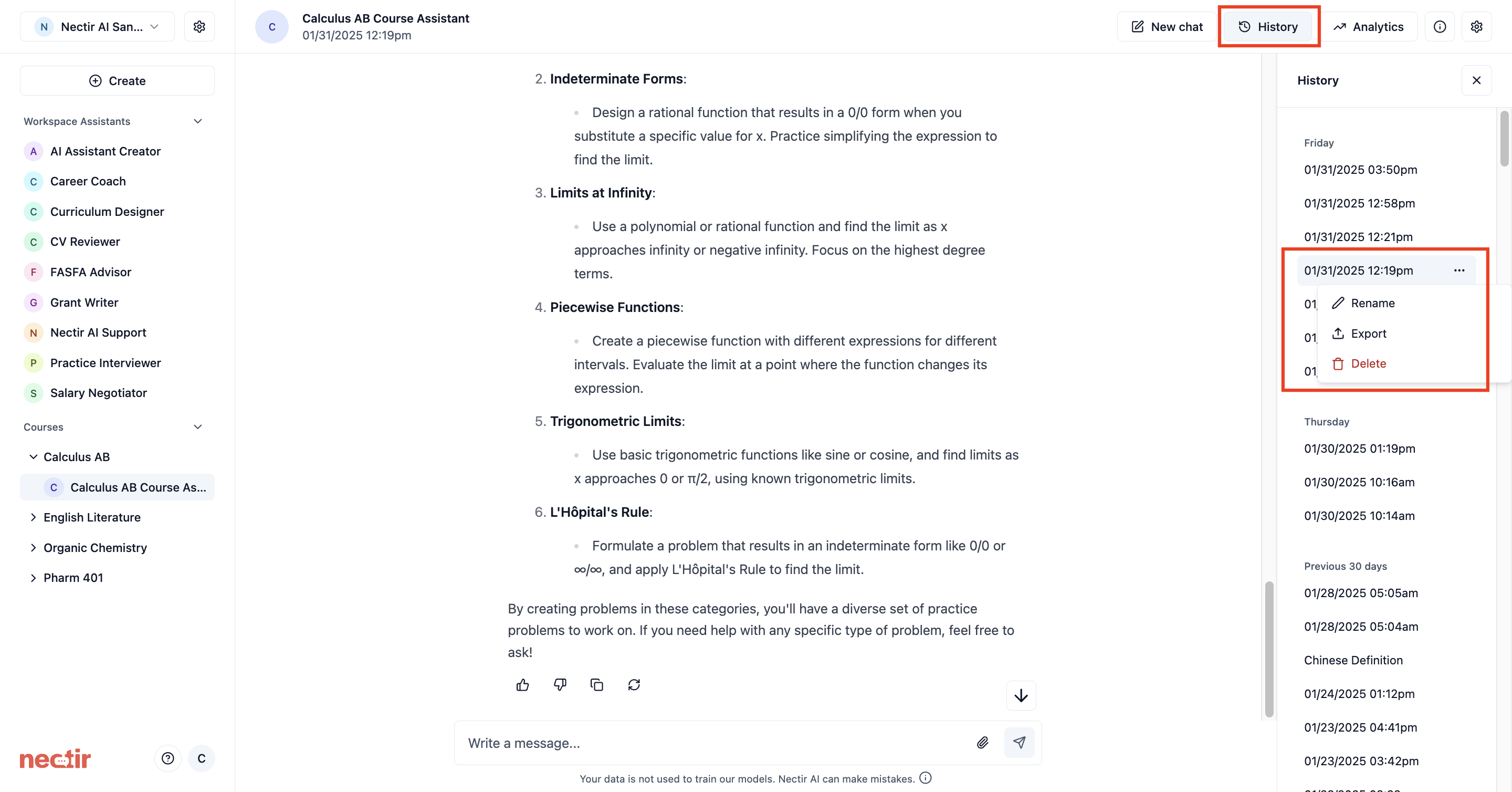
Open History
Click on the History button in the top right corner.
3
View Your Conversations
A menu appears showing your past conversations with AI-generated titles for each conversation to help you identify them.
4
Continue a Conversation
To continue a previous conversation, select the conversation you want to continue and begin typing.
Rename and Export Your Chat History
Nectir AI conversations are private to the user. To share messages, users can export their chat history as a CSV file or PDF and share the file with others.1
Go to Your Assistant
Navigate to your Assistant in the sidebar.
2
Open History
Click on the History button in the top right corner.
3
Select a Conversation
Hover over the conversation you wish to rename/export.
4
Choose an Action
Click on the ellipsis next to the conversation:
- Rename - Rename your conversation to make it easier to locate in the future
- Export As - Export your conversation as a PDF Document (
.pdf) or CSV File (.csv) (PDF exports include message timestamps) - Delete - Delete your conversation