> ## Documentation Index
> Fetch the complete documentation index at: https://support.nectir.io/llms.txt
> Use this file to discover all available pages before exploring further.
# Knowledge Scope
> Configure the boundaries of information your Assistant can access and understand.
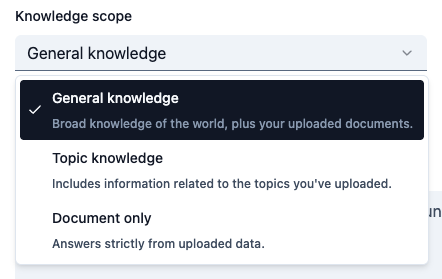 Knowledge scope controls how much information your Assistant can access beyond your uploaded files. Think of it as setting the **knowledge boundaries** - from using only your specific documents to accessing the full breadth of AI knowledge. This powerful setting allows you to **balance specificity with comprehensiveness** based on your teaching goals.
Hover over your Assistant, click the **three dots**, and select **Settings**
Click on the **Prompt** tab in the sidebar
Choose either **General knowledge**, **Topic knowledge**, or **Document only**:
**What it includes:** Your documents plus the full breadth of knowledge available through Nectir's supported AI models.
**Best for:** Assistants that need comprehensive, up-to-date information beyond your specific course materials.
**Choose this when you want your Assistant to:**
* Provide comprehensive, up-to-date information beyond your course materials
* Access current events, recent research, or latest developments in the field
* Offer broad context and background information
* Act as a research assistant with wide-ranging knowledge
**Example:** A research methods assistant that needs to reference current academic standards and recent publications.
**What it includes:** Your documents and only the relevant topics from the AI models based on your documents, the prompt, and user input.
**Best for:** Assistants that should stay focused on your course content while having access to relevant background information.
**Choose this when you want your Assistant to:**
* Stay focused on your course content while providing relevant context
* Offer background information that's directly related to your materials
* Provide explanations without going too far off-topic
* Balance course-specific guidance with helpful context
**Example:** A biology tutor that can explain related concepts but stays focused on your course curriculum.
**What it includes:** Only the information in the documents you upload. No access to AI models.
**Best for:** Assistants that should only reference your specific course materials and nothing else.
**Choose this when you want your Assistant to:**
* Reference only your specific course materials
* Avoid any external information or interpretations
* Stick strictly to your syllabus, assignments, and uploaded documents
* Provide answers based solely on your provided content
**Example:** A syllabus assistant that only references your specific course policies and requirements.
Click **Save changes** to apply your knowledge scope setting
## Best Practices
**Important:** Your knowledge scope setting works in combination with your Assistant's prompt. Make sure both are aligned with your teaching goals.
Begin with **Document Only** or **Topic Knowledge** to ensure your Assistant stays focused on your course content.
Monitor your Assistant's responses and adjust the knowledge scope if needed based on student feedback.
Periodically review your knowledge scope setting as your course content and goals evolve.
Turn on source citations to gain visibility into which knowledge files your Assistant uses. This helps identify gaps in your content and ensures responses are grounded in your materials.
***
## Next Steps
Set the directions that shape your Assistant's behavior
Configure AI models and advanced options
***
### Video Tutorial
Watch how to set knowledge scope and configure AI models
Knowledge scope controls how much information your Assistant can access beyond your uploaded files. Think of it as setting the **knowledge boundaries** - from using only your specific documents to accessing the full breadth of AI knowledge. This powerful setting allows you to **balance specificity with comprehensiveness** based on your teaching goals.
Hover over your Assistant, click the **three dots**, and select **Settings**
Click on the **Prompt** tab in the sidebar
Choose either **General knowledge**, **Topic knowledge**, or **Document only**:
**What it includes:** Your documents plus the full breadth of knowledge available through Nectir's supported AI models.
**Best for:** Assistants that need comprehensive, up-to-date information beyond your specific course materials.
**Choose this when you want your Assistant to:**
* Provide comprehensive, up-to-date information beyond your course materials
* Access current events, recent research, or latest developments in the field
* Offer broad context and background information
* Act as a research assistant with wide-ranging knowledge
**Example:** A research methods assistant that needs to reference current academic standards and recent publications.
**What it includes:** Your documents and only the relevant topics from the AI models based on your documents, the prompt, and user input.
**Best for:** Assistants that should stay focused on your course content while having access to relevant background information.
**Choose this when you want your Assistant to:**
* Stay focused on your course content while providing relevant context
* Offer background information that's directly related to your materials
* Provide explanations without going too far off-topic
* Balance course-specific guidance with helpful context
**Example:** A biology tutor that can explain related concepts but stays focused on your course curriculum.
**What it includes:** Only the information in the documents you upload. No access to AI models.
**Best for:** Assistants that should only reference your specific course materials and nothing else.
**Choose this when you want your Assistant to:**
* Reference only your specific course materials
* Avoid any external information or interpretations
* Stick strictly to your syllabus, assignments, and uploaded documents
* Provide answers based solely on your provided content
**Example:** A syllabus assistant that only references your specific course policies and requirements.
Click **Save changes** to apply your knowledge scope setting
## Best Practices
**Important:** Your knowledge scope setting works in combination with your Assistant's prompt. Make sure both are aligned with your teaching goals.
Begin with **Document Only** or **Topic Knowledge** to ensure your Assistant stays focused on your course content.
Monitor your Assistant's responses and adjust the knowledge scope if needed based on student feedback.
Periodically review your knowledge scope setting as your course content and goals evolve.
Turn on source citations to gain visibility into which knowledge files your Assistant uses. This helps identify gaps in your content and ensures responses are grounded in your materials.
***
## Next Steps
Set the directions that shape your Assistant's behavior
Configure AI models and advanced options
***
### Video Tutorial
Watch how to set knowledge scope and configure AI models