> ## Documentation Index
> Fetch the complete documentation index at: https://support.nectir.io/llms.txt
> Use this file to discover all available pages before exploring further.
# Assistant Knowledge
> Upload and manage training data to customize your Assistant's knowledge base.
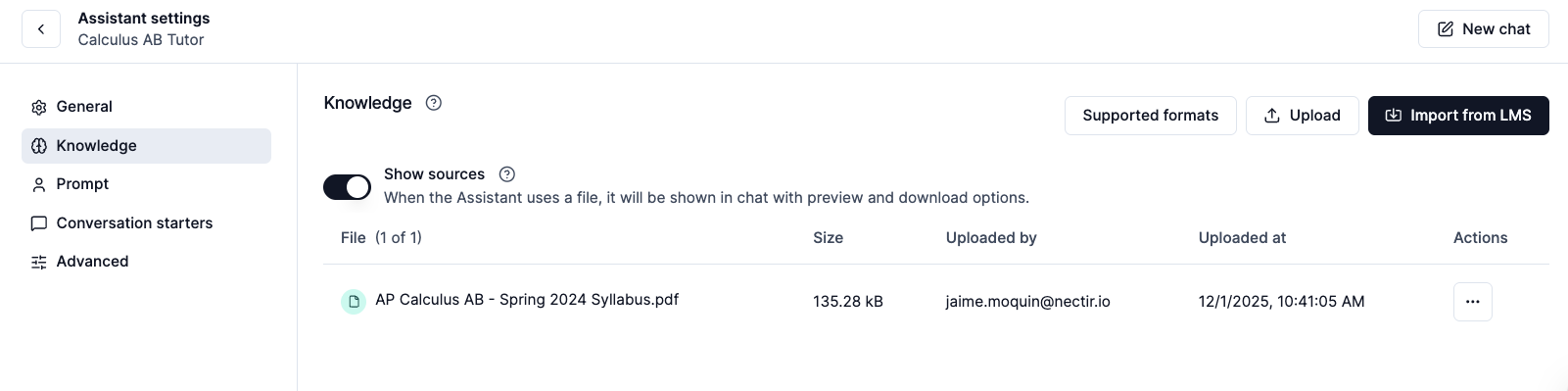 The knowledge you upload is the **foundation** of your Assistant's ability to provide **personalized, relevant responses**. This content customizes your AI Assistant to understand your specific course materials, institutional policies, and unique program requirements. More importantly, it creates a **tailored learning experience** that directly supports each student's **individual learning journey**, making your Assistant truly **supportive** rather than generic.
Hover over your Assistant, click the **three dots**, and select **Settings**
Click on the **Knowledge** tab in the sidebar
Select your preferred method to add knowledge to your Assistant:
Upload files from your computer
Import a course export (.imscc) from LMS
Import content from a website URL
Connect to import course files
Enable sources to show which knowledge files your Assistant references in responses. You can **toggle sources on or off** based on your preferences.
Configure your source preferences
## What to Upload
Upload your syllabus, course materials, assignments, and any content specific to your course or program.
Include information unique to your campus, policies, procedures, and institutional guidelines.
Add documents containing concepts, terminology, or jargon specific to your field or program.
Include dates, deadlines, schedules, and any time-sensitive information your Assistant should know.
**Important:** Focus on content that AI models won't have in their knowledge base. This includes your specific course materials, institutional policies, and unique program requirements.
## Supported Knowledge Sources
Any public website URL — text content is extracted from selected pages
.pdf .docx .xlsx .pptx
.txt .text .eml .md .xml
.jpg .jpeg .png .heif .tiff .bmp
.mp3 .wav .flac .aac .m4a .opus
.mp4 .webm .mpeg .mpg .mov .wmv
.py java .c .cpp .h .js .css .html .sql
.R
File Limits: You can upload **unlimited files** with a maximum size of **150MB per file**.
## Understanding the Knowledge Table
The Knowledge table displays only files that are ready for use. Each file listed has completed processing successfully and is available for Assistants to reference during conversations. If a file appears in the Knowledge table, it's usable.
Uploading a file begins a background processing step that prepares the content for use.
While processing is underway:
* The file does not appear in the Knowledge table
* Progress and results are shown in the Upload Queue
Once processing completes successfully, the file is automatically added to the Knowledge table.
The Knowledge table intentionally excludes:
* Files that are still processing
* Files that failed during processing
* Files with upload errors
These files remain visible in the Upload Queue to provide clear status information.
Files can be uploaded to multiple assistants at the same time.
When uploading to multiple assistants:
* Each assistant processes the file independently
* Status appears per the assistant in the Upload Queue
* A file may succeed for one assistant and fail for another
This allows shared content while maintaining clear visibility.
## Using the Upload Queue to Track File Status
The Upload Queue provides real-time visibility into file uploads and processing.
It displays:
* Files currently being processed
* Files that completed successfully
* Files that encountered errors
This view offers transparency into what is happening after files are uploaded.
Each file in the Upload Queue displays a clear status.
**Processing** - The file is being prepared for use.
**Success** - Processing completed successfully and the file is ready. The file will now appear in the Knowledge table.
**Error** - Processing failed and the file was not added to knowledge. The file can be reuploaded or replaced.
## Accessing Current Information
If you want your Assistant to access real-time information from the web instead of static uploaded files, consider enabling **[web search](/creating/advanced#web-search)**.
**Important Distinction**: Web search is NOT the same as [adding a website](/creating/website-url) to your Assistant's knowledge base. Website sources extract and store page content for your Assistant to reference. Web search is a separate feature that allows your Assistant to search the internet in real-time during conversations.
**When to use web search instead of uploading files:**
* You need access to current events, news, or recent developments
* You want real-time data like stock prices, weather, or statistics
* Your course requires students to connect concepts with current information
* The information changes frequently and would become outdated if uploaded as static files
**Web search operates independently** of your [knowledge scope](/creating/assistant-knowledge-scope) settings. Even if your Assistant is set to "Document Only" knowledge scope, enabling web search allows it to search the internet when needed. Knowledge scope only controls whether the Assistant uses its base AI model knowledge, not whether it can perform web searches.
Configure web search and control which sources your Assistant uses
## Managing Your Knowledge Files
Once uploaded, you can manage your knowledge files through the Assistant knowledge settings. Each file has a dropdown menu (three dots) that provides three key actions:
Make your knowledge files more descriptive and easier to identify:
Click on the three dots next to the file you want to rename
Choose "Rename" from the dropdown menu
Type the new file name in the dialog box
The knowledge you upload is the **foundation** of your Assistant's ability to provide **personalized, relevant responses**. This content customizes your AI Assistant to understand your specific course materials, institutional policies, and unique program requirements. More importantly, it creates a **tailored learning experience** that directly supports each student's **individual learning journey**, making your Assistant truly **supportive** rather than generic.
Hover over your Assistant, click the **three dots**, and select **Settings**
Click on the **Knowledge** tab in the sidebar
Select your preferred method to add knowledge to your Assistant:
Upload files from your computer
Import a course export (.imscc) from LMS
Import content from a website URL
Connect to import course files
Enable sources to show which knowledge files your Assistant references in responses. You can **toggle sources on or off** based on your preferences.
Configure your source preferences
## What to Upload
Upload your syllabus, course materials, assignments, and any content specific to your course or program.
Include information unique to your campus, policies, procedures, and institutional guidelines.
Add documents containing concepts, terminology, or jargon specific to your field or program.
Include dates, deadlines, schedules, and any time-sensitive information your Assistant should know.
**Important:** Focus on content that AI models won't have in their knowledge base. This includes your specific course materials, institutional policies, and unique program requirements.
## Supported Knowledge Sources
Any public website URL — text content is extracted from selected pages
.pdf .docx .xlsx .pptx
.txt .text .eml .md .xml
.jpg .jpeg .png .heif .tiff .bmp
.mp3 .wav .flac .aac .m4a .opus
.mp4 .webm .mpeg .mpg .mov .wmv
.py java .c .cpp .h .js .css .html .sql
.R
File Limits: You can upload **unlimited files** with a maximum size of **150MB per file**.
## Understanding the Knowledge Table
The Knowledge table displays only files that are ready for use. Each file listed has completed processing successfully and is available for Assistants to reference during conversations. If a file appears in the Knowledge table, it's usable.
Uploading a file begins a background processing step that prepares the content for use.
While processing is underway:
* The file does not appear in the Knowledge table
* Progress and results are shown in the Upload Queue
Once processing completes successfully, the file is automatically added to the Knowledge table.
The Knowledge table intentionally excludes:
* Files that are still processing
* Files that failed during processing
* Files with upload errors
These files remain visible in the Upload Queue to provide clear status information.
Files can be uploaded to multiple assistants at the same time.
When uploading to multiple assistants:
* Each assistant processes the file independently
* Status appears per the assistant in the Upload Queue
* A file may succeed for one assistant and fail for another
This allows shared content while maintaining clear visibility.
## Using the Upload Queue to Track File Status
The Upload Queue provides real-time visibility into file uploads and processing.
It displays:
* Files currently being processed
* Files that completed successfully
* Files that encountered errors
This view offers transparency into what is happening after files are uploaded.
Each file in the Upload Queue displays a clear status.
**Processing** - The file is being prepared for use.
**Success** - Processing completed successfully and the file is ready. The file will now appear in the Knowledge table.
**Error** - Processing failed and the file was not added to knowledge. The file can be reuploaded or replaced.
## Accessing Current Information
If you want your Assistant to access real-time information from the web instead of static uploaded files, consider enabling **[web search](/creating/advanced#web-search)**.
**Important Distinction**: Web search is NOT the same as [adding a website](/creating/website-url) to your Assistant's knowledge base. Website sources extract and store page content for your Assistant to reference. Web search is a separate feature that allows your Assistant to search the internet in real-time during conversations.
**When to use web search instead of uploading files:**
* You need access to current events, news, or recent developments
* You want real-time data like stock prices, weather, or statistics
* Your course requires students to connect concepts with current information
* The information changes frequently and would become outdated if uploaded as static files
**Web search operates independently** of your [knowledge scope](/creating/assistant-knowledge-scope) settings. Even if your Assistant is set to "Document Only" knowledge scope, enabling web search allows it to search the internet when needed. Knowledge scope only controls whether the Assistant uses its base AI model knowledge, not whether it can perform web searches.
Configure web search and control which sources your Assistant uses
## Managing Your Knowledge Files
Once uploaded, you can manage your knowledge files through the Assistant knowledge settings. Each file has a dropdown menu (three dots) that provides three key actions:
Make your knowledge files more descriptive and easier to identify:
Click on the three dots next to the file you want to rename
Choose "Rename" from the dropdown menu
Type the new file name in the dialog box
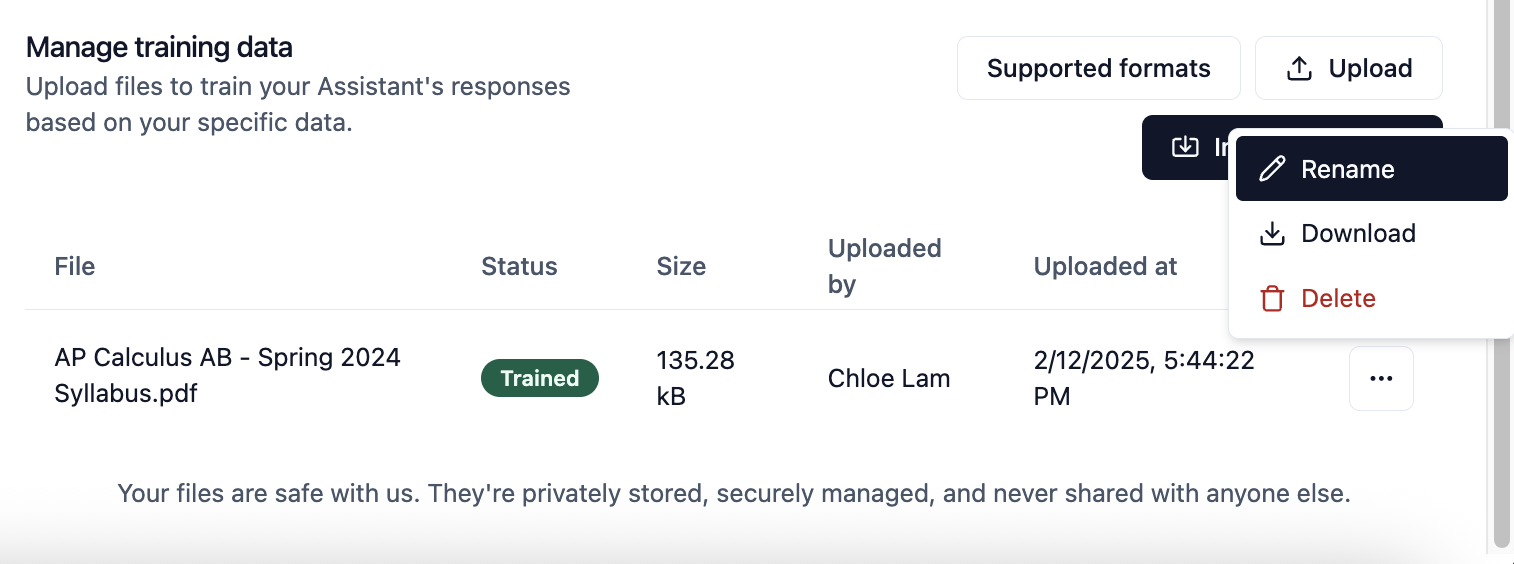 Click "Save" to apply the new file name
Use descriptive file names that reflect the content, purpose, or source of the file to better organize your knowledge materials.
Retrieve a copy of a knowledge file for backup or modification:
Choose the "Download" option from the dropdown menu
Your browser will prompt you to save the file to your local device
Downloading knowledge files is useful for backing up important content or making modifications before re-uploading.
Remove files from your Assistant's knowledge base:
Choose the "Delete" option from the dropdown menu
When prompted, confirm that you want to remove the file
**Permanent Action:** Deleting a file permanently removes it from your Assistant's knowledge base. The Assistant will no longer be able to access information contained in that file. This action cannot be undone.
## Optimizing AI Performance
Upload complete documents rather than fragments. AI performs better with full context - include entire syllabi, complete assignment descriptions, and full policy documents rather than excerpts.
Add files with concrete examples, sample work, and case studies. AI learns patterns from examples and can better replicate the style and quality you expect.
Name files with clear, descriptive titles that indicate content, purpose, and context (e.g., "Week-3-Calculus-Problem-Set-with-Solutions.pdf" vs "homework3.pdf").
Start with foundational materials (syllabus, course overview) then add specific content (assignments, readings). This mirrors how humans build understanding from general to specific.
Upload documents that cover exceptions, special circumstances, and frequently asked questions. This helps AI handle unusual situations appropriately.
Test your Assistant with questions that require connecting information across multiple documents to ensure it's synthesizing knowledge effectively.
***
## Next Steps
Configure the boundaries of information your Assistant can access
Set the directions that shape your Assistant's behavior
### Video Tutorial
Watch how to configure knowledge scope and upload knowledge files
Click "Save" to apply the new file name
Use descriptive file names that reflect the content, purpose, or source of the file to better organize your knowledge materials.
Retrieve a copy of a knowledge file for backup or modification:
Choose the "Download" option from the dropdown menu
Your browser will prompt you to save the file to your local device
Downloading knowledge files is useful for backing up important content or making modifications before re-uploading.
Remove files from your Assistant's knowledge base:
Choose the "Delete" option from the dropdown menu
When prompted, confirm that you want to remove the file
**Permanent Action:** Deleting a file permanently removes it from your Assistant's knowledge base. The Assistant will no longer be able to access information contained in that file. This action cannot be undone.
## Optimizing AI Performance
Upload complete documents rather than fragments. AI performs better with full context - include entire syllabi, complete assignment descriptions, and full policy documents rather than excerpts.
Add files with concrete examples, sample work, and case studies. AI learns patterns from examples and can better replicate the style and quality you expect.
Name files with clear, descriptive titles that indicate content, purpose, and context (e.g., "Week-3-Calculus-Problem-Set-with-Solutions.pdf" vs "homework3.pdf").
Start with foundational materials (syllabus, course overview) then add specific content (assignments, readings). This mirrors how humans build understanding from general to specific.
Upload documents that cover exceptions, special circumstances, and frequently asked questions. This helps AI handle unusual situations appropriately.
Test your Assistant with questions that require connecting information across multiple documents to ensure it's synthesizing knowledge effectively.
***
## Next Steps
Configure the boundaries of information your Assistant can access
Set the directions that shape your Assistant's behavior
### Video Tutorial
Watch how to configure knowledge scope and upload knowledge files