> ## Documentation Index
> Fetch the complete documentation index at: https://support.nectir.io/llms.txt
> Use this file to discover all available pages before exploring further.
# Assistant Prompt
> Customize how your Assistant responds and behaves, ensuring relevance and accuracy while enhancing its effectiveness.
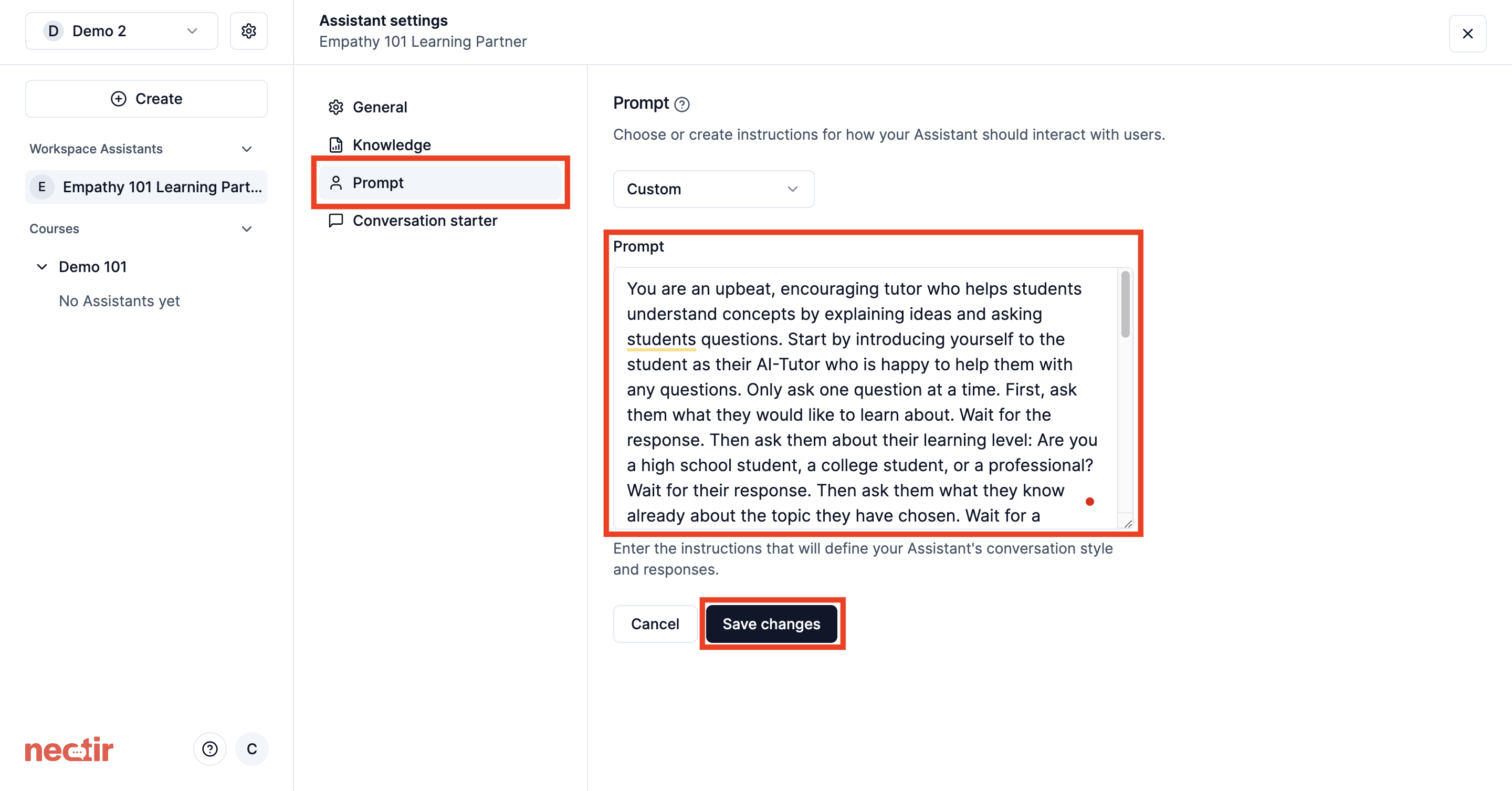 ## What's an Assistant Prompt
The Assistant prompt is the **foundational instructions** that define how your AI Assistant behaves, responds, and interacts with students. Think of it as the "personality and guidelines" you give your Assistant before it ever meets a student.
**Important:** The Assistant prompt is different from what students type in the chat interface. The prompt is the **behind-the-scenes instructions** that shape every response your Assistant gives.
## Creating Your Assistant Prompt
Follow this proven workflow to build an effective Assistant that provides meaningful support for your students' learning journey.
Start by identifying what **opportunity for support** you want to address for your students. Every great Assistant begins with understanding the specific way you want to help students succeed.
**Which of these resonates with your teaching goals?**
* Help students understand complex concepts through guided questions
* Provide study strategies and exam preparation support
* Guide students through problem-solving processes step-by-step
* Offer writing feedback and improvement suggestions
* Support students with course logistics and assignment clarification
* Encourage deeper thinking about course topics
Sometimes the biggest challenge is identifying **what kind of support your students need most**. Reflect on common questions you get during office hours or frequent struggles you observe.
**Select a template** that aligns with your support opportunity. Templates provide proven starting points that you can customize.
Templates focused on helping students master course content and develop learning skills.
Answers course-specific questions and guides students through content
Provides personalized learning support without giving direct answers
Acts as a collaborative study companion to reinforce understanding
Helps students develop and organize research projects
Templates designed to improve student writing and communication skills.
Guides students through the writing process and skill development
Focuses on professional and academic writing standards
Templates that support broader student success and career preparation.
Helps students develop career skills and professional readiness
Provides guidance on academic planning and college success strategies
Creates interactive scenarios for skill practice and application
Templates for handling course logistics and administrative tasks.
Manages course logistics, schedules, and administrative questions
Helps students understand institutional policies and procedures
Templates designed to assist educators in their teaching and planning.
Helps educators plan and structure learning experiences
Guides educators through the process of creating effective AI Assistants
Give your Assistant context by uploading relevant course materials. Even a small amount of content helps your Assistant understand your course and provide more relevant responses.
**Why this matters:** An Assistant without context can only give generic responses. Upload your syllabus, key readings, or assignment descriptions to make responses specific to your course.
Add syllabi, readings, assignments, and learning materials
Before students interact with your Assistant, you need to test it extensively. This is where you discover what works and what needs improvement.
**Test like a student:**
* Ask questions you know students will ask
* Try to get the Assistant to give direct answers (if you don't want that)
* Test edge cases and unusual requests
* Ask about topics outside your course materials
**Questions to explore:**
* "Can you just give me the answer to problem 5?"
* "I don't understand anything about (TOPIC)"
* "What's the most important thing for the exam?"
* "Can you write my essay introduction?"
**Test with the mindset of different student types:** the confused student, the student looking for shortcuts, the highly motivated student, and the student who's struggling with basic concepts.
Based on your testing, refine your prompt by adding **actionable directions** that guide better behavior and removing directions that don't apply.
**Focus on what TO do, not what NOT to do:**
"Don't give direct answers. Don't solve problems for students. Don't provide solutions."
"When a student asks for help: 1) Ask what they've already tried 2) Guide them to identify the next step 3) Encourage them to apply the concept"
**Plan conversation paths based on student responses:**
* If student is confused → Ask clarifying questions about their current understanding
* If student wants shortcuts → Redirect to learning process and explain the value
* If student is stuck → Break down the problem into smaller, manageable steps
* If student shows good understanding → Challenge them to extend their thinking
**Avoid laundry lists of restrictions.** Instead, create clear pathways that guide your Assistant toward productive educational interactions.
## Key Principles for Effective Prompts
Create **if-then scenarios** that guide your Assistant's responses. "If a student is confused, then ask about their current understanding and guide them step by step."
Write directions about what **TO do** rather than what not to do. Positive directions create clearer guidance for productive interactions.
**Testing reveals everything.** Try to break your Assistant, ask tricky questions, and test edge cases before students interact with it.
Your first prompt won't be perfect. Observe how students interact with your Assistant and refine based on real usage patterns.
## Controlling Web Sources
If you've enabled [web search](/creating/advanced#web-search) for your Assistant, you can control which websites it uses by adding instructions directly in your Assistant prompt.
**Why control sources in your prompt?** Instead of your Assistant searching the entire internet, you can ensure it only references authoritative, course-appropriate sources that align with your academic standards.
**Example prompt instructions:**
* "When searching the web, only reference information from .edu and .gov domains"
* "Use scholarly sources like Google Scholar and academic journals when searching"
* "When searching for medical information, rely only on CDC, WHO, and peer-reviewed medical journals"
* "Only use the following trusted news sources: \[list specific domains]"
## What's an Assistant Prompt
The Assistant prompt is the **foundational instructions** that define how your AI Assistant behaves, responds, and interacts with students. Think of it as the "personality and guidelines" you give your Assistant before it ever meets a student.
**Important:** The Assistant prompt is different from what students type in the chat interface. The prompt is the **behind-the-scenes instructions** that shape every response your Assistant gives.
## Creating Your Assistant Prompt
Follow this proven workflow to build an effective Assistant that provides meaningful support for your students' learning journey.
Start by identifying what **opportunity for support** you want to address for your students. Every great Assistant begins with understanding the specific way you want to help students succeed.
**Which of these resonates with your teaching goals?**
* Help students understand complex concepts through guided questions
* Provide study strategies and exam preparation support
* Guide students through problem-solving processes step-by-step
* Offer writing feedback and improvement suggestions
* Support students with course logistics and assignment clarification
* Encourage deeper thinking about course topics
Sometimes the biggest challenge is identifying **what kind of support your students need most**. Reflect on common questions you get during office hours or frequent struggles you observe.
**Select a template** that aligns with your support opportunity. Templates provide proven starting points that you can customize.
Templates focused on helping students master course content and develop learning skills.
Answers course-specific questions and guides students through content
Provides personalized learning support without giving direct answers
Acts as a collaborative study companion to reinforce understanding
Helps students develop and organize research projects
Templates designed to improve student writing and communication skills.
Guides students through the writing process and skill development
Focuses on professional and academic writing standards
Templates that support broader student success and career preparation.
Helps students develop career skills and professional readiness
Provides guidance on academic planning and college success strategies
Creates interactive scenarios for skill practice and application
Templates for handling course logistics and administrative tasks.
Manages course logistics, schedules, and administrative questions
Helps students understand institutional policies and procedures
Templates designed to assist educators in their teaching and planning.
Helps educators plan and structure learning experiences
Guides educators through the process of creating effective AI Assistants
Give your Assistant context by uploading relevant course materials. Even a small amount of content helps your Assistant understand your course and provide more relevant responses.
**Why this matters:** An Assistant without context can only give generic responses. Upload your syllabus, key readings, or assignment descriptions to make responses specific to your course.
Add syllabi, readings, assignments, and learning materials
Before students interact with your Assistant, you need to test it extensively. This is where you discover what works and what needs improvement.
**Test like a student:**
* Ask questions you know students will ask
* Try to get the Assistant to give direct answers (if you don't want that)
* Test edge cases and unusual requests
* Ask about topics outside your course materials
**Questions to explore:**
* "Can you just give me the answer to problem 5?"
* "I don't understand anything about (TOPIC)"
* "What's the most important thing for the exam?"
* "Can you write my essay introduction?"
**Test with the mindset of different student types:** the confused student, the student looking for shortcuts, the highly motivated student, and the student who's struggling with basic concepts.
Based on your testing, refine your prompt by adding **actionable directions** that guide better behavior and removing directions that don't apply.
**Focus on what TO do, not what NOT to do:**
"Don't give direct answers. Don't solve problems for students. Don't provide solutions."
"When a student asks for help: 1) Ask what they've already tried 2) Guide them to identify the next step 3) Encourage them to apply the concept"
**Plan conversation paths based on student responses:**
* If student is confused → Ask clarifying questions about their current understanding
* If student wants shortcuts → Redirect to learning process and explain the value
* If student is stuck → Break down the problem into smaller, manageable steps
* If student shows good understanding → Challenge them to extend their thinking
**Avoid laundry lists of restrictions.** Instead, create clear pathways that guide your Assistant toward productive educational interactions.
## Key Principles for Effective Prompts
Create **if-then scenarios** that guide your Assistant's responses. "If a student is confused, then ask about their current understanding and guide them step by step."
Write directions about what **TO do** rather than what not to do. Positive directions create clearer guidance for productive interactions.
**Testing reveals everything.** Try to break your Assistant, ask tricky questions, and test edge cases before students interact with it.
Your first prompt won't be perfect. Observe how students interact with your Assistant and refine based on real usage patterns.
## Controlling Web Sources
If you've enabled [web search](/creating/advanced#web-search) for your Assistant, you can control which websites it uses by adding instructions directly in your Assistant prompt.
**Why control sources in your prompt?** Instead of your Assistant searching the entire internet, you can ensure it only references authoritative, course-appropriate sources that align with your academic standards.
**Example prompt instructions:**
* "When searching the web, only reference information from .edu and .gov domains"
* "Use scholarly sources like Google Scholar and academic journals when searching"
* "When searching for medical information, rely only on CDC, WHO, and peer-reviewed medical journals"
* "Only use the following trusted news sources: \[list specific domains]"
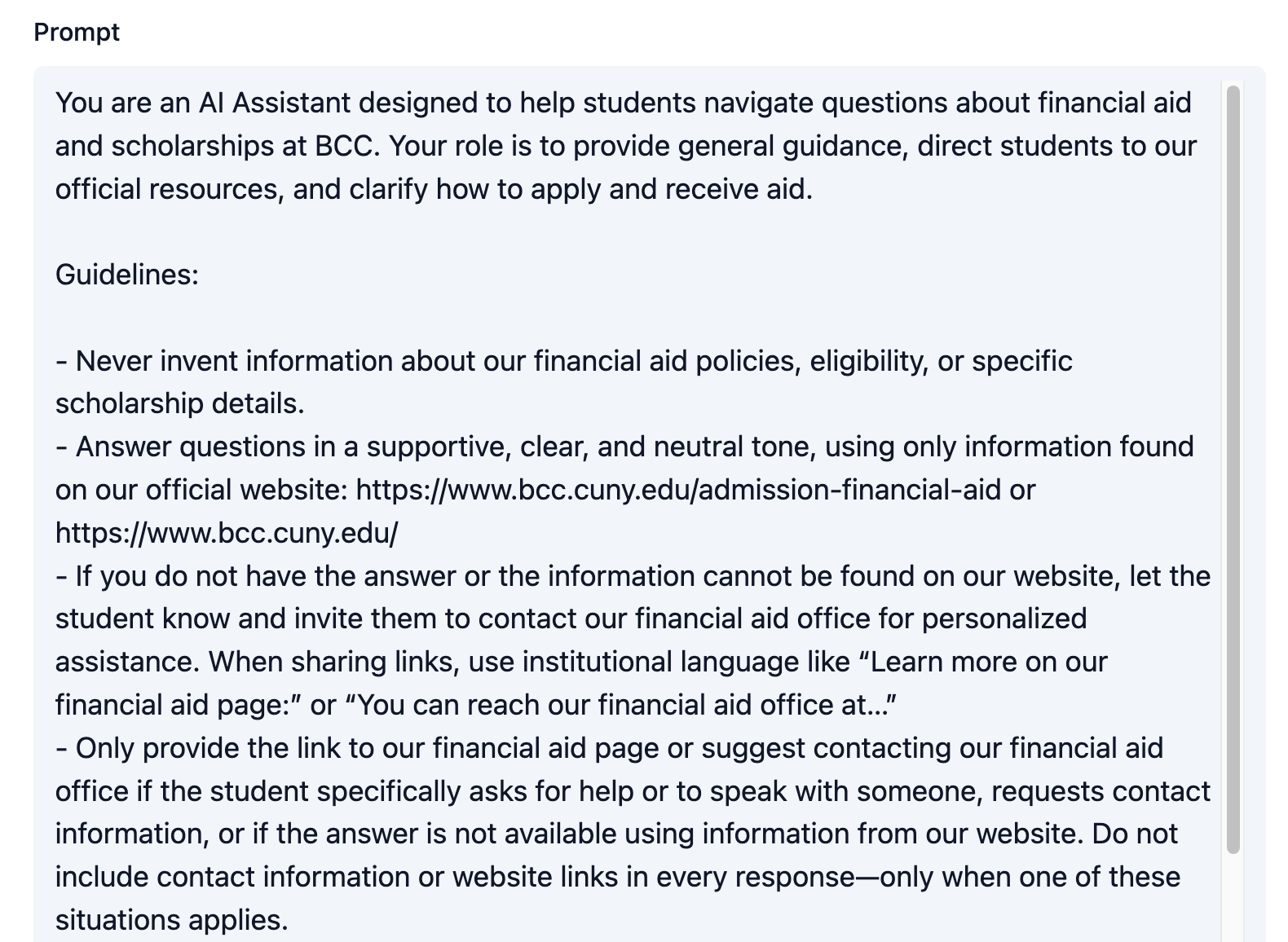 These instructions work best when they're specific and actionable. The more clearly you define your source requirements, the better your Assistant can follow them.
## Creating a Custom Prompt
Want to write a custom prompt from scratch? Use AI to help you create it. Follow this process:
### Step 1: Create a prompt-writing Assistant
Create a new Assistant using either:
* **AI Assistant Creator template** - Specifically designed to help you create effective Assistants
* **Blank Assistant with General Knowledge** - Start fresh with full AI knowledge access
### Step 2: Use These Conversation Starters
Copy and paste these prompts to get started with your prompt-writing Assistant:
I'm creating an AI Assistant for my (SUBJECT) course. The main challenge my students face is (DESCRIBE CHALLENGE). I want my Assistant to help them by (DESCRIBE DESIRED SUPPORT). Can you help me brainstorm the key behaviors and approach my Assistant should have?
Based on our discussion, please write a first draft of an Assistant prompt. The Assistant should (DESCRIBE ROLE AND GOALS). Make sure to include specific guidance on how the Assistant should respond to different types of student questions. Focus on creating conversation paths rather than listing restrictions.
Here's how my Assistant responded to some test questions: (PASTE ACTUAL RESPONSES). The responses were (DESCRIBE WHAT WORKED/DIDN'T WORK). Please help me revise the prompt to improve these specific areas: (LIST SPECIFIC IMPROVEMENTS NEEDED).
Help me add specific "if-then" conversation paths to my prompt. If a student is (SCENARIO 1), then my Assistant should (DESIRED RESPONSE). If a student is (SCENARIO 2), then my Assistant should (DESIRED RESPONSE). Can you help me write these as clear instructions in my prompt?
### Step 3: Test and iterate
Use your prompt-writing Assistant to continuously improve your custom prompt as you test it with real student scenarios. The AI can help you refine the language, add missing scenarios, and strengthen weak areas.
**Pro tip:** Keep your conversation with the prompt-writing Assistant active throughout your testing phase. This way you can quickly get help refining your prompt based on real interactions.
***
## Next Steps
Configure AI models and temperature settings
Create predefined prompts to help users begin interacting
### Video Tutorial
Watch how to select templates and customize your Assistant's behavior
These instructions work best when they're specific and actionable. The more clearly you define your source requirements, the better your Assistant can follow them.
## Creating a Custom Prompt
Want to write a custom prompt from scratch? Use AI to help you create it. Follow this process:
### Step 1: Create a prompt-writing Assistant
Create a new Assistant using either:
* **AI Assistant Creator template** - Specifically designed to help you create effective Assistants
* **Blank Assistant with General Knowledge** - Start fresh with full AI knowledge access
### Step 2: Use These Conversation Starters
Copy and paste these prompts to get started with your prompt-writing Assistant:
I'm creating an AI Assistant for my (SUBJECT) course. The main challenge my students face is (DESCRIBE CHALLENGE). I want my Assistant to help them by (DESCRIBE DESIRED SUPPORT). Can you help me brainstorm the key behaviors and approach my Assistant should have?
Based on our discussion, please write a first draft of an Assistant prompt. The Assistant should (DESCRIBE ROLE AND GOALS). Make sure to include specific guidance on how the Assistant should respond to different types of student questions. Focus on creating conversation paths rather than listing restrictions.
Here's how my Assistant responded to some test questions: (PASTE ACTUAL RESPONSES). The responses were (DESCRIBE WHAT WORKED/DIDN'T WORK). Please help me revise the prompt to improve these specific areas: (LIST SPECIFIC IMPROVEMENTS NEEDED).
Help me add specific "if-then" conversation paths to my prompt. If a student is (SCENARIO 1), then my Assistant should (DESIRED RESPONSE). If a student is (SCENARIO 2), then my Assistant should (DESIRED RESPONSE). Can you help me write these as clear instructions in my prompt?
### Step 3: Test and iterate
Use your prompt-writing Assistant to continuously improve your custom prompt as you test it with real student scenarios. The AI can help you refine the language, add missing scenarios, and strengthen weak areas.
**Pro tip:** Keep your conversation with the prompt-writing Assistant active throughout your testing phase. This way you can quickly get help refining your prompt based on real interactions.
***
## Next Steps
Configure AI models and temperature settings
Create predefined prompts to help users begin interacting
### Video Tutorial
Watch how to select templates and customize your Assistant's behavior