> ## Documentation Index
> Fetch the complete documentation index at: https://support.nectir.io/llms.txt
> Use this file to discover all available pages before exploring further.
# Conversation Starters
> Create engaging conversation starters that guide users to meaningful interactions with your AI Assistant.
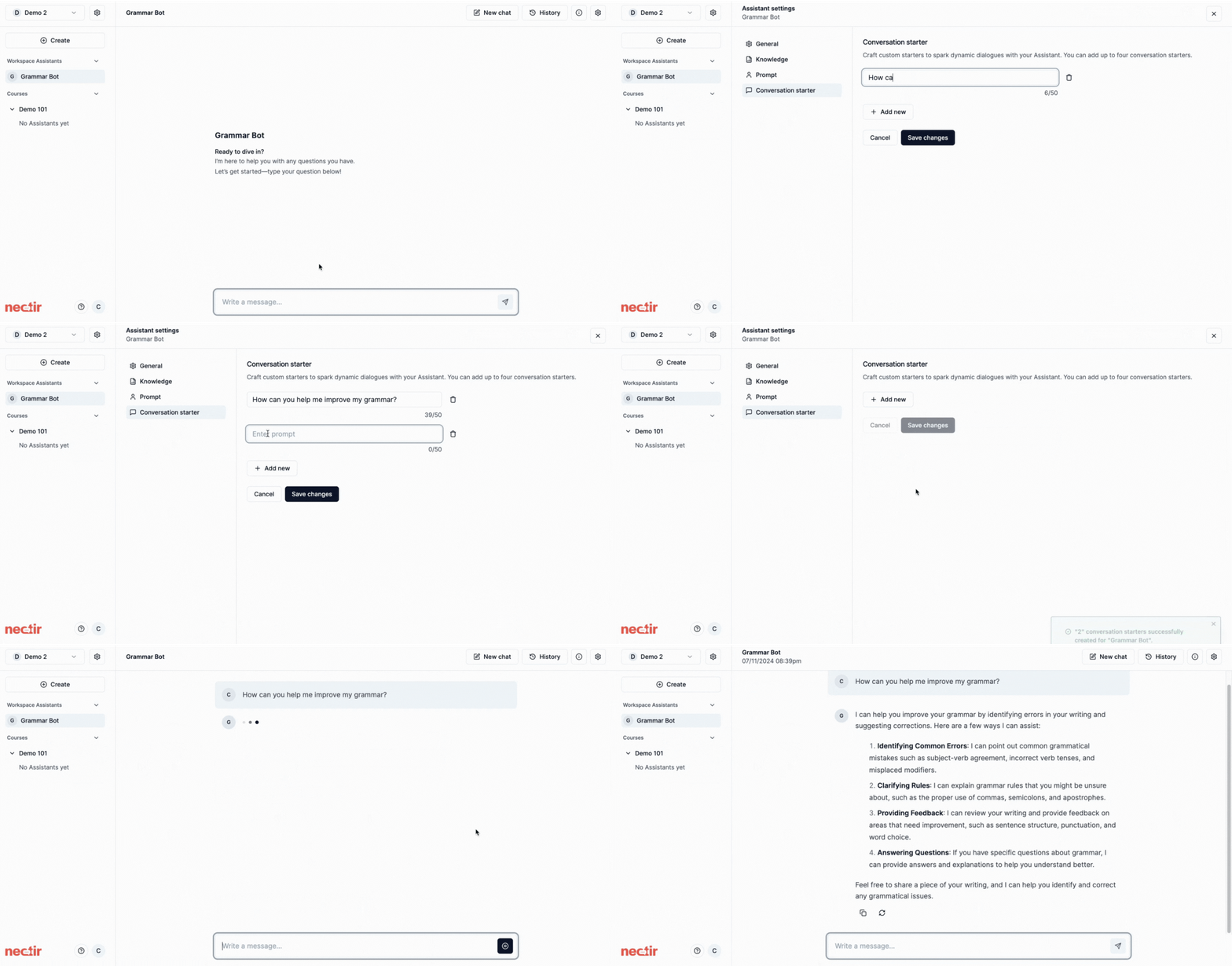 Conversation starters are pre-defined prompts that help users begin interacting with your AI Assistant. They serve as suggested entry points that:
* Remove barriers to engagement for new users
* Guide users toward productive interactions
* Showcase your Assistant's capabilities
* Encourage exploration of your Assistant's knowledge
Hover over your Assistant, click the **three dots**, and select **Settings**
Select **Conversation Starters** in the sidebar navigation
Create up to 4 conversation starters or prompts (50 characters maximum per starter)
Focus on creating prompts based on:
* Common questions users might have
* Sentence stems that can lead to informative responses
* Interesting questions that may spark a learner's curiosity
* Examples that showcase your Assistant's specialized knowledge
Click **Save changes** to apply your conversation starters
## What To Consider
Remember that conversation starters have a **50 character limit each**. Here are some approaches to maximize their effectiveness:
Open-ended stems that encourage exploration:
* "How can I..."
* "What should I know about..."
* "Why does..."
Direct requests for specific help:
* "Help me with..."
* "Explain the..."
* "Show me how to..."
Ready-to-use questions for your subject:
* "What's due this week?"
* "How do I study effectively?"
* "Where do I find resources?"
Stems for organization and preparation:
* "Help me plan..."
* "How do I prepare for..."
* "What's the best way to..."
***
## Next Steps
Invite users to start interacting with your Assistant
Monitor usage and performance metrics
### Video Tutorial
Watch how to create engaging prompts that help students get started
Conversation starters are pre-defined prompts that help users begin interacting with your AI Assistant. They serve as suggested entry points that:
* Remove barriers to engagement for new users
* Guide users toward productive interactions
* Showcase your Assistant's capabilities
* Encourage exploration of your Assistant's knowledge
Hover over your Assistant, click the **three dots**, and select **Settings**
Select **Conversation Starters** in the sidebar navigation
Create up to 4 conversation starters or prompts (50 characters maximum per starter)
Focus on creating prompts based on:
* Common questions users might have
* Sentence stems that can lead to informative responses
* Interesting questions that may spark a learner's curiosity
* Examples that showcase your Assistant's specialized knowledge
Click **Save changes** to apply your conversation starters
## What To Consider
Remember that conversation starters have a **50 character limit each**. Here are some approaches to maximize their effectiveness:
Open-ended stems that encourage exploration:
* "How can I..."
* "What should I know about..."
* "Why does..."
Direct requests for specific help:
* "Help me with..."
* "Explain the..."
* "Show me how to..."
Ready-to-use questions for your subject:
* "What's due this week?"
* "How do I study effectively?"
* "Where do I find resources?"
Stems for organization and preparation:
* "Help me plan..."
* "How do I prepare for..."
* "What's the best way to..."
***
## Next Steps
Invite users to start interacting with your Assistant
Monitor usage and performance metrics
### Video Tutorial
Watch how to create engaging prompts that help students get started