> ## Documentation Index
> Fetch the complete documentation index at: https://support.nectir.io/llms.txt
> Use this file to discover all available pages before exploring further.
# Create an Assistant
> Nectir AI allows educators to create custom AI Assistants for 24/7 student support, reducing workloads, and boosting engagement.
Ready to get started? The [Faculty Quick Start Guide](https://www.canva.com/design/DAG3v7_ymbw/HZ9tQYbkLgC1aJ-9pDx4_A/view?utm_content=DAG3v7_ymbw\&utm_campaign=designshare\&utm_medium=link2\&utm_source=uniquelinks\&utlId=h717aaf08de) walks you through setup, student introductions, and ways to encourage use throughout the term.
## Step 1: Access the Creation Menu
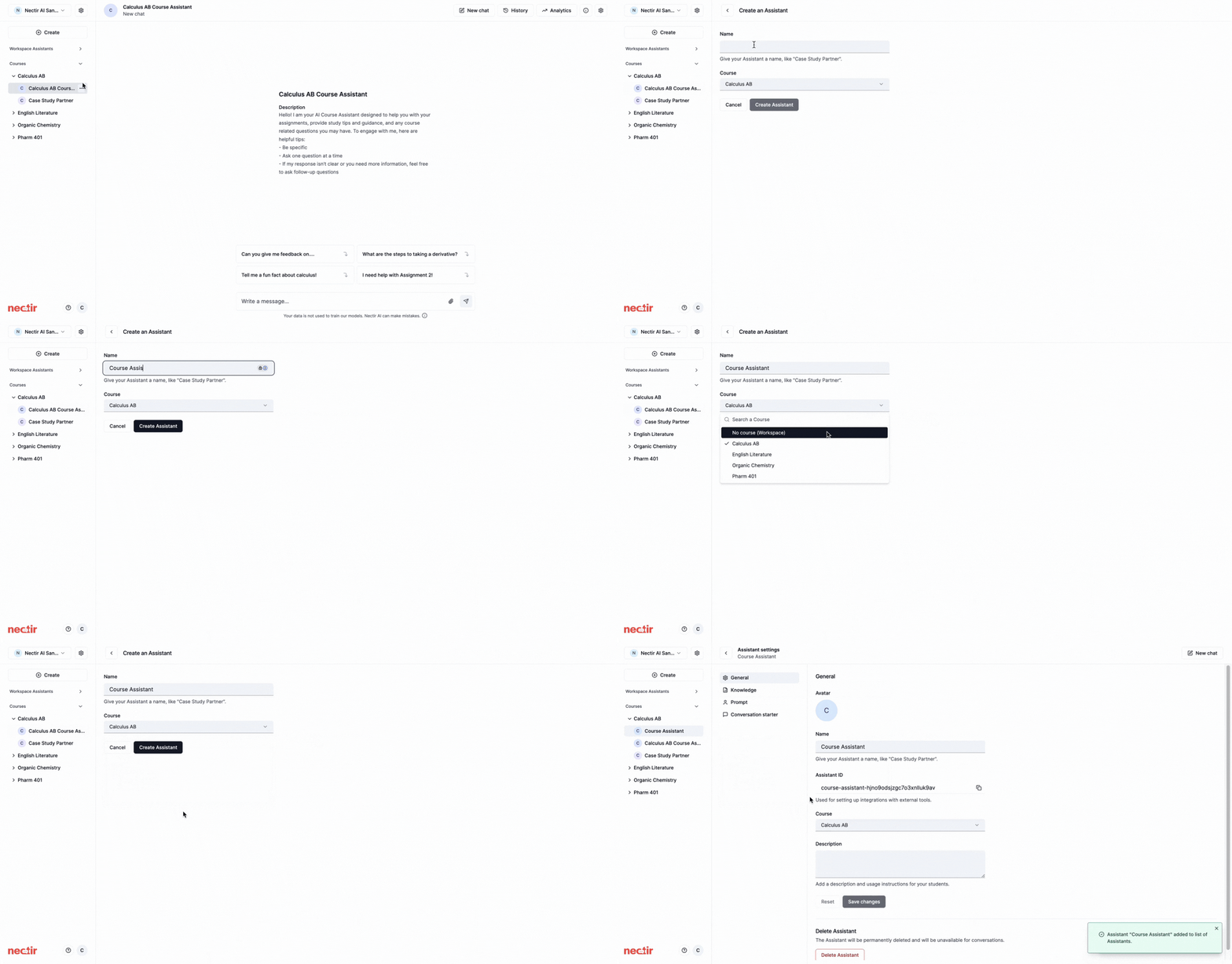 1. Click **Create** on the top left in the sidebar
2. Select **Create an Assistant**
3. This allows you to create an Assistant at the Workspace level or within any Group
1. Hover over your Group name
2. Click the ellipsis that appears
3. Select **Create an Assistant**
4. Group owners can only create Assistants within their own Groups
5. If you need to create a new Group and don't have sidebar access, contact your workspace administrator
## Step 2: Configure Basic Settings
1. Enter a descriptive name that reflects the Assistant's purpose
2. Choose where to make your Assistant available:
* **Shared with everyone** - Available to all Workspace users
* *Note: Only Workspace Owners and Editors can create "Shared with everyone" Assistants*
* **Group** - Add to an existing Group that's already "Shared" or in your "Private" space
* *Learn more about [Group types](/creating/group-settings)*
3. Click **Create Assistant** to proceed to customization
**Understanding Assistant Visibility**: Assistants placed within a Group are visible to all members of that Group. For LMS-linked courses, students will see any Assistants in the linked Group when they access Nectir AI. You can control visibility at any time by moving Assistants in or out of Groups - removing an Assistant from a Group will hide it from users, and you can add it back later to make it visible again.
## Step 3: Customize General Settings
| Setting | Description | Best Practices |
| ---------------- | -------------------------------------------- | -------------------------------------------------------------------------------------------------- |
| **Avatar** | Upload an image for your Assistant | Choose something relevant to the Assistant's purpose |
| **Name** | Your Assistant's display name | Can be role-based (for example, "Feedback Provider") or persona-based for a more approachable feel |
| **Assistant ID** | Used for LTI integration | No customization needed |
| **Group** | Where the Assistant is accessible | Use dropdown to move between Groups or your Private space |
| **Description** | User-facing description that appears in chat | Essential for setting user expectations and providing clear guidance |
**Best practices for writing effective descriptions:**
* **Introduce the Assistant's purpose**: Clearly explain what the Assistant is designed to help with
* **Provide usage instructions**: Give specific examples of questions users can ask
* **Set expectations**: Explain what the Assistant can and cannot do
* **Include guidelines**: Share any rules or boundaries for appropriate use
* **Use clear, conversational language**: Write as if speaking directly to your students
**Example**: "I'm your Research Writing Assistant! I can help you develop thesis statements, organize your arguments, and cite sources properly. Ask me about: developing research questions, structuring essays, or APA/MLA formatting. Please note: I cannot write essays for you, but I can guide you through the writing process."
## Managing Assistants
1. Click **Create** on the top left in the sidebar
2. Select **Create an Assistant**
3. This allows you to create an Assistant at the Workspace level or within any Group
1. Hover over your Group name
2. Click the ellipsis that appears
3. Select **Create an Assistant**
4. Group owners can only create Assistants within their own Groups
5. If you need to create a new Group and don't have sidebar access, contact your workspace administrator
## Step 2: Configure Basic Settings
1. Enter a descriptive name that reflects the Assistant's purpose
2. Choose where to make your Assistant available:
* **Shared with everyone** - Available to all Workspace users
* *Note: Only Workspace Owners and Editors can create "Shared with everyone" Assistants*
* **Group** - Add to an existing Group that's already "Shared" or in your "Private" space
* *Learn more about [Group types](/creating/group-settings)*
3. Click **Create Assistant** to proceed to customization
**Understanding Assistant Visibility**: Assistants placed within a Group are visible to all members of that Group. For LMS-linked courses, students will see any Assistants in the linked Group when they access Nectir AI. You can control visibility at any time by moving Assistants in or out of Groups - removing an Assistant from a Group will hide it from users, and you can add it back later to make it visible again.
## Step 3: Customize General Settings
| Setting | Description | Best Practices |
| ---------------- | -------------------------------------------- | -------------------------------------------------------------------------------------------------- |
| **Avatar** | Upload an image for your Assistant | Choose something relevant to the Assistant's purpose |
| **Name** | Your Assistant's display name | Can be role-based (for example, "Feedback Provider") or persona-based for a more approachable feel |
| **Assistant ID** | Used for LTI integration | No customization needed |
| **Group** | Where the Assistant is accessible | Use dropdown to move between Groups or your Private space |
| **Description** | User-facing description that appears in chat | Essential for setting user expectations and providing clear guidance |
**Best practices for writing effective descriptions:**
* **Introduce the Assistant's purpose**: Clearly explain what the Assistant is designed to help with
* **Provide usage instructions**: Give specific examples of questions users can ask
* **Set expectations**: Explain what the Assistant can and cannot do
* **Include guidelines**: Share any rules or boundaries for appropriate use
* **Use clear, conversational language**: Write as if speaking directly to your students
**Example**: "I'm your Research Writing Assistant! I can help you develop thesis statements, organize your arguments, and cite sources properly. Ask me about: developing research questions, structuring essays, or APA/MLA formatting. Please note: I cannot write essays for you, but I can guide you through the writing process."
## Managing Assistants
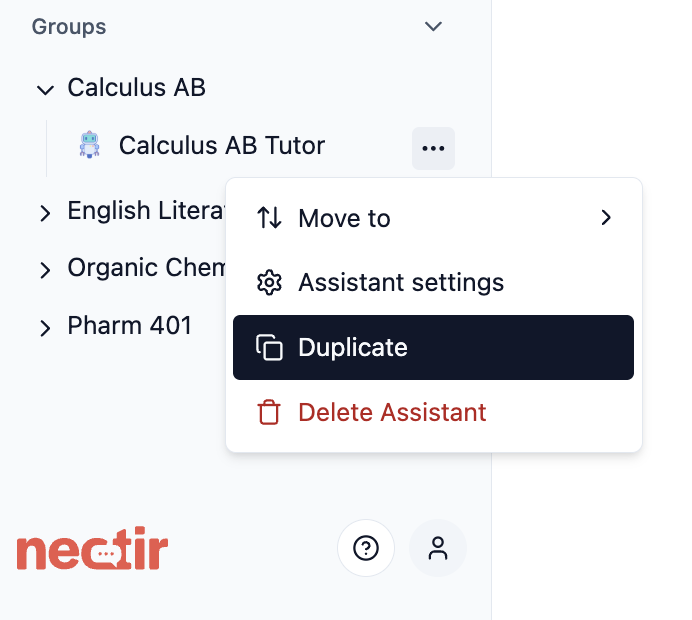 Once you've created an Assistant, you can manage it through the three-dot menu that appears when you hover over the Assistant name in the sidebar.
Create a copy of an existing Assistant with all the same settings and configurations.
**How to duplicate:**
1. Hover over the Assistant name in the sidebar
2. Click the three dots that appear
3. Select **Duplicate**
4. The system creates a copy in the same Group with "Copy" appended to the name
**When to use duplication:**
* Create variations with minor differences
* Test new configurations without affecting the original
* Deploy similar Assistants across different Groups
* Keep a backup before making major changes
Transfer an Assistant from one Group to another to change access permissions.
**How to move:**
1. Hover over the Assistant name in the sidebar
2. Click the three dots that appear
3. Select **Move To**
4. Choose the destination Group from the dropdown
**When to move Assistants:**
* Transition from private development to public Group
* Reorganize for different semesters or terms
* Change which students or faculty have access
* Consolidate Assistants from different Groups
The Assistant will be transferred with all settings and training data intact.
Permanently remove an Assistant that's no longer needed.
**How to delete:**
1. Hover over the Assistant name in the sidebar
2. Click the three dots that appear
3. Select **Delete Assistant**
4. Confirm the deletion when prompted
Deletion is permanent and cannot be undone. Consider duplicating first if you might need the Assistant later.
***
## Next Steps
Define what information your Assistant can access
Set the directions that shape your Assistant's behavior
Put your Assistant in front of students in the course sidebar, a page, an assignment, or a module
***
### Video Tutorial
See the entire Assistant creation process from start to finish
Once you've created an Assistant, you can manage it through the three-dot menu that appears when you hover over the Assistant name in the sidebar.
Create a copy of an existing Assistant with all the same settings and configurations.
**How to duplicate:**
1. Hover over the Assistant name in the sidebar
2. Click the three dots that appear
3. Select **Duplicate**
4. The system creates a copy in the same Group with "Copy" appended to the name
**When to use duplication:**
* Create variations with minor differences
* Test new configurations without affecting the original
* Deploy similar Assistants across different Groups
* Keep a backup before making major changes
Transfer an Assistant from one Group to another to change access permissions.
**How to move:**
1. Hover over the Assistant name in the sidebar
2. Click the three dots that appear
3. Select **Move To**
4. Choose the destination Group from the dropdown
**When to move Assistants:**
* Transition from private development to public Group
* Reorganize for different semesters or terms
* Change which students or faculty have access
* Consolidate Assistants from different Groups
The Assistant will be transferred with all settings and training data intact.
Permanently remove an Assistant that's no longer needed.
**How to delete:**
1. Hover over the Assistant name in the sidebar
2. Click the three dots that appear
3. Select **Delete Assistant**
4. Confirm the deletion when prompted
Deletion is permanent and cannot be undone. Consider duplicating first if you might need the Assistant later.
***
## Next Steps
Define what information your Assistant can access
Set the directions that shape your Assistant's behavior
Put your Assistant in front of students in the course sidebar, a page, an assignment, or a module
***
### Video Tutorial
See the entire Assistant creation process from start to finish