> ## Documentation Index
> Fetch the complete documentation index at: https://support.nectir.io/llms.txt
> Use this file to discover all available pages before exploring further.
# Create & Manage Groups
> Learn how to create, duplicate, and manage Groups in your workspace.
Ready to get started? The [Faculty Quick Start Guide](https://www.canva.com/design/DAG3v7_ymbw/HZ9tQYbkLgC1aJ-9pDx4_A/view?utm_content=DAG3v7_ymbw\&utm_campaign=designshare\&utm_medium=link2\&utm_source=uniquelinks\&utlId=h717aaf08de) walks you through setup, student introductions, and ways to encourage use throughout the term.
## Create a Group
Only Workspace Owners and Editors can create Groups.
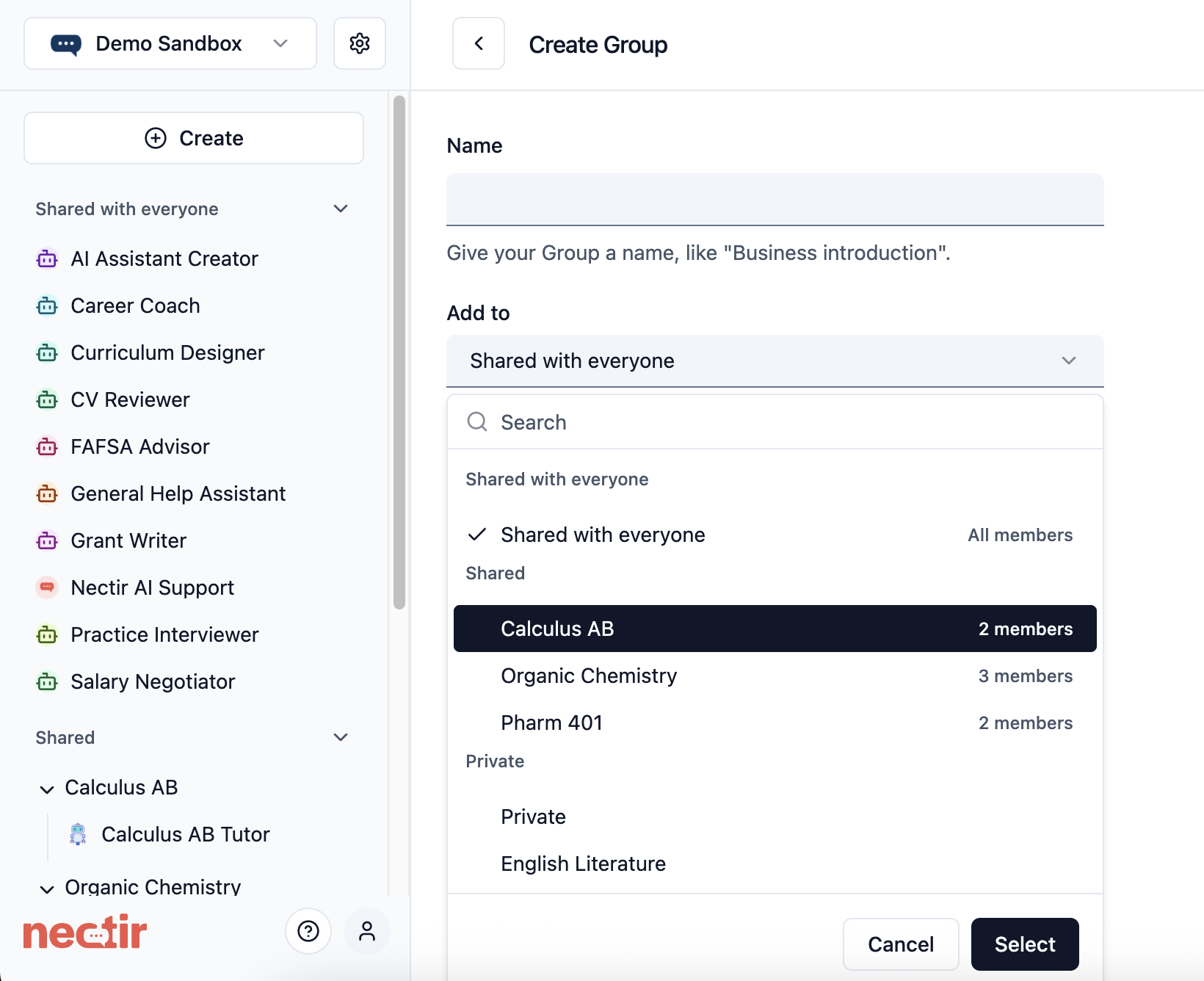 Click the **Create** button in the top left of the sidebar
Choose the option to create a new Group
Enter a name for your Group
Use the dropdown menu to select where you want to create your Group:
* **Shared with everyone** - Creates a Group shared with everyone in the workspace
* **Inside any existing Group** - Creates a nested Group that inherits the parent's sharing settings
* **Private** - Creates a private Group visible only to you (for Workspace Owners and Editors only)
Click **Create Group** to finalize your Group creation
## Duplicate a Group
You can duplicate an existing Group to create a new Group with the same structure and Assistants.
### What Happens When You Duplicate a Group
A new Group with the same name plus "Copy" will be created
All Assistants from the original Group will be duplicated
Group and Assistant settings will be preserved, but members will not be duplicated
You will be the Owner of the new Group
### When to Use Group Duplication
* Create a template for different course sections
* Save a backup before making major changes
* Set up a new version for a new semester
* Create a testing environment for new configurations
### How to Duplicate a Group
Only Group Owners and Workspace Owners/Editors can duplicate Groups.
Click the **Create** button in the top left of the sidebar
Choose the option to create a new Group
Enter a name for your Group
Use the dropdown menu to select where you want to create your Group:
* **Shared with everyone** - Creates a Group shared with everyone in the workspace
* **Inside any existing Group** - Creates a nested Group that inherits the parent's sharing settings
* **Private** - Creates a private Group visible only to you (for Workspace Owners and Editors only)
Click **Create Group** to finalize your Group creation
## Duplicate a Group
You can duplicate an existing Group to create a new Group with the same structure and Assistants.
### What Happens When You Duplicate a Group
A new Group with the same name plus "Copy" will be created
All Assistants from the original Group will be duplicated
Group and Assistant settings will be preserved, but members will not be duplicated
You will be the Owner of the new Group
### When to Use Group Duplication
* Create a template for different course sections
* Save a backup before making major changes
* Set up a new version for a new semester
* Create a testing environment for new configurations
### How to Duplicate a Group
Only Group Owners and Workspace Owners/Editors can duplicate Groups.
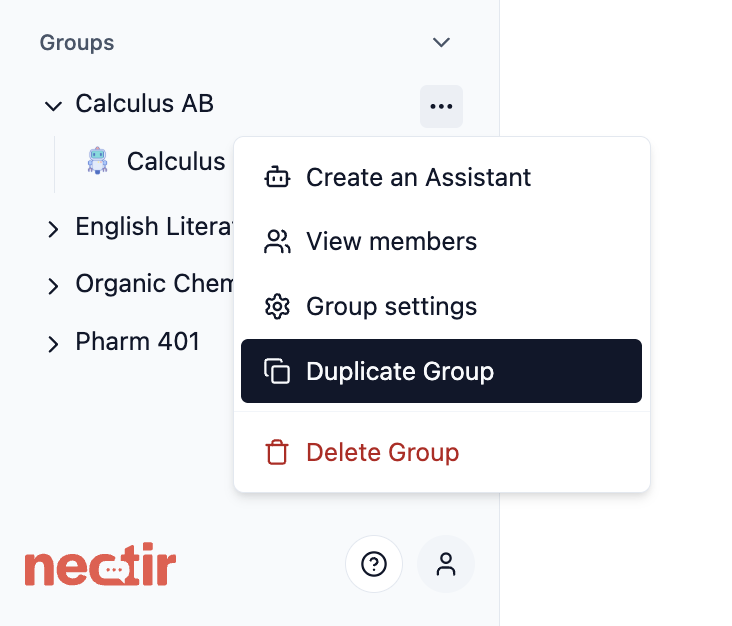 Hover over the Group you want to duplicate and click the three dots menu
Choose **Duplicate Group** from the menu options
A duplicate Group with the same name ending in "Copy" will appear on the sidebar with all Assistants duplicated
## Manage a Group
Once you've created or duplicated a Group, you can manage its settings, members, and content.
Access and modify basic Group information and structure.
1. Hover over the Group on the left sidebar and click the three dots menu
2. Select **Settings**
3. In General Settings, you can:
* **Change the Group name**: Update the display name
* **Move to nested structure**: Add this Group as a nested Group under any existing Group you have access to
4. Click **Save changes** to apply your updates
Control who has access to your Group and their permission levels.
1. Hover over the Group on the left sidebar and click the three dots menu
2. Select **Invite members**
3. From here you can:
* **Invite new members**: Click **Invite members** to add users via email or invitation link
* **Change roles**: Modify member permissions (Owner, Facilitator, Member)
* **Remove members**: Click **Remove** next to any user's name
For detailed instructions on Group-level invitations, see the [Group-Level Invitations section](/user-management/inviting-users#group-level-invitations).
**For nested Groups**: If your Group is nested under a parent Group, you'll see a **Parent Group Members** tab where you can enable or disable syncing of members from the parent Group. See [Parent Member Sync](/user-management/sync-parent-group-members) for details.
If your institution has LMS integration set up for this Group, you can sync your course roster to import user names and send invitation emails.
**To access roster sync:**
1. Access **Settings** from the three dots menu
2. Navigate to the **LMS Integration** section
3. If a course is listed, hover over the three dots next to the course name and click **Roster Sync**
**Note**: Roster sync does not control access. Once your LMS course is linked to a Group, users can access Nectir AI through the LMS regardless of whether they've been roster synced. For complete information, see [Roster Sync](/user-management/roster-sync).
## Nested Groups
Nested Groups allow you to create hierarchical structures, organizing your content like folders within folders.
### Purpose of Nested Groups
Create a main department Group with nested Groups for specific courses, research teams, or administrative units
Set up a primary course Group with nested Groups for different sections, lab groups, or project teams
Structure your workspace with Groups for colleges/schools, departments, and individual programs in a hierarchical structure
Maintain a primary Group for a project with nested Groups for specialized workstreams or milestone-based teams
### How to Create Nested Groups
Hover over the Group you want to duplicate and click the three dots menu
Choose **Duplicate Group** from the menu options
A duplicate Group with the same name ending in "Copy" will appear on the sidebar with all Assistants duplicated
## Manage a Group
Once you've created or duplicated a Group, you can manage its settings, members, and content.
Access and modify basic Group information and structure.
1. Hover over the Group on the left sidebar and click the three dots menu
2. Select **Settings**
3. In General Settings, you can:
* **Change the Group name**: Update the display name
* **Move to nested structure**: Add this Group as a nested Group under any existing Group you have access to
4. Click **Save changes** to apply your updates
Control who has access to your Group and their permission levels.
1. Hover over the Group on the left sidebar and click the three dots menu
2. Select **Invite members**
3. From here you can:
* **Invite new members**: Click **Invite members** to add users via email or invitation link
* **Change roles**: Modify member permissions (Owner, Facilitator, Member)
* **Remove members**: Click **Remove** next to any user's name
For detailed instructions on Group-level invitations, see the [Group-Level Invitations section](/user-management/inviting-users#group-level-invitations).
**For nested Groups**: If your Group is nested under a parent Group, you'll see a **Parent Group Members** tab where you can enable or disable syncing of members from the parent Group. See [Parent Member Sync](/user-management/sync-parent-group-members) for details.
If your institution has LMS integration set up for this Group, you can sync your course roster to import user names and send invitation emails.
**To access roster sync:**
1. Access **Settings** from the three dots menu
2. Navigate to the **LMS Integration** section
3. If a course is listed, hover over the three dots next to the course name and click **Roster Sync**
**Note**: Roster sync does not control access. Once your LMS course is linked to a Group, users can access Nectir AI through the LMS regardless of whether they've been roster synced. For complete information, see [Roster Sync](/user-management/roster-sync).
## Nested Groups
Nested Groups allow you to create hierarchical structures, organizing your content like folders within folders.
### Purpose of Nested Groups
Create a main department Group with nested Groups for specific courses, research teams, or administrative units
Set up a primary course Group with nested Groups for different sections, lab groups, or project teams
Structure your workspace with Groups for colleges/schools, departments, and individual programs in a hierarchical structure
Maintain a primary Group for a project with nested Groups for specialized workstreams or milestone-based teams
### How to Create Nested Groups
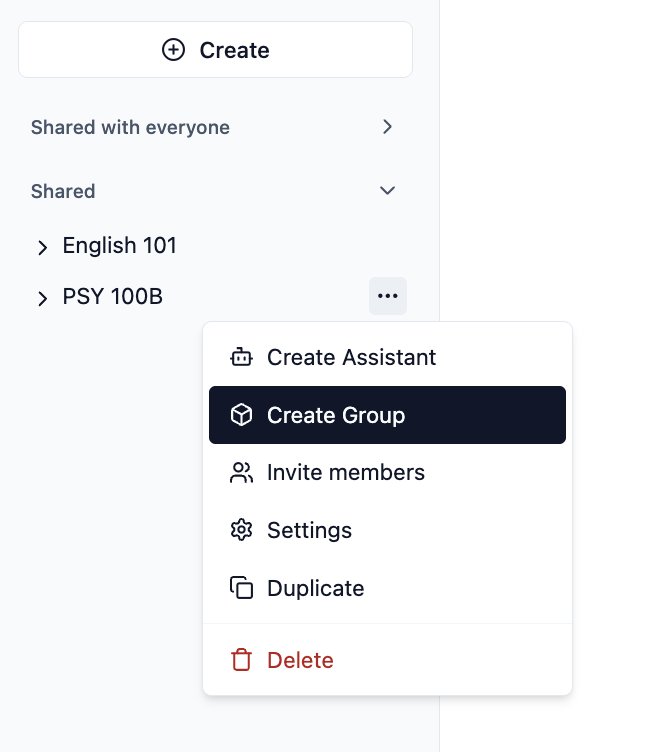 Click the **Create** button and select **Create a Group**
In the dropdown menu, choose the existing Group where you want to create the nested Group
Enter a name for your nested Group and click **Create Group**
**Permission Inheritance**: Users with access to a parent Group automatically have access to all nested Groups within it. Their role permissions remain consistent throughout the hierarchy unless specifically modified for a nested Group.
Learn how to view, sync, and manage members inherited from parent Groups in your nested Groups.
Best Practice: Keep your Group structure reasonably flat to ensure ease of navigation. Avoid creating too many nested levels that might confuse users.
## Private Space for Development
Click the **Create** button and select **Create a Group**
In the dropdown menu, choose the existing Group where you want to create the nested Group
Enter a name for your nested Group and click **Create Group**
**Permission Inheritance**: Users with access to a parent Group automatically have access to all nested Groups within it. Their role permissions remain consistent throughout the hierarchy unless specifically modified for a nested Group.
Learn how to view, sync, and manage members inherited from parent Groups in your nested Groups.
Best Practice: Keep your Group structure reasonably flat to ensure ease of navigation. Avoid creating too many nested levels that might confuse users.
## Private Space for Development
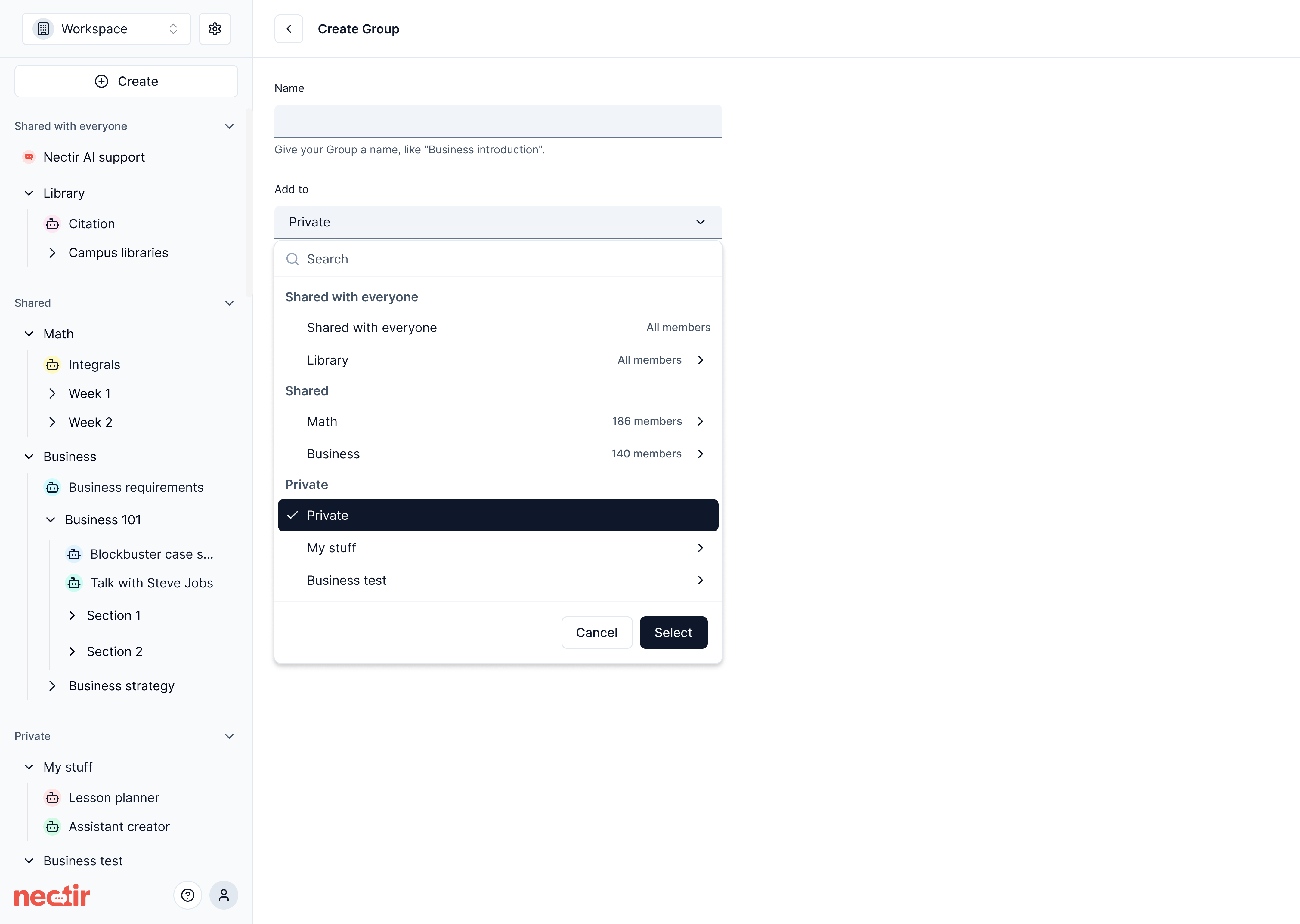 Workspace Owners and Editors have access to a dedicated private development space where they can:
* Create Groups and Assistants visible only to them
* Test and refine Assistants before making them available to users
* Develop content without interrupting regular Workspace activities
This private space eliminates the need for creating separate "sandbox" Groups, as it provides a built-in space for development and testing that's entirely hidden from regular users.
***
## Next Steps
Create your first AI Assistant within your new Group
Add members to your Group with appropriate permissions
Share your Group's Assistants with students through the Canvas sidebar, pages, assignments, or modules
### Video Tutorial
Watch how to create your first Group and manage user permissions
Workspace Owners and Editors have access to a dedicated private development space where they can:
* Create Groups and Assistants visible only to them
* Test and refine Assistants before making them available to users
* Develop content without interrupting regular Workspace activities
This private space eliminates the need for creating separate "sandbox" Groups, as it provides a built-in space for development and testing that's entirely hidden from regular users.
***
## Next Steps
Create your first AI Assistant within your new Group
Add members to your Group with appropriate permissions
Share your Group's Assistants with students through the Canvas sidebar, pages, assignments, or modules
### Video Tutorial
Watch how to create your first Group and manage user permissions