> ## Documentation Index
> Fetch the complete documentation index at: https://support.nectir.io/llms.txt
> Use this file to discover all available pages before exploring further.
# Import Course Export
> Upload a course export file from your LMS to import content into your AI Assistant's knowledge base.
The LMS file import feature lets you upload a course export file (such as `.imscc`) from your Learning Management System into Nectir AI. After uploading, you can select specific materials from the export to add to your Assistant's knowledge base.
**Using Canvas?** You can skip the export step entirely. [Import from Canvas](/creating/canvas-import) connects directly to your Canvas instance via API, letting you browse and select course content without downloading any files.
 ## Key Benefits
* **Effortless content transfer**: Upload your course export file once to access all your course materials
* **Selective training**: Choose only the specific documents you want to use for training
* **Intelligent change detection**: Nectir automatically identifies which files you modified when you upload a new export
* **Consistent knowledge base**: Keep your AI Assistant in sync with your course content as it evolves
## How It Works
Download a course export file from your Learning Management System:
* [How to export from Canvas](https://community.canvaslms.com/t5/Instructor-Guide/How-do-I-export-a-Canvas-course/ta-p/785)
* [How to export from D2L Brightspace](https://community.d2l.com/brightspace/kb/articles/16771-import-export-or-copy-course-components)
* [How to export from Moodle](https://docs.moodle.org/405/en/Import_and_export_FAQ)
**Important:** When exporting from D2L Brightspace, use the **Export as Common Cartridge** option, not the "Thin Common Cartridge" option. The standard Common Cartridge includes actual content files, while the Thin version only contains metadata.
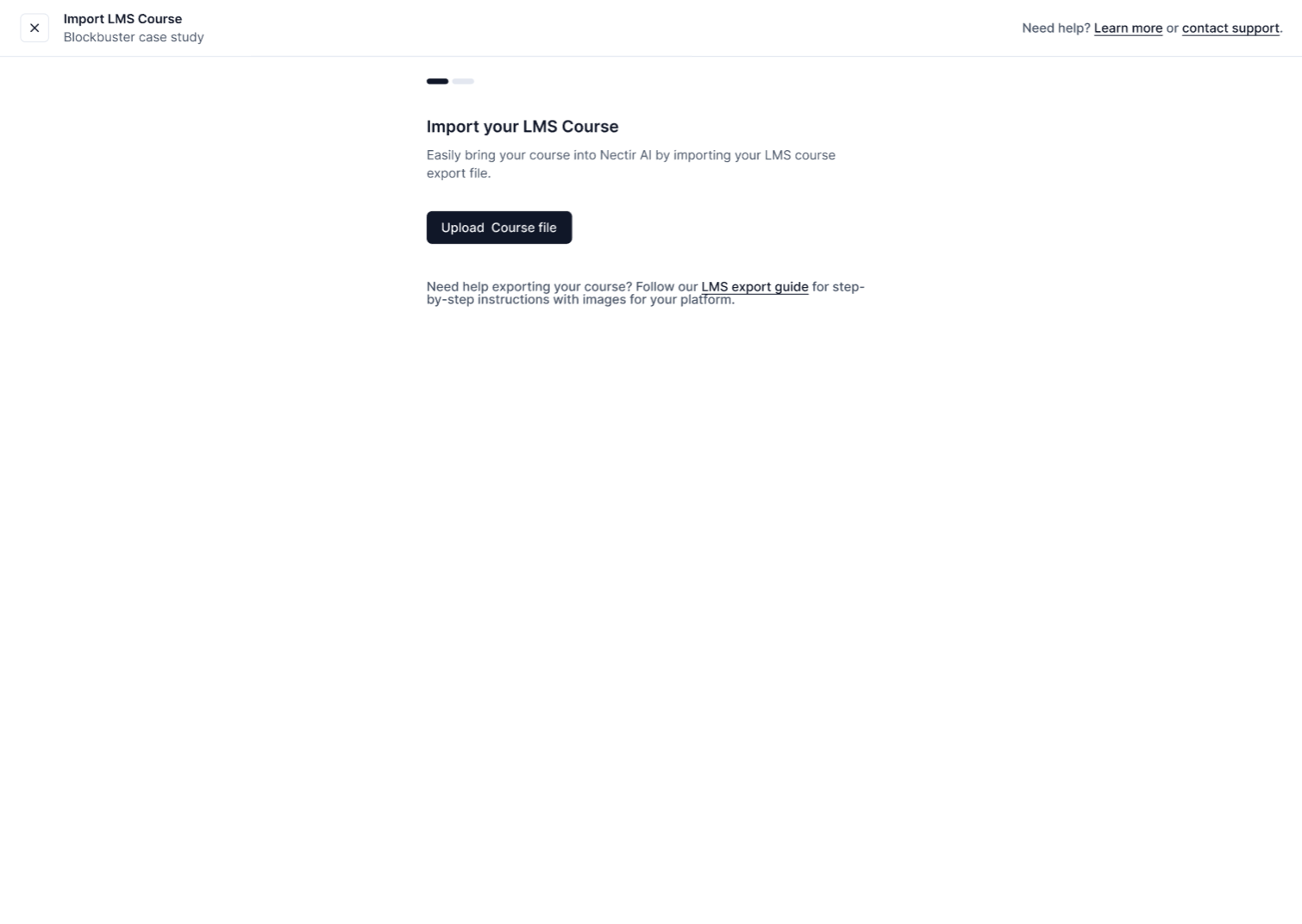
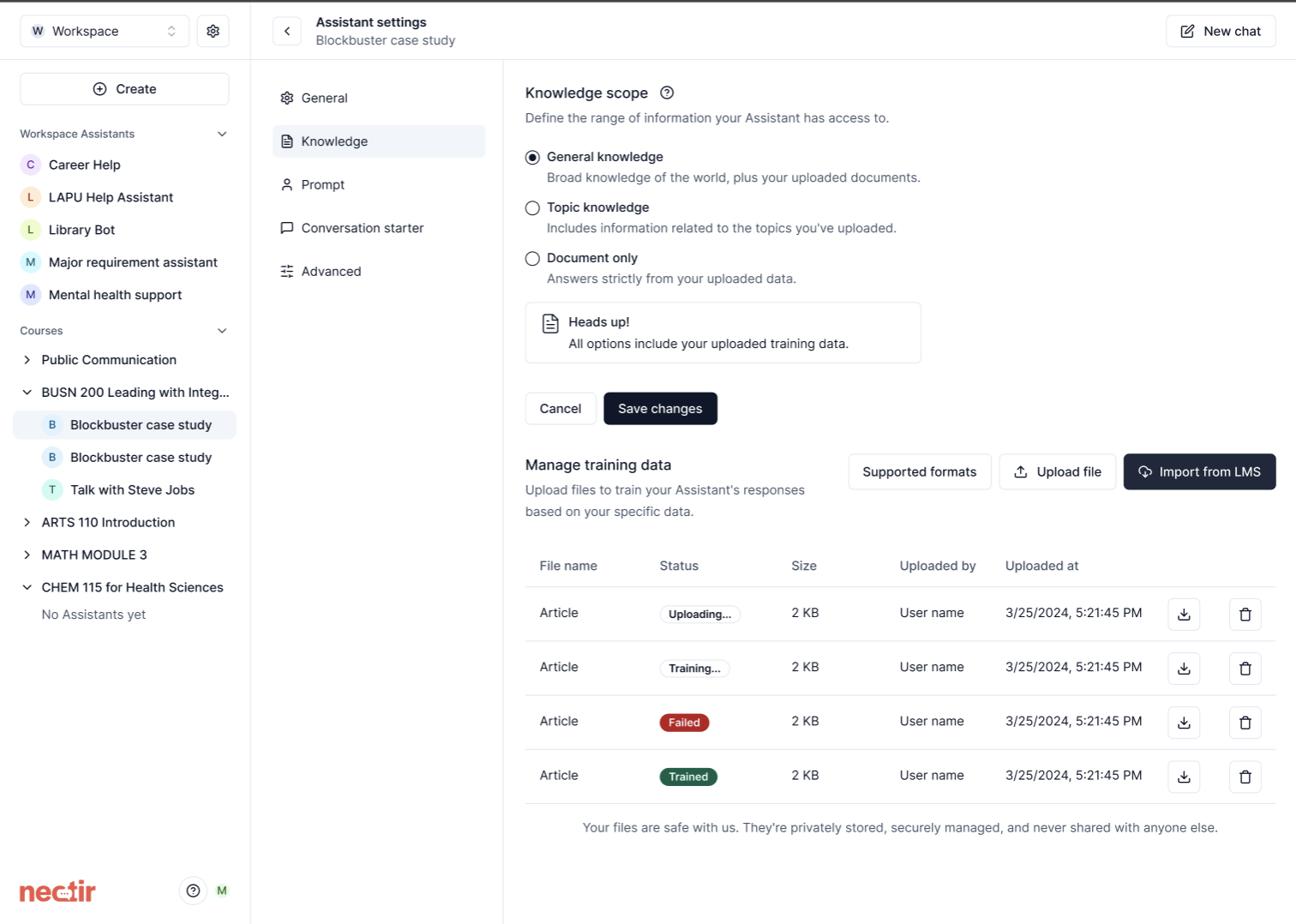
In your Assistant's Knowledge tab, click the "Import from LMS" button and select your course export file
## Key Benefits
* **Effortless content transfer**: Upload your course export file once to access all your course materials
* **Selective training**: Choose only the specific documents you want to use for training
* **Intelligent change detection**: Nectir automatically identifies which files you modified when you upload a new export
* **Consistent knowledge base**: Keep your AI Assistant in sync with your course content as it evolves
## How It Works
Download a course export file from your Learning Management System:
* [How to export from Canvas](https://community.canvaslms.com/t5/Instructor-Guide/How-do-I-export-a-Canvas-course/ta-p/785)
* [How to export from D2L Brightspace](https://community.d2l.com/brightspace/kb/articles/16771-import-export-or-copy-course-components)
* [How to export from Moodle](https://docs.moodle.org/405/en/Import_and_export_FAQ)
**Important:** When exporting from D2L Brightspace, use the **Export as Common Cartridge** option, not the "Thin Common Cartridge" option. The standard Common Cartridge includes actual content files, while the Thin version only contains metadata.
In your Assistant's Knowledge tab, click the "Import from LMS" button and select your course export file
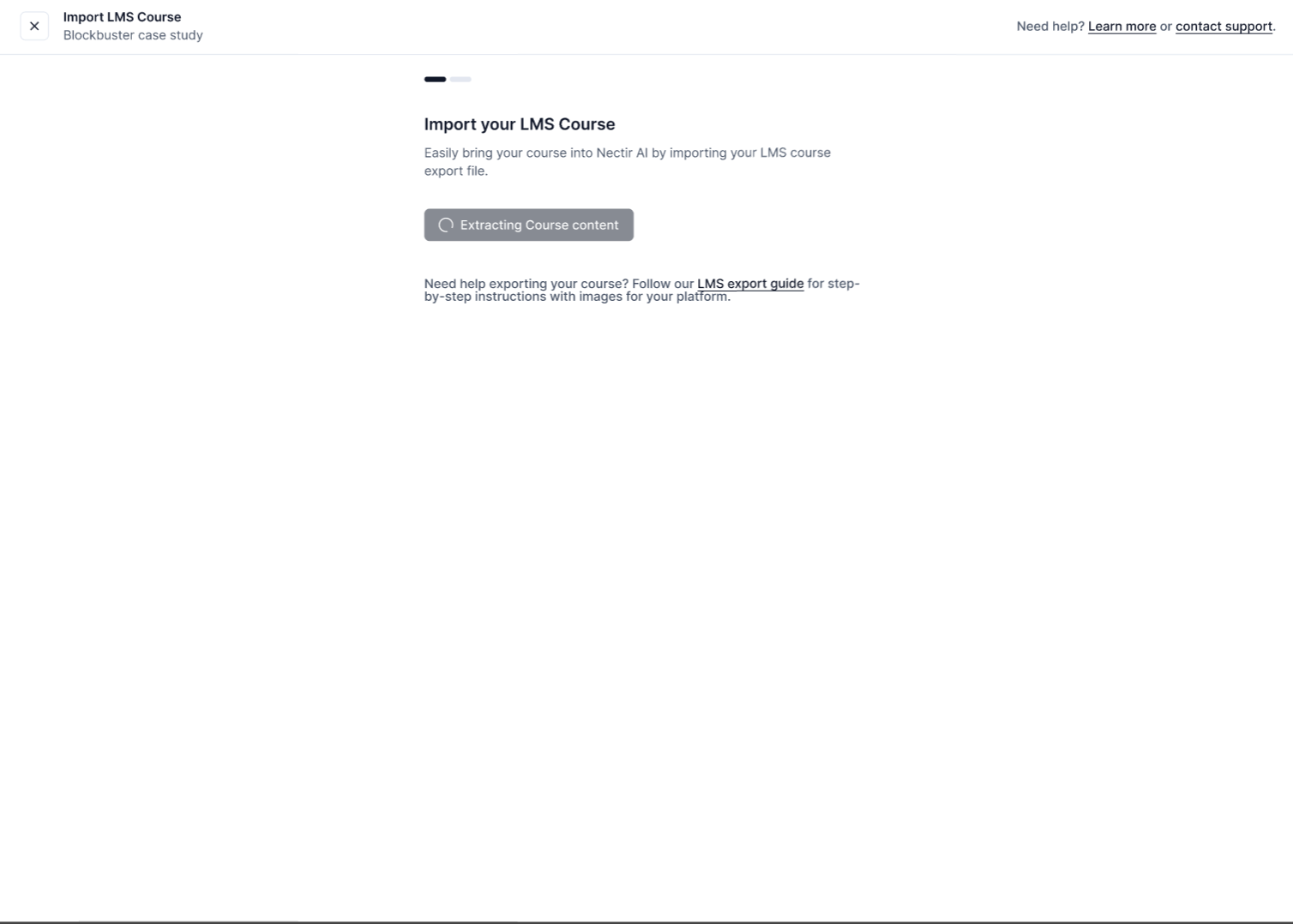
 Nectir will process your course export, extracting and organizing all available content
 Browse through your course content and select which specific files to include in your Assistant's training data
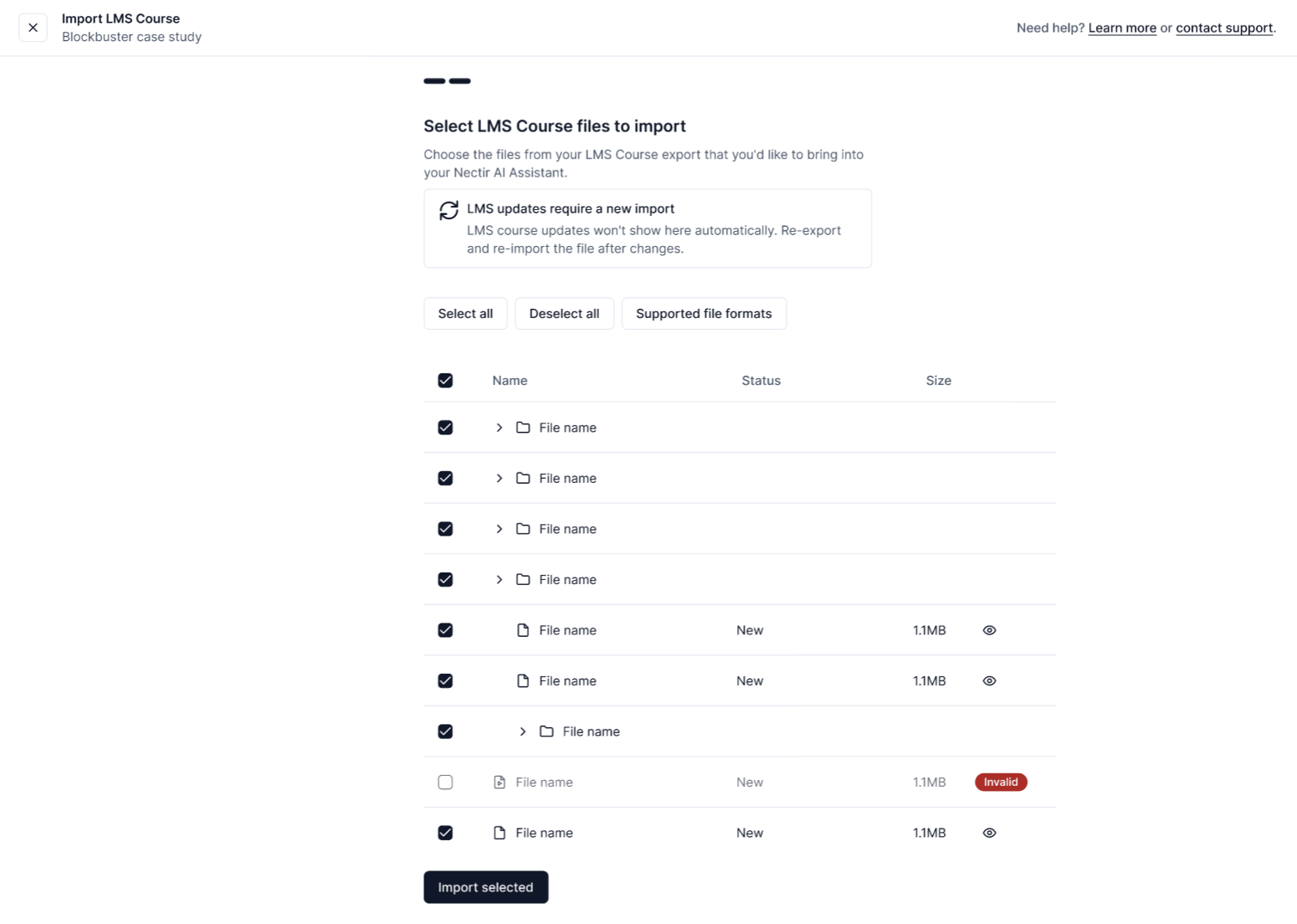 Click "Import Selected" to begin training your Assistant with the selected content
After importing files from your LMS, you can manage them like any other knowledge files, including renaming, downloading, or deleting files to organize your Assistant's knowledge base.
## Managing Imported Files
After importing files from your LMS, you can manage them through the Assistant knowledge settings. You can perform three actions on your imported files using the dropdown menu that appears when you click the three dots next to any file:
You can rename imported files to make them more descriptive and easier to identify:
Click on the three dots next to the file you want to rename
Choose "Rename" from the dropdown menu
Type the new file name in the dialog box
Click "Import Selected" to begin training your Assistant with the selected content
After importing files from your LMS, you can manage them like any other knowledge files, including renaming, downloading, or deleting files to organize your Assistant's knowledge base.
## Managing Imported Files
After importing files from your LMS, you can manage them through the Assistant knowledge settings. You can perform three actions on your imported files using the dropdown menu that appears when you click the three dots next to any file:
You can rename imported files to make them more descriptive and easier to identify:
Click on the three dots next to the file you want to rename
Choose "Rename" from the dropdown menu
Type the new file name in the dialog box
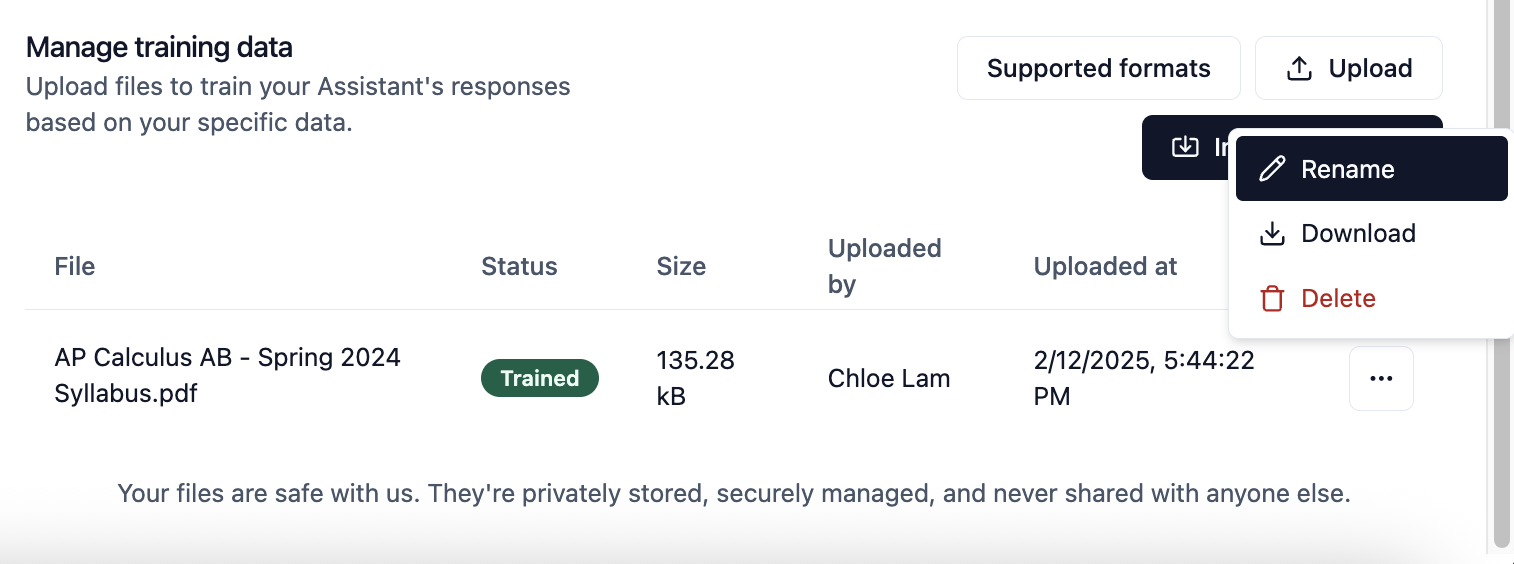 Click "Save" to apply the new file name
Use descriptive file names that reflect the content, purpose, or source of the file to better organize your training materials.
To retrieve a copy of an imported file:
Choose the "Download" option from the dropdown menu
Your browser will prompt you to save the file to your local device
Downloading imported files can be useful for backing up important content or making modifications to the file before re-uploading.
To remove an imported file from your Assistant's knowledge base:
Choose the "Delete" option from the dropdown menu
When prompted, confirm that you want to remove the file
Deleting a file permanently removes it from your Assistant's knowledge base. The Assistant will no longer be able to access information contained in that file. This action cannot be undone.
## Updating Your Content
As your course evolves, you can update your AI Assistant's knowledge base:
1. Download a new export file from your LMS
2. Upload it to Nectir using the same process
3. Nectir automatically:
* Identifies which files are new or modified
* Show changes that require review
* Maintain your previous selections where possible
When you upload a new course export, Nectir intelligently compares it with your previous upload. Only files that have changed will need to be reprocessed, saving you time and ensuring your Assistant always has the most current information.
## Troubleshooting
If you're experiencing issues with the LMS import feature, here are some common problems and solutions:
If you can see files in your LMS export but cannot select them for import, this is typically due to one of two reasons:
1. **Unsupported file format**: The file may be in a format that isn't currently supported
* Solution: Convert the file to one of our supported formats listed above
* For documents: Save or export as PDF, DOCX, or PPTX
* For media: Convert to supported image, video, or audio formats
2. **File size exceeds limits**: The file may be larger than our 150MB per file limit
* Solution: Compress or split the file
* For videos: Use built-in tools like iMovie (Mac) or QuickTime Player to compress
* For documents: Break large files into smaller segments
* For images: Resize or use image compression tools
If your LMS export processing stalls or fails to complete:
1. Check your internet connection stability
2. Try uploading a smaller export first to test the system
3. Ensure your export file isn't corrupted (try re-exporting from your LMS)
4. If the problem persists, contact support with details about your export file type and size
If content appears to import successfully but doesn't show up in your Assistant's knowledge:
1. Confirm you clicked "Import Selected" after selecting files
2. Check that the training process completed (green "Trained" status)
3. Try a simple test question that specifically references the imported content
4. Verify that your Assistant's knowledge scope is set appropriately
***
## Next Steps
Configure the boundaries of information your Assistant can access
Set the directions that shape your Assistant's behavior
***
### Video Tutorial
Watch how to import content from your Learning Management System
Click "Save" to apply the new file name
Use descriptive file names that reflect the content, purpose, or source of the file to better organize your training materials.
To retrieve a copy of an imported file:
Choose the "Download" option from the dropdown menu
Your browser will prompt you to save the file to your local device
Downloading imported files can be useful for backing up important content or making modifications to the file before re-uploading.
To remove an imported file from your Assistant's knowledge base:
Choose the "Delete" option from the dropdown menu
When prompted, confirm that you want to remove the file
Deleting a file permanently removes it from your Assistant's knowledge base. The Assistant will no longer be able to access information contained in that file. This action cannot be undone.
## Updating Your Content
As your course evolves, you can update your AI Assistant's knowledge base:
1. Download a new export file from your LMS
2. Upload it to Nectir using the same process
3. Nectir automatically:
* Identifies which files are new or modified
* Show changes that require review
* Maintain your previous selections where possible
When you upload a new course export, Nectir intelligently compares it with your previous upload. Only files that have changed will need to be reprocessed, saving you time and ensuring your Assistant always has the most current information.
## Troubleshooting
If you're experiencing issues with the LMS import feature, here are some common problems and solutions:
If you can see files in your LMS export but cannot select them for import, this is typically due to one of two reasons:
1. **Unsupported file format**: The file may be in a format that isn't currently supported
* Solution: Convert the file to one of our supported formats listed above
* For documents: Save or export as PDF, DOCX, or PPTX
* For media: Convert to supported image, video, or audio formats
2. **File size exceeds limits**: The file may be larger than our 150MB per file limit
* Solution: Compress or split the file
* For videos: Use built-in tools like iMovie (Mac) or QuickTime Player to compress
* For documents: Break large files into smaller segments
* For images: Resize or use image compression tools
If your LMS export processing stalls or fails to complete:
1. Check your internet connection stability
2. Try uploading a smaller export first to test the system
3. Ensure your export file isn't corrupted (try re-exporting from your LMS)
4. If the problem persists, contact support with details about your export file type and size
If content appears to import successfully but doesn't show up in your Assistant's knowledge:
1. Confirm you clicked "Import Selected" after selecting files
2. Check that the training process completed (green "Trained" status)
3. Try a simple test question that specifically references the imported content
4. Verify that your Assistant's knowledge scope is set appropriately
***
## Next Steps
Configure the boundaries of information your Assistant can access
Set the directions that shape your Assistant's behavior
***
### Video Tutorial
Watch how to import content from your Learning Management System