> ## Documentation Index
> Fetch the complete documentation index at: https://support.nectir.io/llms.txt
> Use this file to discover all available pages before exploring further.
# Access Nectir AI
> Learn how to access your Nectir AI Workspace through different methods including LMS integration, email invitations, or invitation links.
## Two Ways to Access Nectir AI
You can access Nectir AI through two primary methods: directly from the website or through your Learning Management System (LMS). The method you'll use depends on how your institution has set up Nectir AI.
**General Steps:**
1. Go to [ai.nectir.io](https://ai.nectir.io/)
2. Sign in with your email - Nectir AI doesn't have accounts or passwords, so use either the email that received an invitation or an email you want to use for school tools
Select the appropriate sign-in method based on your email type:
Click "Sign in with Google" and sign in with your Gmail account
Click "Sign in with Microsoft" and sign in with your Outlook account
Click "Continue with Email" and follow the email verification process
3. Join an existing workspace (if invited)
4. Start using Nectir AI
*Requirements:* Email invitation or invitation link
**General Steps:**
1. Log in to your LMS (Canvas, D2L, Moodle, etc.)
2. Navigate to the course with Nectir AI
3. Click the "Nectir AI" button
4. Accept cookies (first time only)
5. Start using Nectir AI immediately
*Requirements:* Access to course/shell where Nectir AI is available
## Website Access Options
When accessing Nectir AI through the website at [ai.nectir.io](https://ai.nectir.io/), you have two pathways:
**Direct invite to your email**
Educator adds your email to a Workspace or Group
**Shareable link access**
Join using a link shared by your educator
If you want to test Nectir AI for the first time and know that no one has paid for it yet, you can refer to this link: [https://ai.nectir.io/trial/signin](https://ai.nectir.io/trial/signin)
This method is used when your educator manually invites you by adding your email to the workspace or Group.
Look for an invitation email from Nectir AI in your inbox.
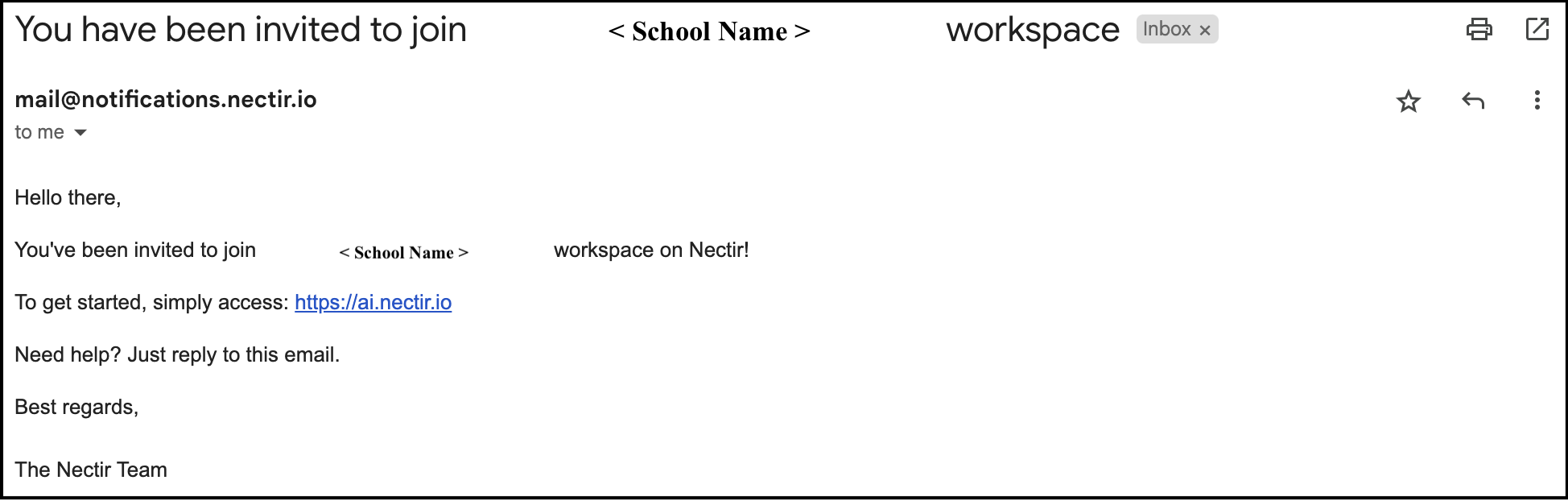 Click on the invitation link in the email or go directly to [https://ai.nectir.io/](https://ai.nectir.io/)
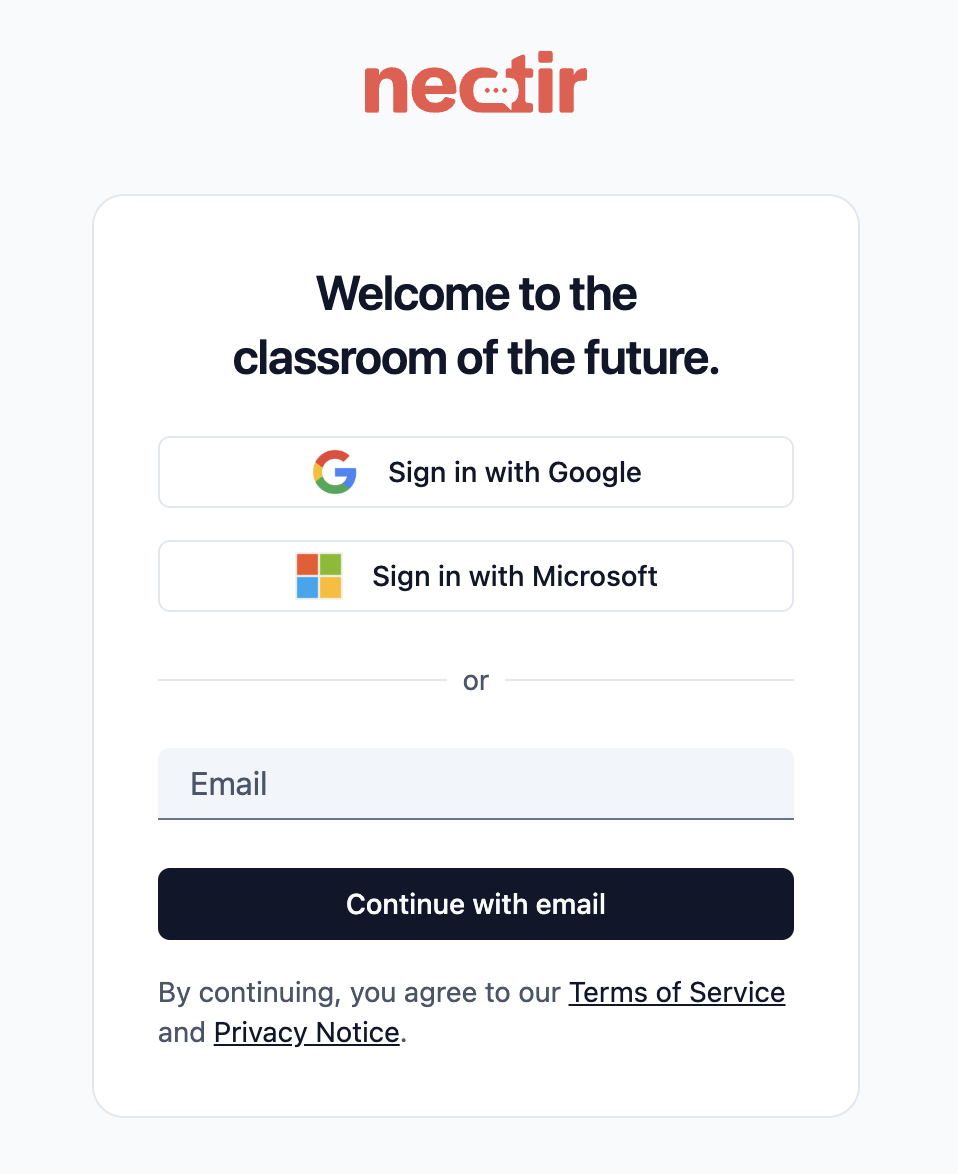 Select the appropriate sign-in method based on your email type:
Click "Sign in with Google" and sign in with your Gmail account
Click "Sign in with Microsoft" and sign in with your Outlook account
Click "Continue with Email" and follow the email verification process
If using "Continue with Email", you'll receive a verification email:
Select the appropriate sign-in method based on your email type:
Click "Sign in with Google" and sign in with your Gmail account
Click "Sign in with Microsoft" and sign in with your Outlook account
Click "Continue with Email" and follow the email verification process
If using "Continue with Email", you'll receive a verification email:
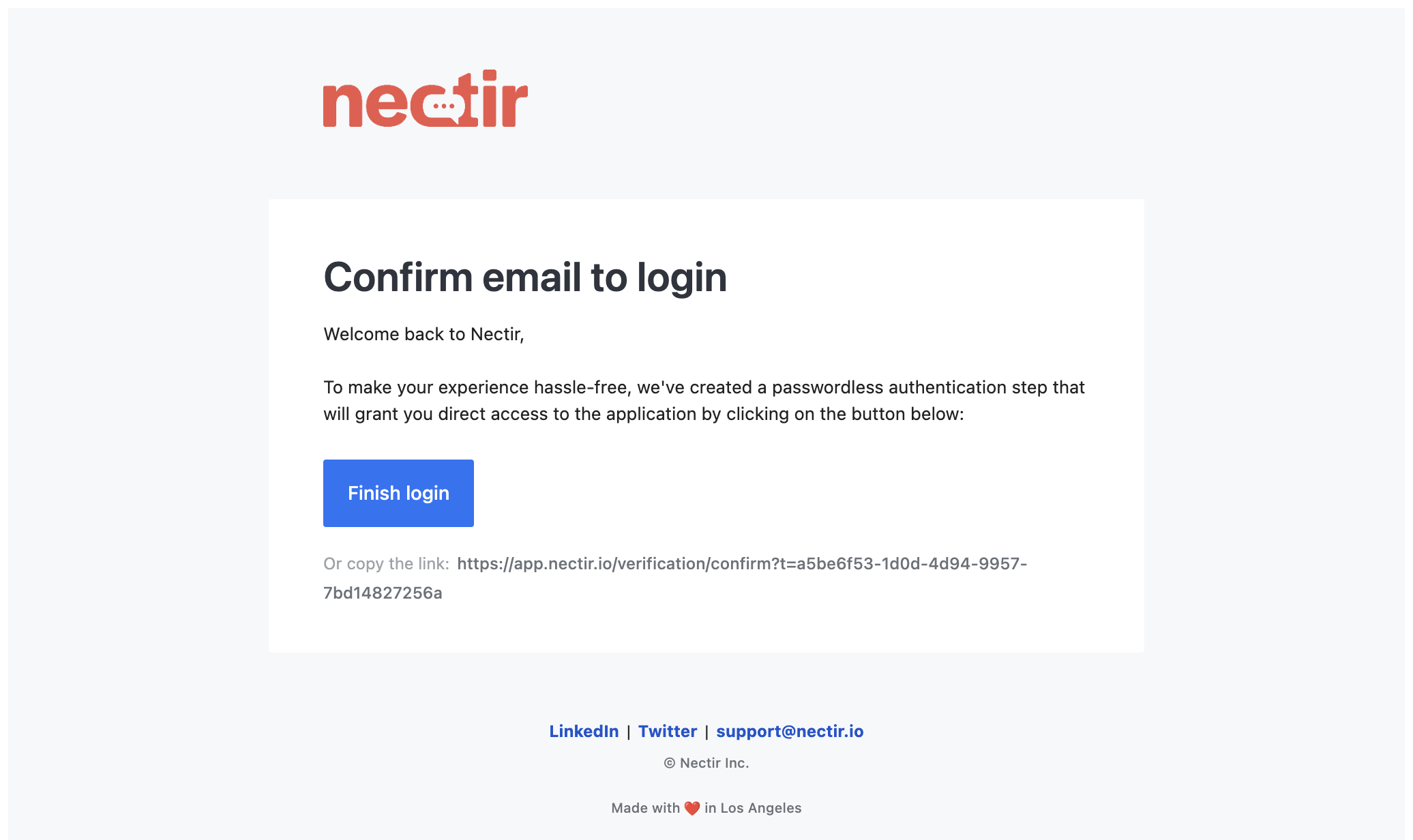 * You must use the same email address that received the invitation
* No password is required to access Nectir AI
* If you receive an error message when using Google or Microsoft login, try the "Continue with Email" option instead
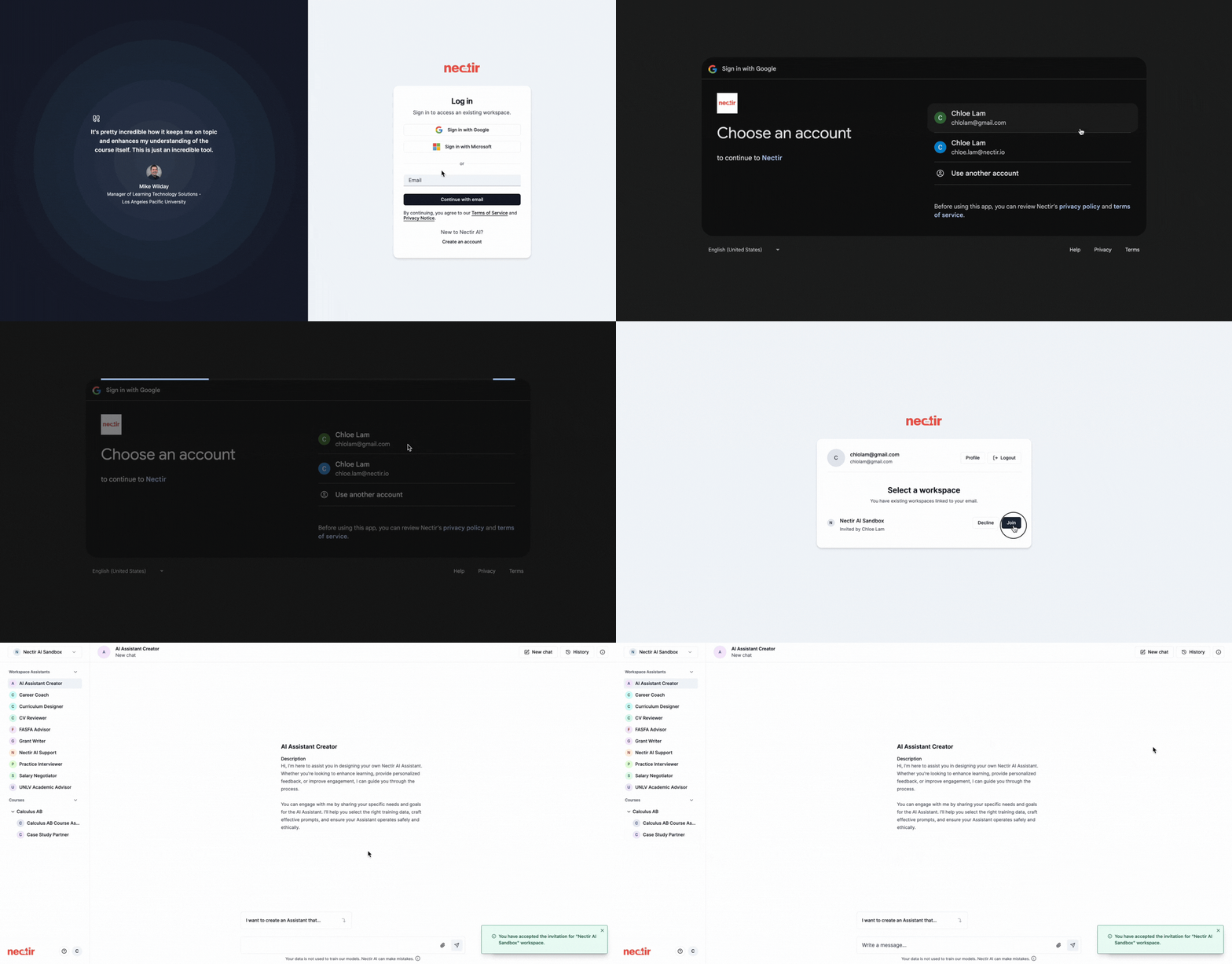
After signing in, click the "Join" button to access your workspace
* You must use the same email address that received the invitation
* No password is required to access Nectir AI
* If you receive an error message when using Google or Microsoft login, try the "Continue with Email" option instead
After signing in, click the "Join" button to access your workspace
 * Targeted invitations to specific individuals
* Easy tracking of who has been invited
* Simple acceptance process through email
This method is used when your educator shares a special invitation link that allows you to join the workspace.
Your educator will provide you with a unique link to join the workspace
The link will typically start with: [https://ai.nectir.io/invite](https://ai.nectir.io/invite)?...
After clicking the link, you'll be directed to the Nectir AI login screen:
Select the appropriate sign-in method based on your email type:
Click "Sign in with Google" and sign in with your Gmail account
Click "Sign in with Microsoft" and sign in with your Outlook account
Click "Continue with Email" and follow the email verification process
If using "Continue with Email", you'll receive a verification email:
* No password is required to access Nectir AI
* If you receive an error message when using Google or Microsoft login, try the "Continue with Email" option instead
After authentication, you'll be automatically directed to join the workspace
* No need to wait for individual email invitations
* Same link can be shared with many users
* Easy to distribute through course materials or announcements
This is the simplest access method. No invitation is required - you just need access to the course or shell where Nectir AI has been made available. The LMS button serves as your invitation and completely bypasses the need for separate authentication.
Access your institution's LMS (Canvas, D2L, Moodle, etc.) with your credentials
Select the course that has Nectir AI integration
Click on the "Nectir AI" button or link in your course
* Targeted invitations to specific individuals
* Easy tracking of who has been invited
* Simple acceptance process through email
This method is used when your educator shares a special invitation link that allows you to join the workspace.
Your educator will provide you with a unique link to join the workspace
The link will typically start with: [https://ai.nectir.io/invite](https://ai.nectir.io/invite)?...
After clicking the link, you'll be directed to the Nectir AI login screen:
Select the appropriate sign-in method based on your email type:
Click "Sign in with Google" and sign in with your Gmail account
Click "Sign in with Microsoft" and sign in with your Outlook account
Click "Continue with Email" and follow the email verification process
If using "Continue with Email", you'll receive a verification email:
* No password is required to access Nectir AI
* If you receive an error message when using Google or Microsoft login, try the "Continue with Email" option instead
After authentication, you'll be automatically directed to join the workspace
* No need to wait for individual email invitations
* Same link can be shared with many users
* Easy to distribute through course materials or announcements
This is the simplest access method. No invitation is required - you just need access to the course or shell where Nectir AI has been made available. The LMS button serves as your invitation and completely bypasses the need for separate authentication.
Access your institution's LMS (Canvas, D2L, Moodle, etc.) with your credentials
Select the course that has Nectir AI integration
Click on the "Nectir AI" button or link in your course
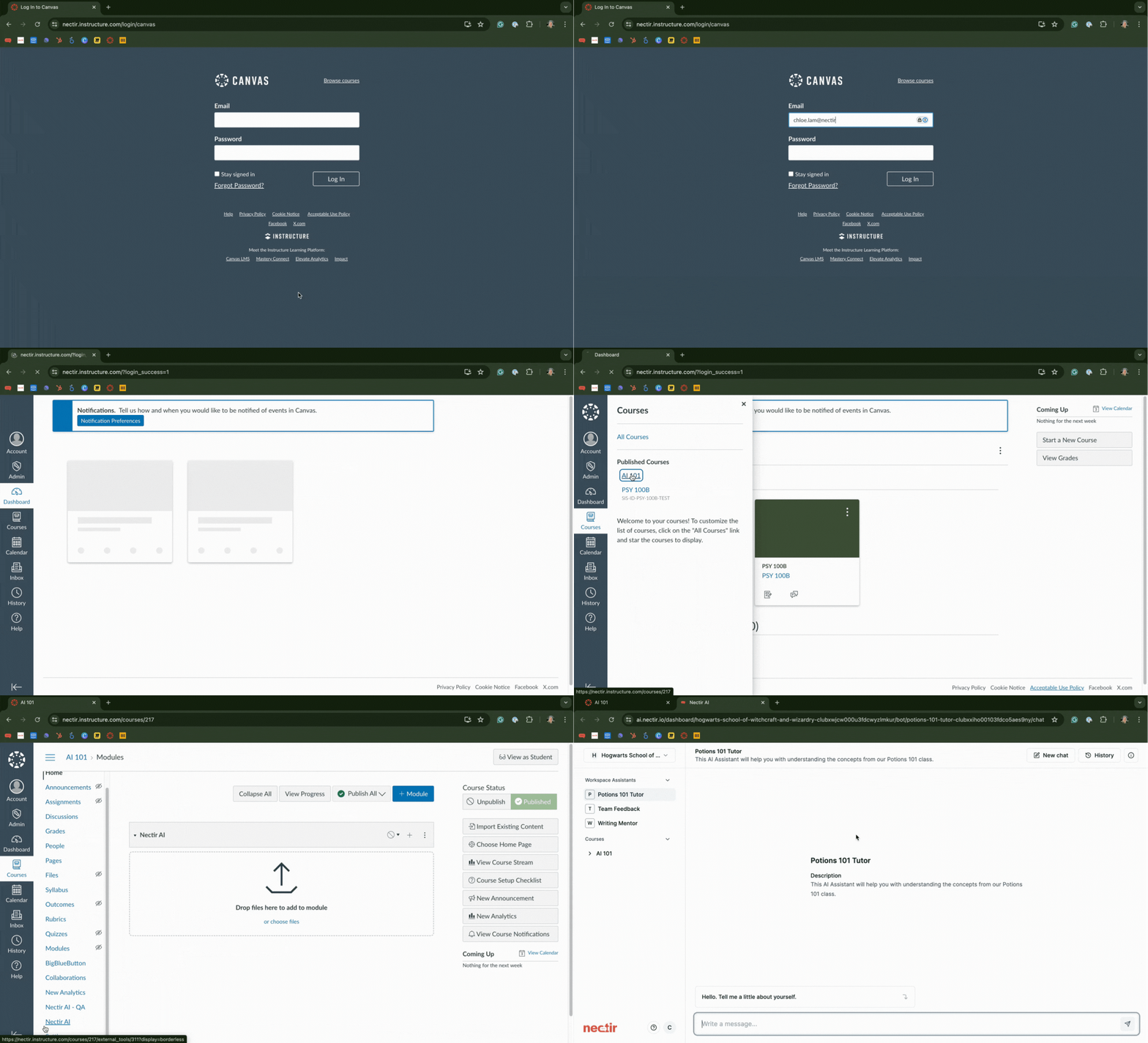 When accessing Nectir AI for the first time, you'll need to accept cookies:
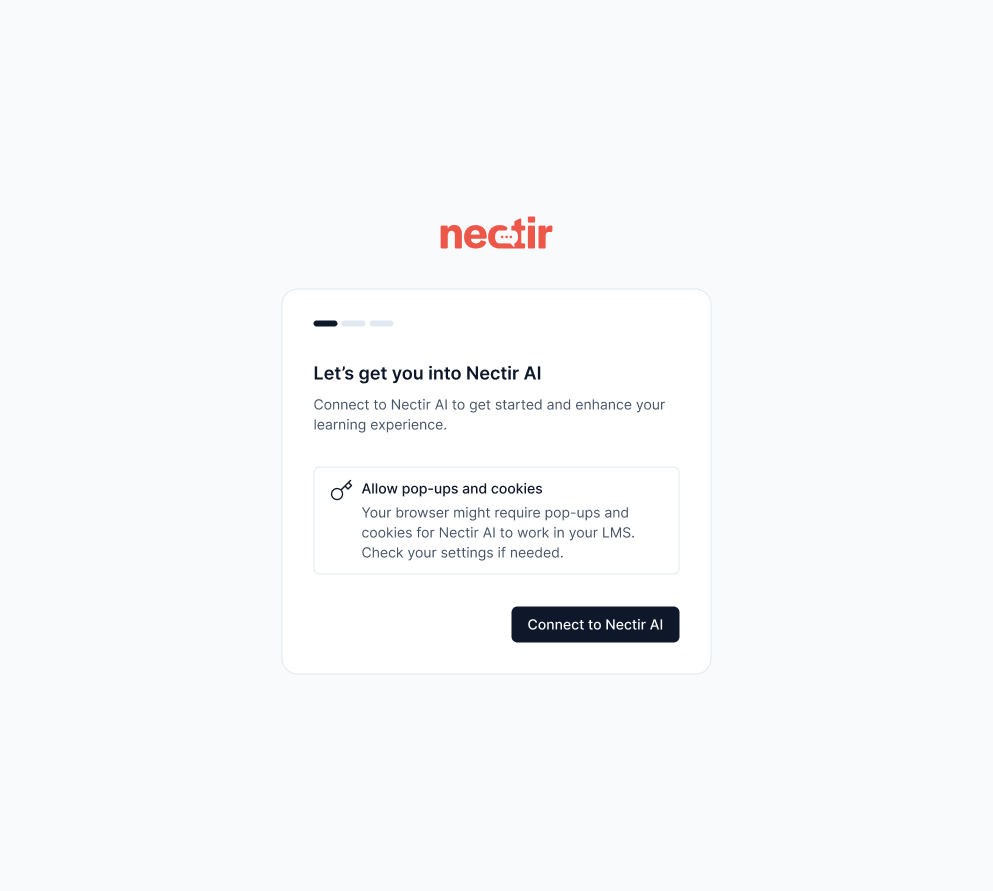
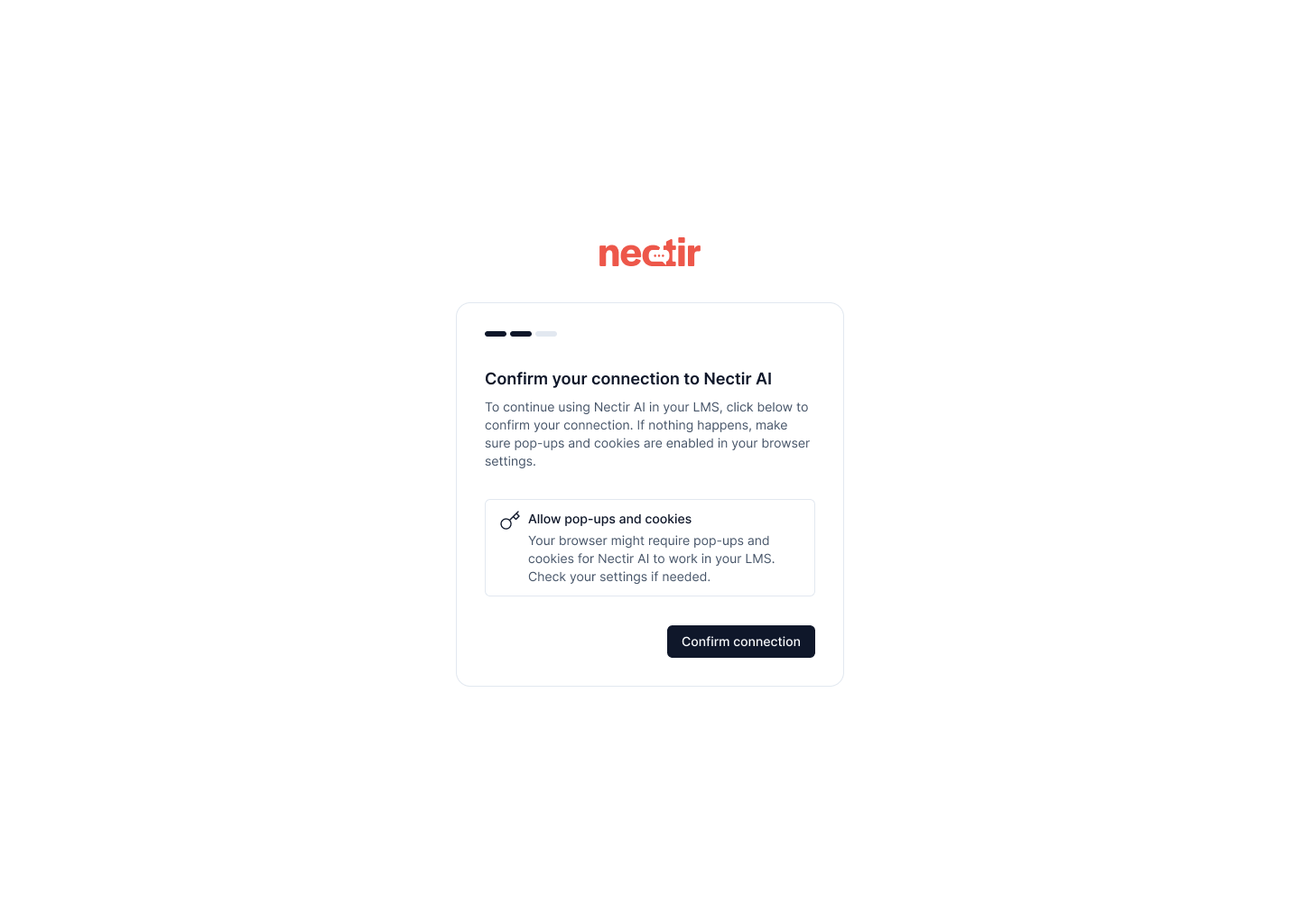
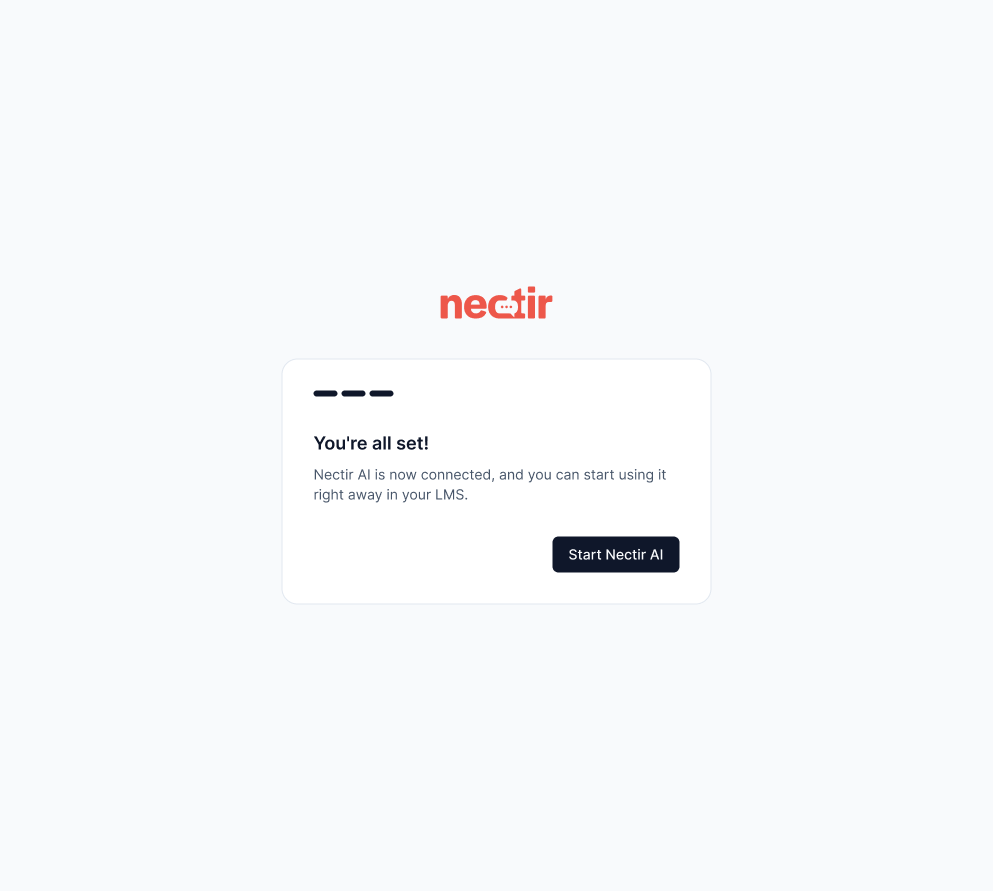 A Nectir AI account will be automatically created for you the first time you click the button - no separate login or invitation needed
On subsequent visits, you'll be taken directly to your workspace through LMS authentication
A Nectir AI account will be automatically created for you the first time you click the button - no separate login or invitation needed
On subsequent visits, you'll be taken directly to your workspace through LMS authentication
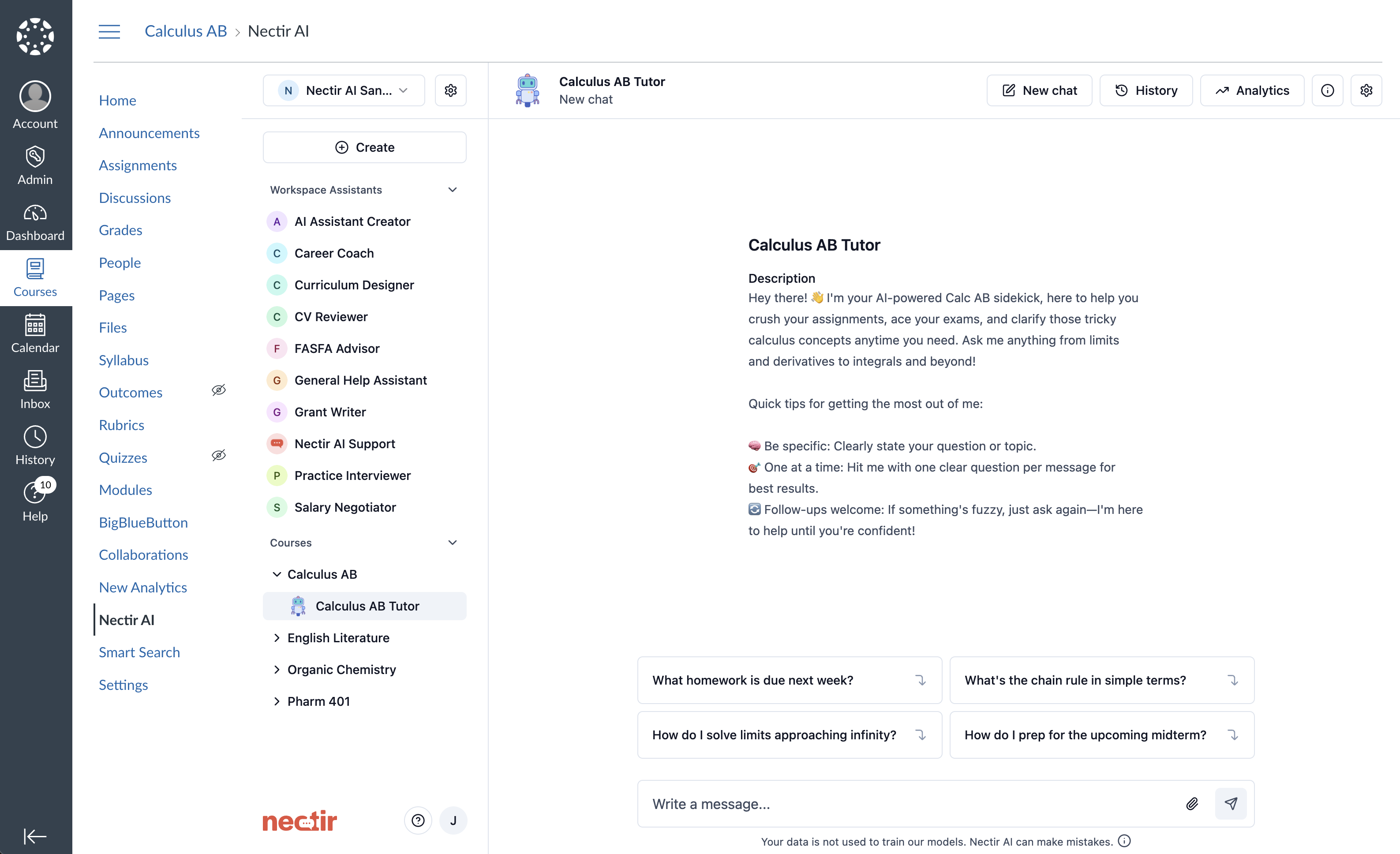 * No invitation required - just course access
* No separate login or authentication needed
* Authenticated automatically through your LMS
* Single click access from course page
* Account created automatically on first use
### Accepting Additional Workspace Invitations
If you already have a Nectir AI account and receive invitations to other Workspaces:
Click on your user icon on the bottom left and select "Your Profile"
Scroll to the bottom of your profile settings to accept any pending workspace invitations
Click "Accept" on each invitation you wish to join
If you're having trouble accessing your Nectir AI workspace, contact your course instructor or reach out to Nectir support at [support@nectir.io](mailto:support@nectir.io)
* No invitation required - just course access
* No separate login or authentication needed
* Authenticated automatically through your LMS
* Single click access from course page
* Account created automatically on first use
### Accepting Additional Workspace Invitations
If you already have a Nectir AI account and receive invitations to other Workspaces:
Click on your user icon on the bottom left and select "Your Profile"
Scroll to the bottom of your profile settings to accept any pending workspace invitations
Click "Accept" on each invitation you wish to join
If you're having trouble accessing your Nectir AI workspace, contact your course instructor or reach out to Nectir support at [support@nectir.io](mailto:support@nectir.io)