> ## Documentation Index
> Fetch the complete documentation index at: https://support.nectir.io/llms.txt
> Use this file to discover all available pages before exploring further.
# Access and Share Your Chat History
> Chat history allows you to revisit and continue past conversations with your Assistant.
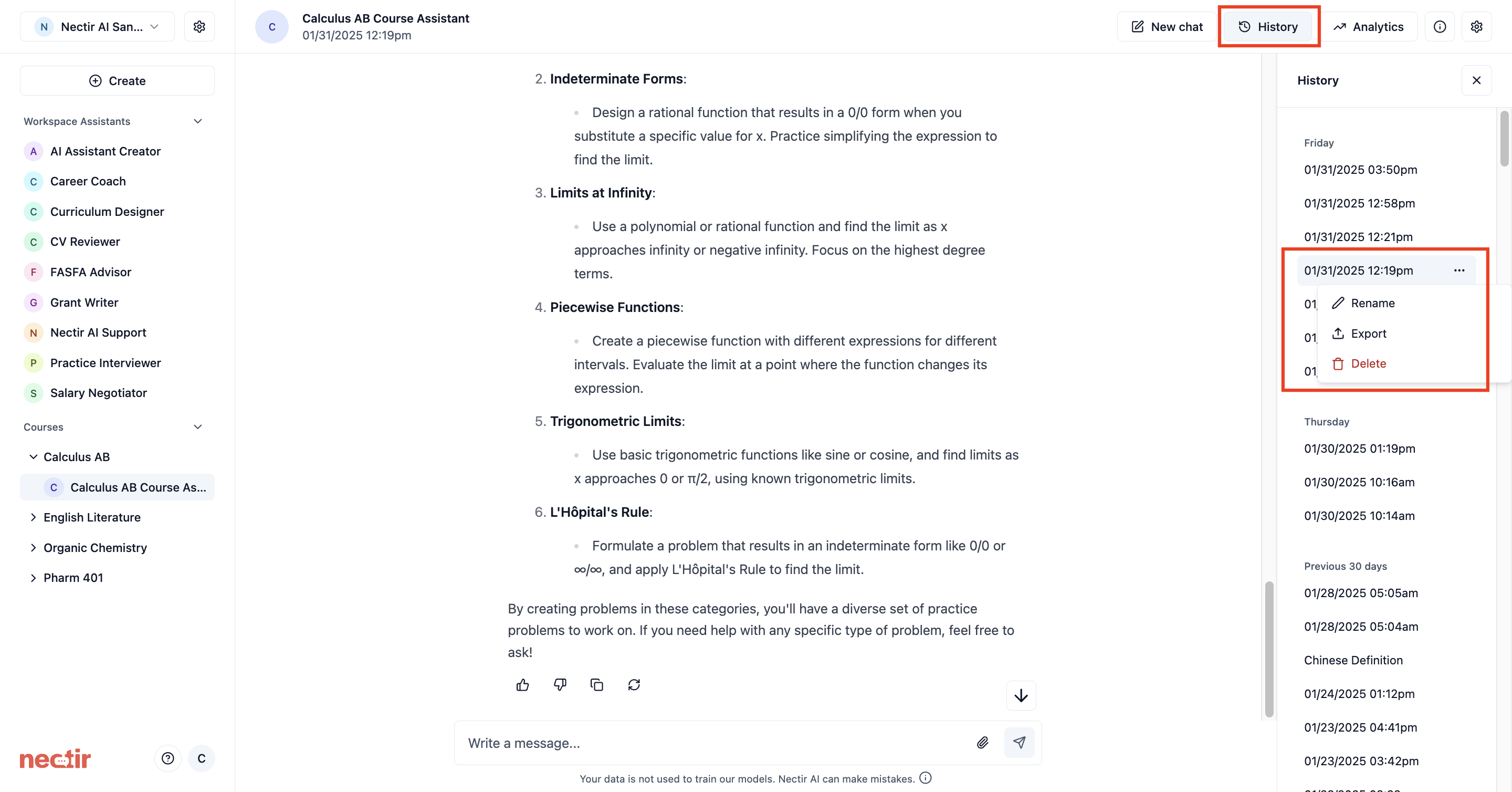 Navigate to your Assistant in the sidebar.
Click on the **History** button in the top right corner.
A menu appears showing your past conversations with AI-generated summaries of each conversation for easy identification.
To continue a previous conversation, select the conversation you want to continue and begin typing.
## Rename and Export Your Chat History
Nectir AI conversations are private to the user. To share messages, users can export their chat history as a CSV file or PDF and share the file with others.
Navigate to your Assistant in the sidebar.
Click on the **History** button in the top right corner.
Hover over the conversation you wish to rename/export.
Click on the ellipsis next to the conversation:
* **Rename** - Rename your conversation to make it easier to locate in the future
* **Export** - Export your conversation as a CSV file or PDF (PDF exports include message timestamps)
* **Delete** - Delete your conversation
### Mobile Export Options
**Touch-screen devices**: on all phones with tap-screens, you'll also see a **Share** option that generates a PDF of your chat conversation for sharing via native sharing features (such as AirDrop, Messages, or other sharing apps available on your device).
Navigate to your Assistant in the sidebar.
Click on the **History** button in the top right corner.
A menu appears showing your past conversations with AI-generated summaries of each conversation for easy identification.
To continue a previous conversation, select the conversation you want to continue and begin typing.
## Rename and Export Your Chat History
Nectir AI conversations are private to the user. To share messages, users can export their chat history as a CSV file or PDF and share the file with others.
Navigate to your Assistant in the sidebar.
Click on the **History** button in the top right corner.
Hover over the conversation you wish to rename/export.
Click on the ellipsis next to the conversation:
* **Rename** - Rename your conversation to make it easier to locate in the future
* **Export** - Export your conversation as a CSV file or PDF (PDF exports include message timestamps)
* **Delete** - Delete your conversation
### Mobile Export Options
**Touch-screen devices**: on all phones with tap-screens, you'll also see a **Share** option that generates a PDF of your chat conversation for sharing via native sharing features (such as AirDrop, Messages, or other sharing apps available on your device).