> ## Documentation Index
> Fetch the complete documentation index at: https://support.nectir.io/llms.txt
> Use this file to discover all available pages before exploring further.
# Inviting Users
> Learn how to invite users to your Workspace and Groups, and manage their permissions and access levels.
## Understanding User Access Levels
Nectir AI has two levels of user access, each serving different organizational purposes:
**Institution-wide access** to your entire Nectir AI workspace. Users can see and access content based on their workspace role and Group memberships.
**Specific access** to individual Groups (courses, projects, etc.). Users only see content within the Groups they've been invited to.
## Three Ways to Provide Access
Choose the method that best fits your institution's needs:
**Best for:** Small institutions or selective access
Workspace Owners manually invite users via email or invitation links. Users gain workspace-wide access and can then be added to specific Groups as needed.
**Workspace Roles and Permissions:**
* **Owner** - Complete control over the Workspace
* Only **Owners** can create Groups and Assistants that are "Shared with everyone"
* Only **Owners** can modify **all Shared** Groups and Assistants
* Only **Owners** can view Private Groups and Assistants usage via Workspace Analytics, but cannnot modify
* **Editor** - Can create new and manage existing Groups and Assistants that they have been invited to
* **Member** - Can only interact the Groups and Assistants created for them
**Best for:** Course-specific access or project-based teams
Group Owners invite users directly to specific Groups. Users only see and access content within those Groups.
**Group Roles and Permissions:**
* **Owner** - Complete control over the Group and the Assistants
* **Facilitator** - View all view all the settings and analytics, but cannot modify
* **Member** - Can only interact with Assistants
**Best for:** Large institutions with existing LMS infrastructure
Users automatically gain access when they click through from your LMS (Canvas, Moodle, etc.). No manual invitations needed - access is granted seamlessly through your existing course structure.
**LMS Role Mapping:**
LMS roles (Student, Instructor, TA) automatically map to Nectir workspace roles. Configure your role mappings in [Workspace Settings](/getting-started/workspace-settings).
## Workspace-Level Invitations
Only **Workspace Owners** can invite users to the workspace.
Click on the on the top left.
Click **Members** on the left sidebar.
Click **Invite members** on the top right.
Copy and paste users' school-provided emails (you can paste directly from your roster - emails will be automatically extracted).
Select a role for all invitees (you can change this later):
* **Owner** - Complete control over the Workspace, can create Groups and Assistants shared with everyone, modify all Shared content, and view all analytics
* **Editor** - Can create and manage Groups and Assistants they have been invited to
* **Member** - Can only interact with Groups and Assistants created for them
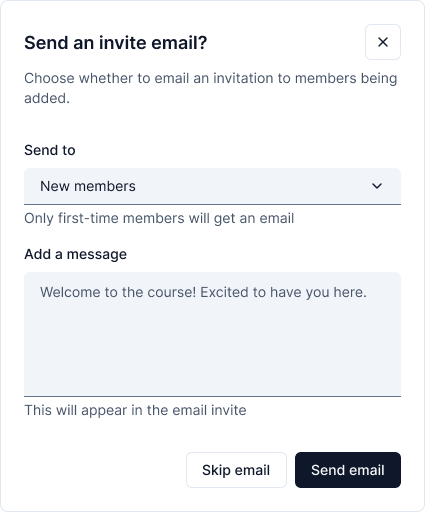 Customize the invitation email message to provide context and motivate your invitees about how Nectir AI can support their learning. You can choose to send the email to:
* **Everyone** - All email addresses in your list (including previously invited users)
* **New people only** - Only users who haven't been invited before
Customize the invitation email message to provide context and motivate your invitees about how Nectir AI can support their learning. You can choose to send the email to:
* **Everyone** - All email addresses in your list (including previously invited users)
* **New people only** - Only users who haven't been invited before
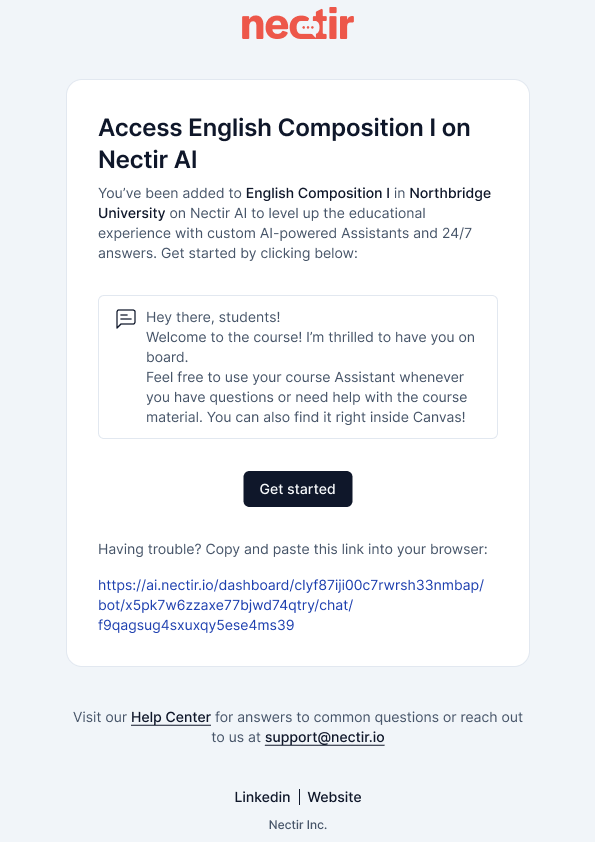 Use the custom message to explain what Nectir AI is, how it can help students succeed, and encourage them to start using it. A personalized message from you can significantly increase engagement!
Click **Send Invite** when ready.
If the user is new to Nectir AI, they will need to accept their invitation before accessing their workspace. [Learn more about accessing Nectir AI](/getting-started/access-nectir-ai).
1. Access your **Workspace Settings** by clicking on the on the top left
2. Click **Members** on the left sidebar
3. Click **Invite members** on the top right
4. Click "Share link" option and choose who can utilize the link for access
5. Choose access level:
* **(Recommended for new users)** "Anyone with the link" - Allows any user to join the workspace
* **(Recommended for existing users)** "Restricted" - Only previously invited users can use the link
6. Select their role permissions
7. Copy and share the link provided
If the user is new to Nectir AI, they will need to accept their invitation before accessing their workspace. [Learn more about accessing Nectir AI](/getting-started/access-nectir-ai).
### Managing Workspace Users
1. Access your **Workspace Settings** by clicking the on the top left
2. Click **Members** on the left sidebar
3. Scroll or search for the user(s) you want to change (multi-select to change multiple users at once)
4. Select the role you want to change the user(s) to
1. Access your **Workspace Settings** by clicking the on the top left
2. Click **Members** on the left sidebar
3. Select the user(s) you want to remove (multi-select to remove multiple users at once)
4. Click **Remove** to remove the selected user(s) from the workspace
## Group-Level Invitations
### How Groups Become Shared
When you invite users to a Group, it automatically changes from "Private" to "Shared":
Only you have access to the Group/Assistant
At least one other person has been invited to the Group (either manually or via [roster sync](/user-management/roster-sync))
All Workspace users can view and interact with the Group/Assistant
**Note:** Workspace Owners can view the usage of every Assistant in the workspace via Workspace Analytics, including Private Assistants, but cannot interact with or modify them.
### Inviting Users to Groups
This method is recommended because you can easily see which users have "Accepted" or are "Pending" their invitation.
Hover over the Group on the left sidebar and click the three dots and select **Invite Members**.
Click **Invite members** on the top right.
Copy and paste users' school-provided emails (you can paste directly from your roster - emails will be automatically extracted).
Select their role permissions:
* **Owner** - Complete control over the Group and the Assistants
* **Facilitator** - Can view all settings and analytics, but cannot modify
* **Member** - Can only interact with Assistants
Customize the invitation email message to provide context and motivate your invitees about how Nectir AI can support their learning. You can choose to send the email to:
* **Everyone** - All email addresses in your list (including previously invited users)
* **New people only** - Only users who haven't been invited before
Use the custom message to explain what Nectir AI is, how it can help students succeed, and encourage them to start using it. A personalized message from you can significantly increase engagement!
Click **Send Invite** when ready.
If the user is new to Nectir AI, they will need to accept their invitation before accessing their workspace. [Learn more about accessing Nectir AI](/getting-started/access-nectir-ai).
This approach is recommended when you don't have users' email addresses. Note that only users who sign in at least once will appear in the members tab when using an invitation link.
1. Hover over the Group on the left sidebar and click the three dots and select **Invite Members**
2. Click **Invite members** on the top right
3. Click **Share link** option and choose who can utilize the link for access
4. Choose access level:
* **(Recommended for new users)** "Anyone with the link" - Invites any user to sign in and gain access to the Group
* **(Recommended for existing users)** "Restricted" - Allows any user who was previously invited into the workspace to have access
5. Select their role permissions
6. Copy and share the link provided
If the user is new to Nectir AI, they will need to accept their invitation before accessing their workspace. [Learn more about accessing Nectir AI](/getting-started/access-nectir-ai).
### Managing Group Users
1. Hover over the Group on the left sidebar and click the three dots and select **Invite Members**
2. Scroll or search for the user(s) you want to change (multi-select to change multiple users at once)
3. Select the role you want to change the user(s) to
1. Hover over the Group on the left sidebar and click the three dots and select **Invite Members**
2. Select the user(s) you want to remove (multi-select to remove multiple users at once)
3. Click **Remove** to remove the selected user(s) from the Group
Removing a user from a Group only removes them from that specific Group and not the entire workspace.
## LTI Integration - Automatic Access
For institutions using LMS integration, users automatically gain access when they click through from your LMS - no manual invitations required.
**Benefits of LTI Integration:**
* **No manual invitations needed** - Users are automatically provisioned when accessing through your LMS
* **Seamless experience** - Students and educators access Nectir directly from their LMS
* **Automatic role mapping** - LMS roles (Student, Instructor, TA, Admin) automatically map to appropriate Nectir permissions
* **Consistent permissions** - Maintains alignment between your LMS and Nectir roles
### How LTI Integration Works
1. **Setup Integration**: Your institution configures LTI integration with your LMS
2. **Configure Role Mapping**: Map LMS roles to Nectir roles (one-time setup)
3. **Educators Enable Access**: Instructors add Nectir to their course pages
4. **Automatic Provisioning**: Users are automatically created with appropriate permissions when they access Nectir through the LMS
For detailed LTI setup instructions, find your specific LMS in the sidebar under **LMS Integrations** for more information.
Use the custom message to explain what Nectir AI is, how it can help students succeed, and encourage them to start using it. A personalized message from you can significantly increase engagement!
Click **Send Invite** when ready.
If the user is new to Nectir AI, they will need to accept their invitation before accessing their workspace. [Learn more about accessing Nectir AI](/getting-started/access-nectir-ai).
1. Access your **Workspace Settings** by clicking on the on the top left
2. Click **Members** on the left sidebar
3. Click **Invite members** on the top right
4. Click "Share link" option and choose who can utilize the link for access
5. Choose access level:
* **(Recommended for new users)** "Anyone with the link" - Allows any user to join the workspace
* **(Recommended for existing users)** "Restricted" - Only previously invited users can use the link
6. Select their role permissions
7. Copy and share the link provided
If the user is new to Nectir AI, they will need to accept their invitation before accessing their workspace. [Learn more about accessing Nectir AI](/getting-started/access-nectir-ai).
### Managing Workspace Users
1. Access your **Workspace Settings** by clicking the on the top left
2. Click **Members** on the left sidebar
3. Scroll or search for the user(s) you want to change (multi-select to change multiple users at once)
4. Select the role you want to change the user(s) to
1. Access your **Workspace Settings** by clicking the on the top left
2. Click **Members** on the left sidebar
3. Select the user(s) you want to remove (multi-select to remove multiple users at once)
4. Click **Remove** to remove the selected user(s) from the workspace
## Group-Level Invitations
### How Groups Become Shared
When you invite users to a Group, it automatically changes from "Private" to "Shared":
Only you have access to the Group/Assistant
At least one other person has been invited to the Group (either manually or via [roster sync](/user-management/roster-sync))
All Workspace users can view and interact with the Group/Assistant
**Note:** Workspace Owners can view the usage of every Assistant in the workspace via Workspace Analytics, including Private Assistants, but cannot interact with or modify them.
### Inviting Users to Groups
This method is recommended because you can easily see which users have "Accepted" or are "Pending" their invitation.
Hover over the Group on the left sidebar and click the three dots and select **Invite Members**.
Click **Invite members** on the top right.
Copy and paste users' school-provided emails (you can paste directly from your roster - emails will be automatically extracted).
Select their role permissions:
* **Owner** - Complete control over the Group and the Assistants
* **Facilitator** - Can view all settings and analytics, but cannot modify
* **Member** - Can only interact with Assistants
Customize the invitation email message to provide context and motivate your invitees about how Nectir AI can support their learning. You can choose to send the email to:
* **Everyone** - All email addresses in your list (including previously invited users)
* **New people only** - Only users who haven't been invited before
Use the custom message to explain what Nectir AI is, how it can help students succeed, and encourage them to start using it. A personalized message from you can significantly increase engagement!
Click **Send Invite** when ready.
If the user is new to Nectir AI, they will need to accept their invitation before accessing their workspace. [Learn more about accessing Nectir AI](/getting-started/access-nectir-ai).
This approach is recommended when you don't have users' email addresses. Note that only users who sign in at least once will appear in the members tab when using an invitation link.
1. Hover over the Group on the left sidebar and click the three dots and select **Invite Members**
2. Click **Invite members** on the top right
3. Click **Share link** option and choose who can utilize the link for access
4. Choose access level:
* **(Recommended for new users)** "Anyone with the link" - Invites any user to sign in and gain access to the Group
* **(Recommended for existing users)** "Restricted" - Allows any user who was previously invited into the workspace to have access
5. Select their role permissions
6. Copy and share the link provided
If the user is new to Nectir AI, they will need to accept their invitation before accessing their workspace. [Learn more about accessing Nectir AI](/getting-started/access-nectir-ai).
### Managing Group Users
1. Hover over the Group on the left sidebar and click the three dots and select **Invite Members**
2. Scroll or search for the user(s) you want to change (multi-select to change multiple users at once)
3. Select the role you want to change the user(s) to
1. Hover over the Group on the left sidebar and click the three dots and select **Invite Members**
2. Select the user(s) you want to remove (multi-select to remove multiple users at once)
3. Click **Remove** to remove the selected user(s) from the Group
Removing a user from a Group only removes them from that specific Group and not the entire workspace.
## LTI Integration - Automatic Access
For institutions using LMS integration, users automatically gain access when they click through from your LMS - no manual invitations required.
**Benefits of LTI Integration:**
* **No manual invitations needed** - Users are automatically provisioned when accessing through your LMS
* **Seamless experience** - Students and educators access Nectir directly from their LMS
* **Automatic role mapping** - LMS roles (Student, Instructor, TA, Admin) automatically map to appropriate Nectir permissions
* **Consistent permissions** - Maintains alignment between your LMS and Nectir roles
### How LTI Integration Works
1. **Setup Integration**: Your institution configures LTI integration with your LMS
2. **Configure Role Mapping**: Map LMS roles to Nectir roles (one-time setup)
3. **Educators Enable Access**: Instructors add Nectir to their course pages
4. **Automatic Provisioning**: Users are automatically created with appropriate permissions when they access Nectir through the LMS
For detailed LTI setup instructions, find your specific LMS in the sidebar under **LMS Integrations** for more information.