
What’s Included
LMS Course Page
A customizable page template to introduce your Assistant to students
Introduction Tips
Guidance for setting the right tone and keeping students engaged
Student FAQ
Ready-to-use answers for the questions students ask most
Faculty Guide
The full AI Faculty Guide for deeper guidance
What the Page Looks Like
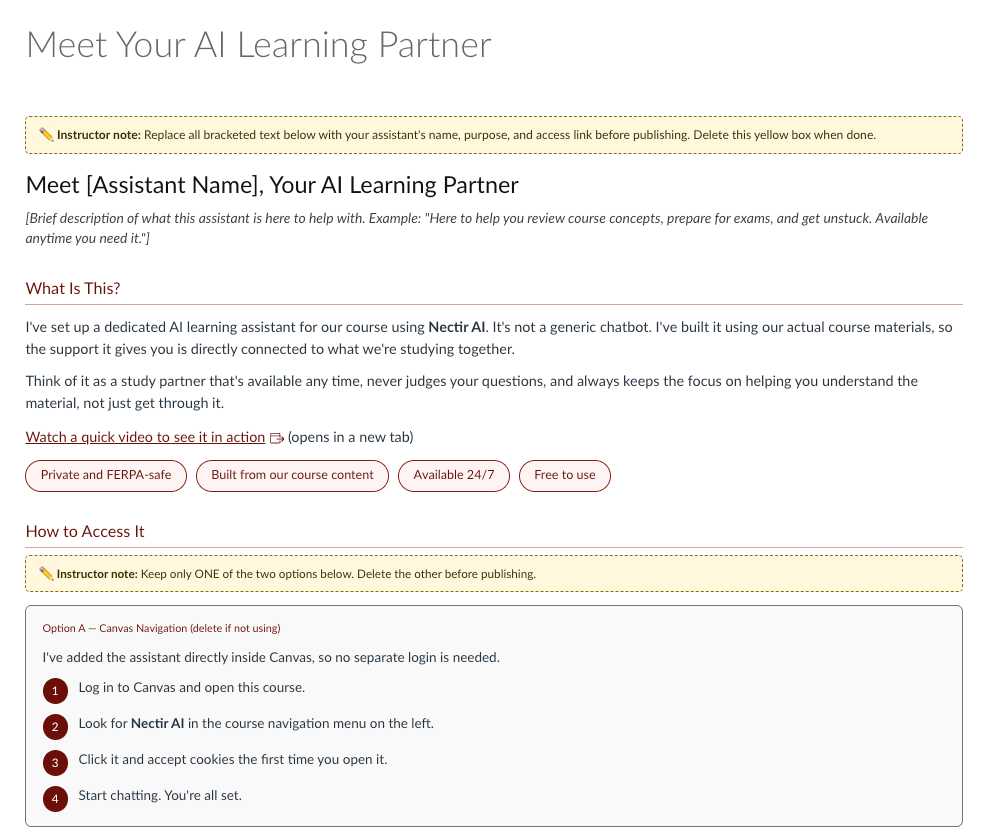
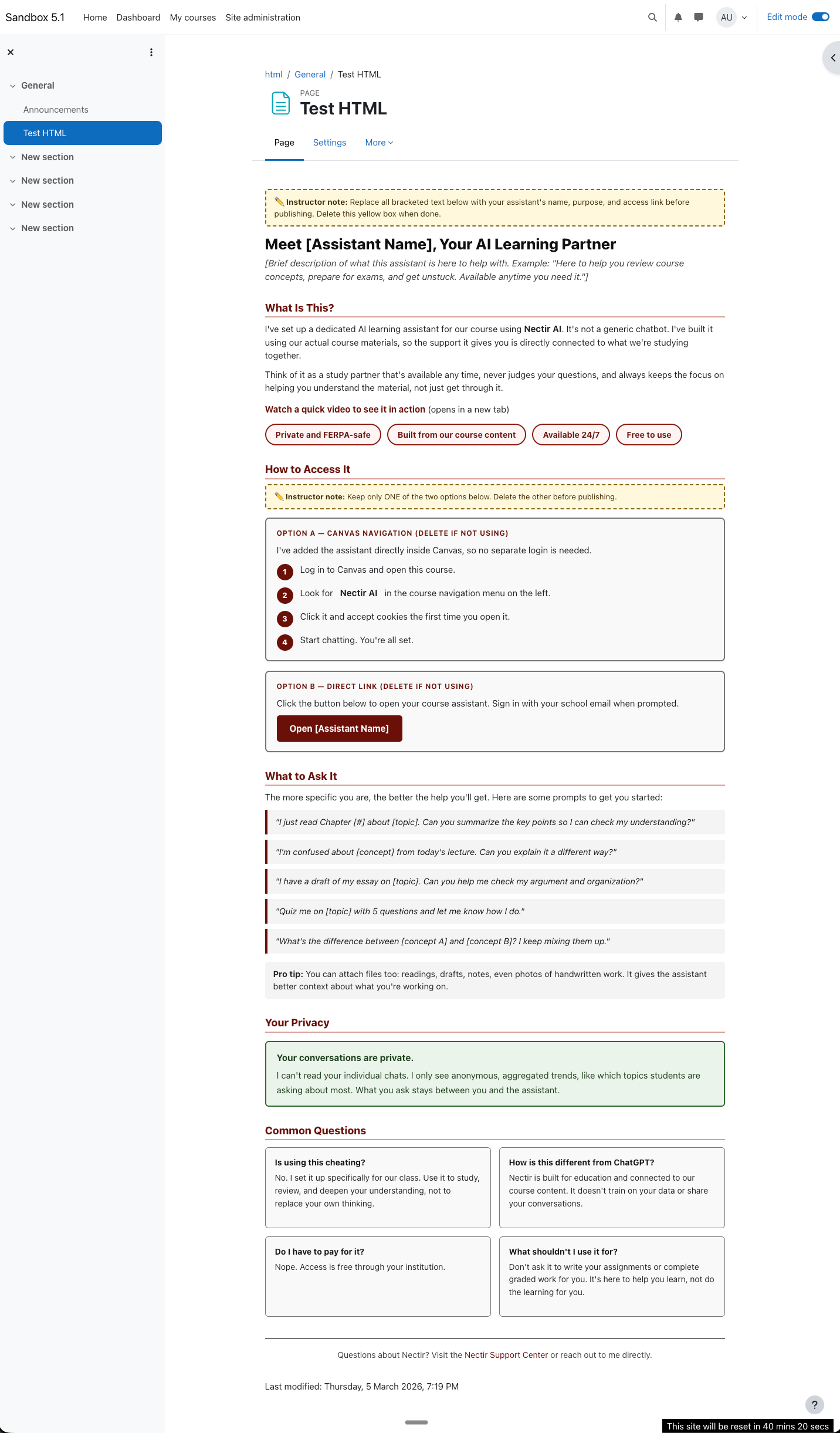
The page introduces students to their AI Assistant with access instructions, example prompts, and FAQs. Here’s a preview of the customizable, student-facing page you’ll be adding to your course:Canvas
Canvas
Moodle
Moodle
Add the Page to Your Course
The same HTML template works in both Canvas and Moodle. Choose your LMS below for setup instructions.Canvas
Canvas
You can add the page in Canvas in two ways: paste the HTML directly or import a pre-built course file.
- Copy the HTML
- Import Course File
Use Canvas’s built-in HTML editor to paste the template directly into a new page in your course. Before publishing, personalize the highlighted sections: your Assistant’s name, how students access it, and any course-specific context.
1
Copy the HTML Code
Expand the code block below and copy the entire HTML template.
View HTML Template
View HTML Template
2
Create a New Canvas Page
In your Canvas course, go to Pages and click + Page. Switch to the HTML editor view.
3
Paste and Customize
Paste the HTML code and update the bracketed sections with your Assistant’s name, access instructions, and any course-specific details. Delete the yellow instructor notes when done.
4
Publish
Save and publish the page. Consider pinning it to your course homepage for visibility.
Moodle
Moodle
The same HTML template works in Moodle. Use the source code editor to paste it into a course page.
1
Copy the HTML Code
Expand the Canvas accordion above, open the Copy the HTML tab, and copy the entire HTML template from the code block.
2
Create a New Moodle Page
In your Moodle course, turn on Edit mode (top right corner). Inside a course section, click + Add an activity or resource and choose Page.
3
Paste the HTML
In the Content field, click Tools → Source code. Paste the HTML template into the source code editor and click Save.
4
Customize and Save
Update the bracketed sections with your Assistant’s name, access instructions, and course-specific details. Delete the yellow instructor notes, then save the page.
Tips for Introducing Nectir Well
A framing that works well:“Nectir is part of how this course works. It’s here to help you study, practice, and build understanding, not to replace your work or write for you.”
Announcement Rhythm
Ice Breaker Activity
Give students a low-stakes first interaction to build comfort with their Assistant. This works as a 5-minute in-class activity or an asynchronous assignment during Week 1.1
Prompt Students to Try It
Ask students to open their AI Assistant and try one of these prompts:
- “I’m confused about [topic from class]. Can you explain it a different way?”
- “I’m working on [assignment information]. Can you help me think through my approach?”
- “Here’s my explanation of [concept]. Can you tell me if I’ve got it right?”
2
Debrief Briefly
After the activity, ask a few students to share what they learned or what surprised them. This normalizes using the tool and shows it’s part of the learning process.
You don’t need to grade this. The goal is to get students past their first interaction so they’re comfortable returning on their own.
Syllabus Language
Copy and paste this paragraph into your syllabus. Update the bracketed sections to match your course.Common Student Questions
Have these answers ready for the questions students ask most.Is using Nectir cheating?
Is using Nectir cheating?
No. It’s a tool created for your class to help you study, review, and learn more effectively. Your instructor chose to include it as a learning resource.
Will my instructor see my chats?
Will my instructor see my chats?
No. Student conversations are private. Your instructor sees usage totals, like how many messages each student sends, but not what anyone asked.
How is Nectir different from ChatGPT?
How is Nectir different from ChatGPT?
Nectir is built for education. It’s connected to your course content and doesn’t share or train on student data. It’s designed to help you learn, not just give you answers.
Do I have to pay for it?
Do I have to pay for it?
No. Access is free through your institution.
Can it tell me my grades or what's on the syllabus?
Can it tell me my grades or what's on the syllabus?
It can’t see the grade book, so it can’t tell you your grades. It can answer questions about the syllabus or assignment instructions only if your instructor added those documents to its knowledge. If it can’t answer, check your LMS or ask your instructor.
What shouldn't I use it for?
What shouldn't I use it for?
Don’t ask Nectir to complete graded work or bypass assignments. It’s meant to enhance your learning, not replace it. When in doubt, ask your instructor.
Faculty Guide
The AI Faculty Guide walks you through setup, student introductions, and strategies for keeping engagement strong all term long.View the AI Faculty Guide
Comprehensive guide covering setup, introductions, and engagement strategies
Related Resources
Student Quick Start Guide
Share this page directly with students to help them get started
Onboard Faculty and Staff to Nectir AI
The educator-facing companion: a Canvas module that introduces Nectir to faculty and staff
Create & Manage Groups
Set up course Groups and manage student access
LMS Integrations
Connect your LMS to Nectir AI
Roster Sync & Invitations
Automatically sync students from your LMS