
Complete Workspace Oversight
The Workspace Analytics Dashboard gives Workspace owners comprehensive insights into how all users interact with AI Assistants across the entire Workspace. This powerful tool provides full oversight of both shared and private Assistants, helping you understand engagement patterns, manage resources, and make data-driven decisions for your organization.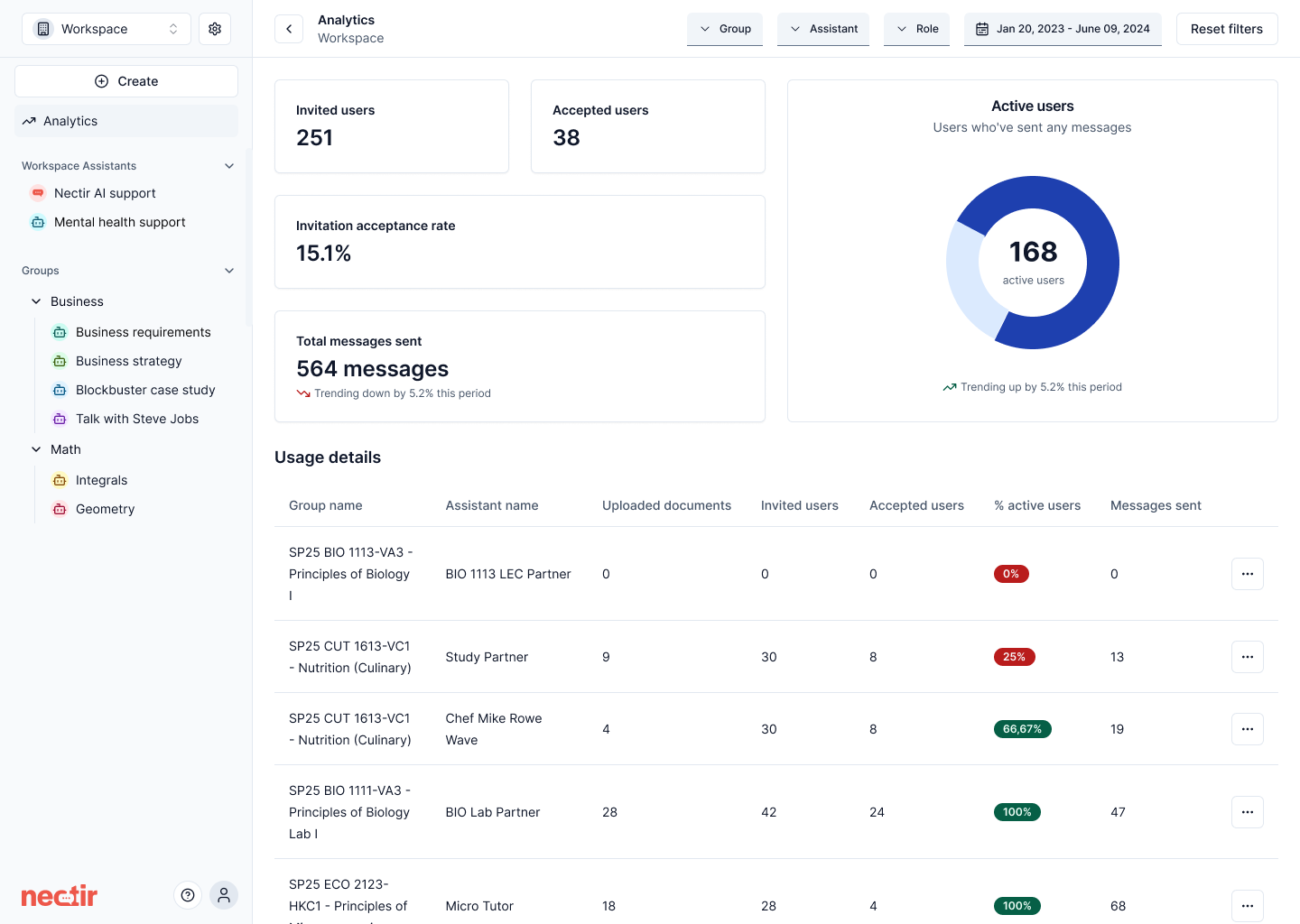
Key Metrics & Insights
- Invited Users: The number of users invited to the Workspace in the selected period.
- Accepted Users: How many of those users accepted their invitation, with the acceptance rate.
- Active Users: The number of users who sent at least one message in the selected period. A chart shows active users over time.
- Messages Sent: Track the total number of messages sent across all Assistants in the Workspace. This metric helps you understand engagement and communication levels.
- Usage Details: Review usage for each Group and each Assistant in the Workspace, including both shared and private ones, on the Groups and Assistants tabs. This helps identify the most valuable Assistants and resource allocation needs.
Workspace Assistant Management
This approach ensures Workspace owners have the oversight needed for resource management and compliance while maintaining user privacy for personal Assistants.
Accessing the Dashboard
1
Access Workspace Analytics
Look for the Analytics button in the left sidebar, located under the create button. Click it to access the comprehensive Workspace-wide dashboard.
2
Apply Filters
Utilize the filtering options to refine your data view:
- Role: Filter by Members, Editors, or Owners
- Date Range: Choose Last 7 days, Last 30 days, Last 3 months, Last year, All time, or a custom date range
- Usage Details Filters: In Usage Details, search by name, Group, or owner, and click Filters to filter by Visibility, Created By, or Group
3
Export Data
Click Export, then Download to get a CSV file of usage data for the selected date range and roles. Exports omit names, emails, and message content.
Making Organization-Wide Decisions
- Track Adoption: Track Workspace-wide engagement to ensure successful AI implementation across your organization.
- Identify Power Users: Use cross-Assistant data to identify users who leverage AI tools and could serve as champions or trainers.
- Optimize Resources: Analyze usage patterns to make informed decisions about Workspace limits, Assistant creation, and resource allocation.
- Spot Organizational Trends: Identify organization-wide patterns in AI usage and adapt your strategy accordingly.
- Ensure Compliance: Track Assistant usage to ensure adherence to organizational policies and guidelines.
- Drive Training Initiatives: Use topic data to identify areas where additional training or support is necessary.
- Strategic Planning: Leverage comprehensive usage data for long-term AI strategy and investment decisions.