
Understanding Parent Group Member Sync
When you create a nested Group, member sync from the parent Group defaults to on. This means members of the parent Group automatically gain access to the nested Group. If you don’t want parent members to have access to the nested Group, you need to turn off sync.Automatic Access
Parent Group members are automatically available in nested Groups when sync is enabled
Centralized Management
Manage membership once at the parent level and changes flow to all nested Groups
Key Concept: Parent Group members are managed at the parent Group level. Any changes to their roles or membership must be made in the parent Group settings.
Viewing Parent Group Members
Nested Groups with a parent have two tabs in the members view:- Members: Members added directly to this nested Group
- Parent Group Members: Members synced automatically from the parent Group
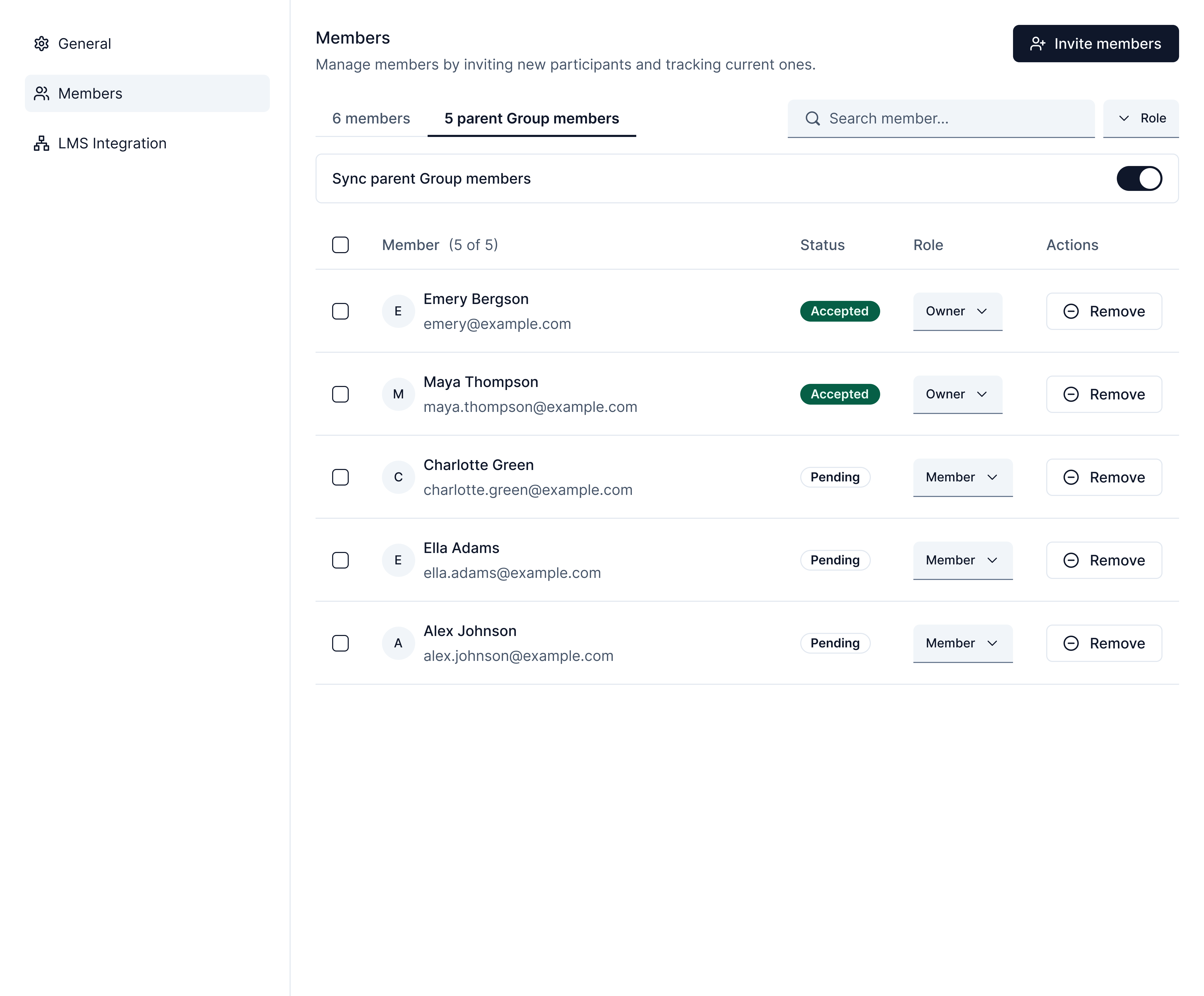
The Parent Group Members tab only appears if the Group is nested under a parent Group. This is where you can enable or disable sync.
Enabling and Disabling Parent Group Member Sync
You can control whether the system syncs parent Group members to your nested Group using the Sync Parent Group Members toggle.Disabling Sync
1
Access Group Members
Hover over the nested Group on the left sidebar and click the three dots menu, then select Members
2
Navigate to Parent Group Members Tab
Click the Parent Group Members tab
3
Toggle Off Sync
Click the Sync Parent Group Members toggle to disable sync
4
Confirm Disabling
A confirmation modal will appear. Click Disable sync to confirm.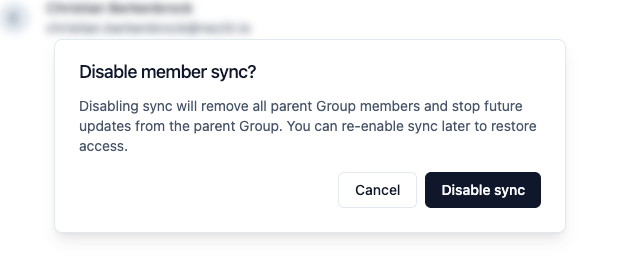
Enabling Sync
To re-enable parent Group member sync:- Navigate to the Parent Group Members tab
- Toggle on Sync Parent Group Members
- The system syncs parent Group members to the nested Group
A confirmation message will appear: “Parent Group members successfully synced.”
When Sync Is Off
When sync is off, the Parent Group Members tab displays an empty state explaining that sync is off.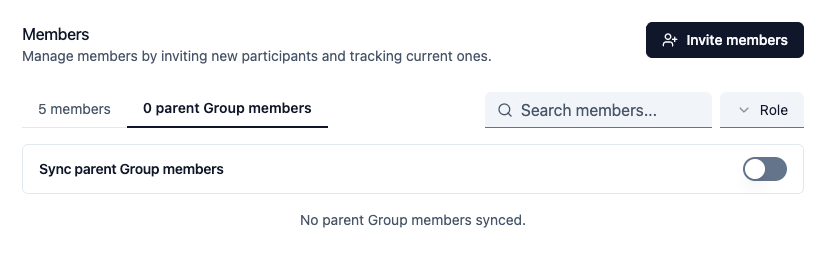
Managing Parent Group Member Roles
You can’t change parent Group members’ roles directly from the nested Group. When you click a parent Group member’s role, the dropdown shows all role options as unavailable.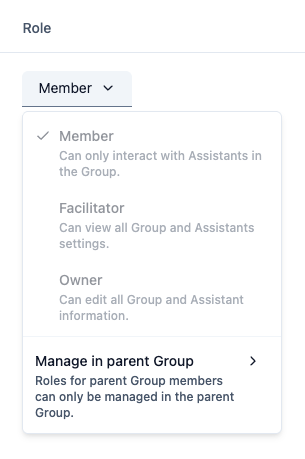
To change a parent Group member’s role:
- If you have access to the parent Group settings, click the message in the dropdown to navigate directly to the parent Group’s Members tab
- If you don’t have access, contact a parent Group Owner to make the change
Removing Parent Group Members
Removing a parent Group member from a nested Group works differently than removing direct members.1
Select the Member
In the Parent Group Members tab, select the member you want to remove
2
Click Remove
Click the Remove button
3
Confirm Removal
A confirmation modal will explain that this removes the member from the parent Group and all nested Groups.
Direct Members vs Parent Group Members
A user can be both a direct member and a parent Group member of the same nested Group. Here’s how this works:Adding a User Who Is Already Synced
If you manually add someone who is already a parent Group member:- They become a direct member of the nested Group
- No warning or blocking occurs
- They no longer appear in the Parent Group Members tab and only appear in the Members tab
Removing Direct Membership
If you remove a user’s direct membership from a nested Group:- If they’re also a parent Group member, they remain in the nested Group as a synced member
- They only appear in the Parent Group Members tab
- Their role reverts to their parent Group role
To completely remove a user from a nested Group when they’re a parent Group member, you must either:
- Remove them from the parent Group (affects all nested Groups), or
- Disable parent Group member sync for that specific nested Group
Best Practices
When to Use Parent Group Member Sync
When to Use Parent Group Member Sync
Parent Group member sync is ideal for:
- Course sections: A main course Group with nested sections where all students need access to every section
- Department structures: Parent department Group with nested program Groups
- Project hierarchies: Main project Group with nested team Groups
When to Use Direct Membership Only
When to Use Direct Membership Only
Consider disabling sync and using direct membership when:
- Section-specific access: Only certain TAs or students should access specific sections
- Temporary Groups: Short-term project Groups that shouldn’t inherit parent membership
- Different role requirements: Nested Groups need different permission structures than the parent
Keeping Parent Group Membership Clean
Keeping Parent Group Membership Clean
For effective parent Group member sync:
- Regularly review parent Group membership
- Remove inactive members from the parent Group to automatically remove them from all nested Groups
- Use consistent roles in the parent Group for easier management
Next Steps
Create Nested Groups
Learn how to create and organize nested Groups
Invite Users
Add direct members to your Groups