
Overview
The Canvas API integration connects your Nectir AI Workspace to Canvas, enabling you to import course materials like pages, assignments, files, discussion topics, and quizzes directly into your AI Assistants’ knowledge base.Prerequisites
- Canvas Admin access at the account level (to create Developer Keys)
- Nectir AI Workspace Owner role
Before You Begin
You’ll set this up by switching between two browser tabs, so open both before you start:- Nectir AI with the Workspace you want to integrate
- Canvas with admin access at the account level
Part 1: Start the API Integration in Nectir AI
Open LMS Integration Settings
Add Canvas Integration
Choose API Integration
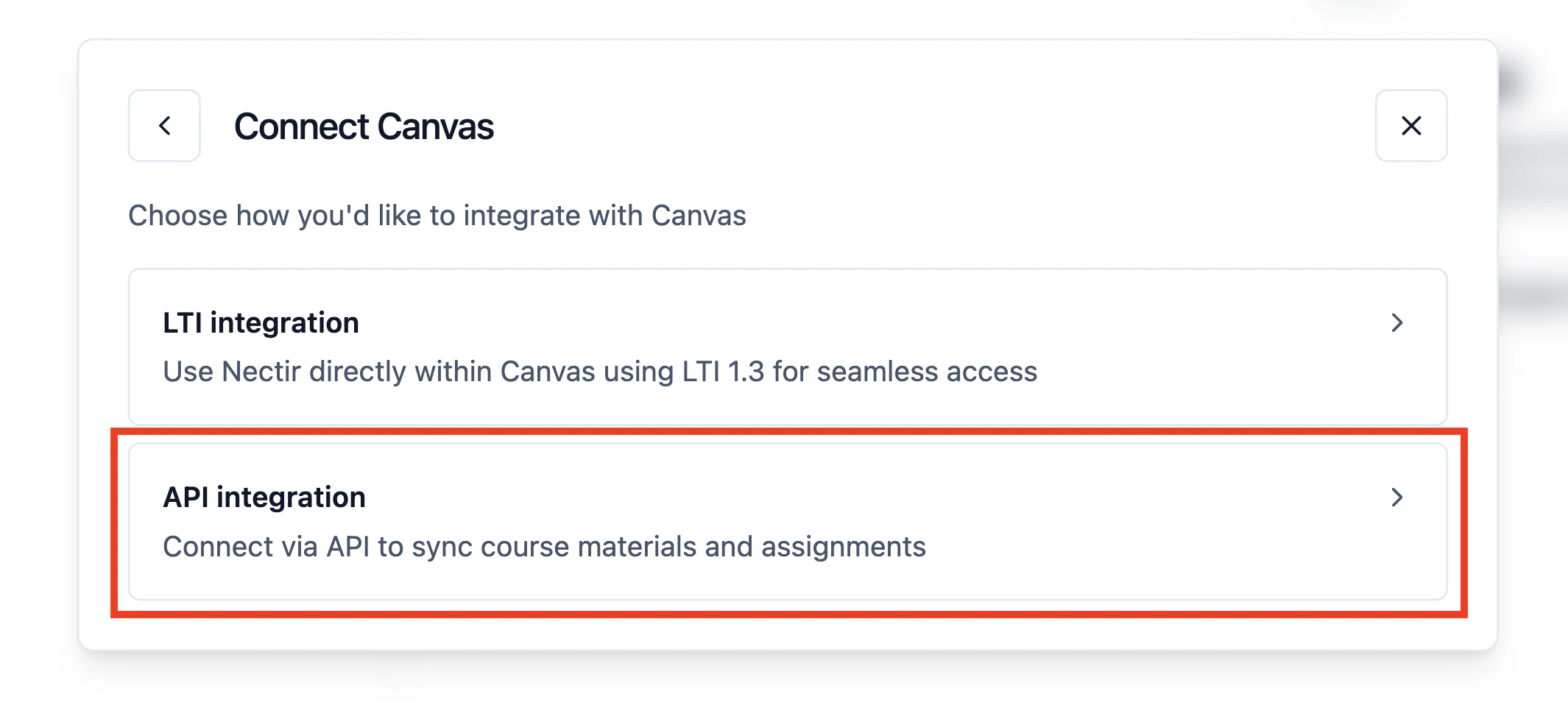
Choose API integration to connect via API key
Part 2: Create an API Key in Canvas
Navigate to Developer Keys
Create a New API Key
Configure Key Settings
- Key Name: Enter a descriptive name (for example,
Nectir AI API Key) - Redirect URIs: Enter the following URI exactly:
Configure API Scopes
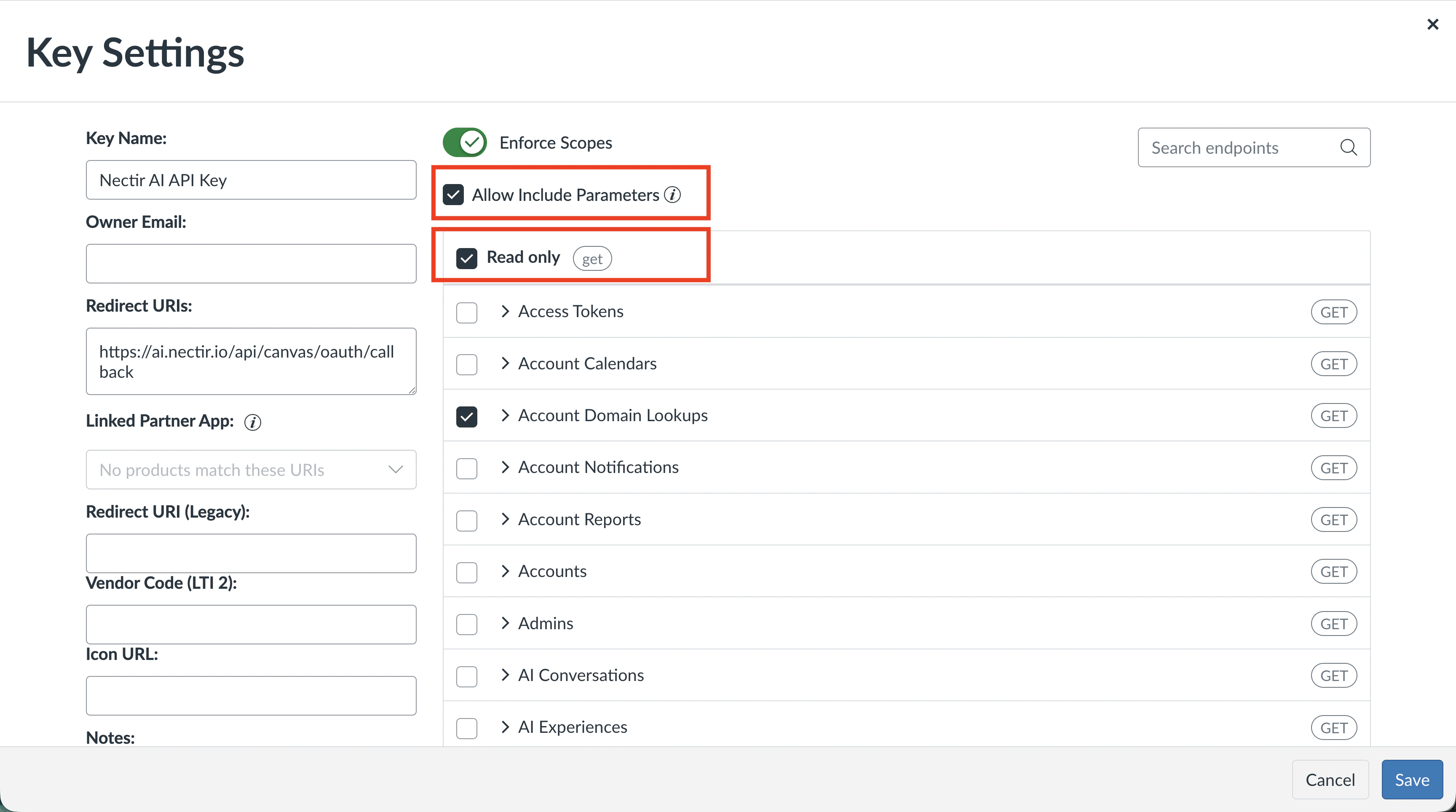
Check the Read only checkbox to grant read-only API access
Advanced: Select Only the Required Scopes
Advanced: Select Only the Required Scopes
Save the Key
Copy the Client Secret into Nectir AI
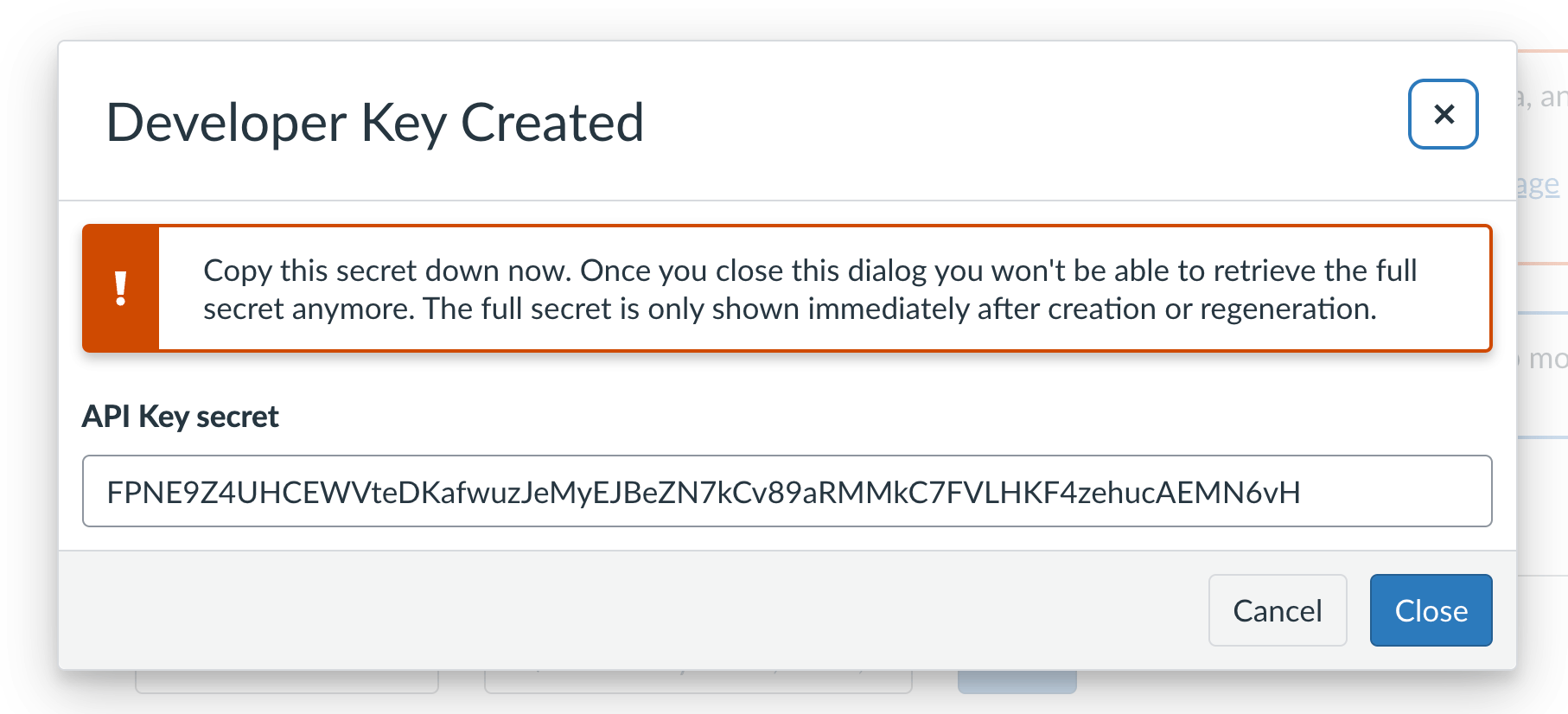
Copy the Client Secret as soon as it appears
Copy the Client ID into Nectir AI

The Client ID is the number under the Details column
Enable the Key
Part 3: Complete the Connection in Nectir AI
Enter Your Canvas URL
https://yourschool.instructure.com).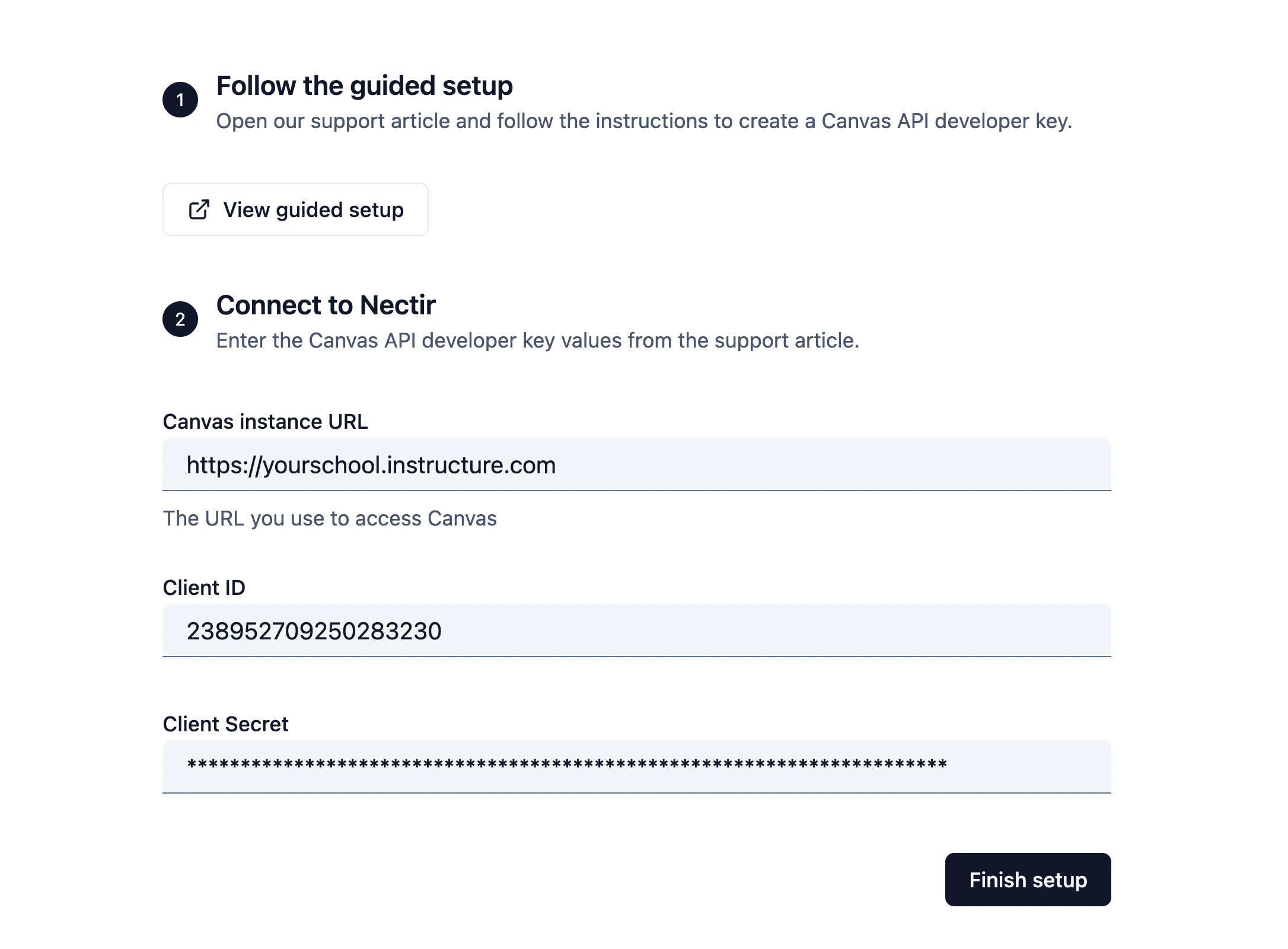
Enter your Canvas URL, Client ID, and Client Secret
Finish Setup
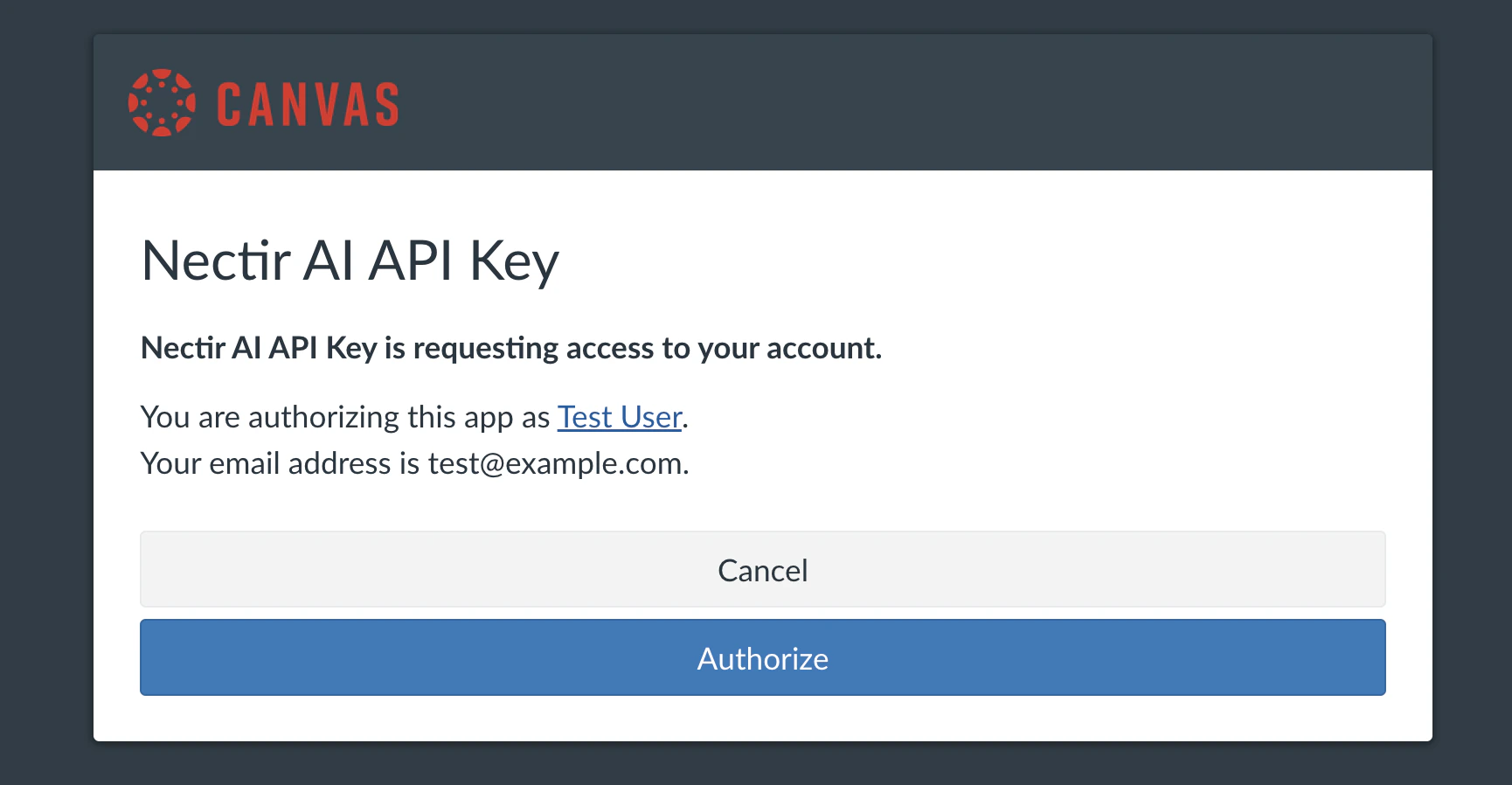
Canvas OAuth authorization screen
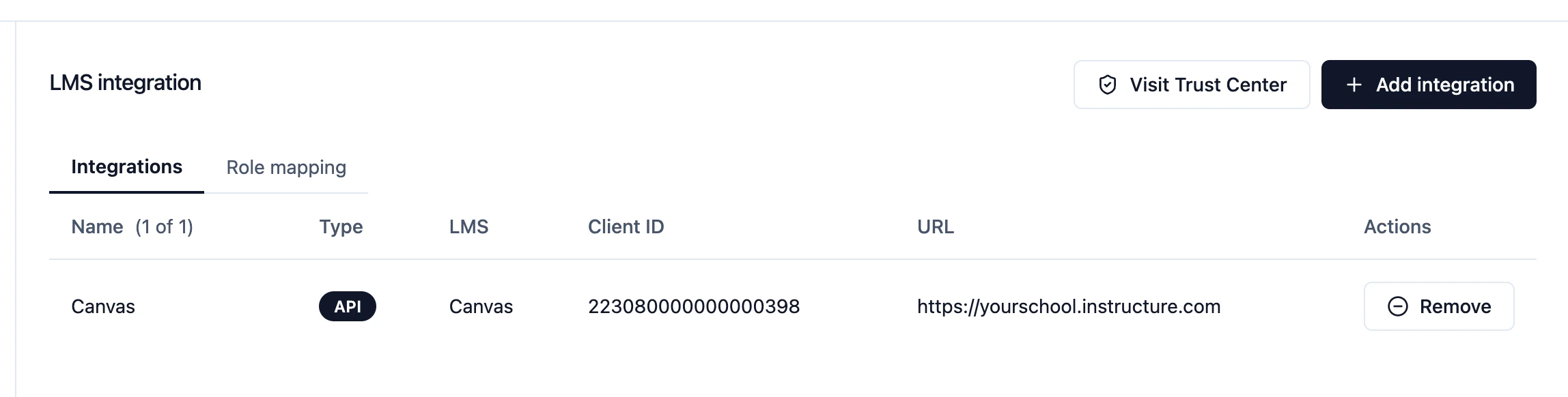
A successful connection confirms your API setup is complete
Verify the Integration
The API integration is working when instructors can browse Canvas course content from an Assistant. The quickest way to confirm this is to open an Assistant’s Knowledge tab and check that the Add from Canvas option appears. Most institutions that set up the API integration also run the Nectir AI LTI integration, so you can verify in the course context your instructors actually use.Open an Assistant in a Canvas Course
Open the Knowledge Tab
Confirm Add from Canvas Is Available
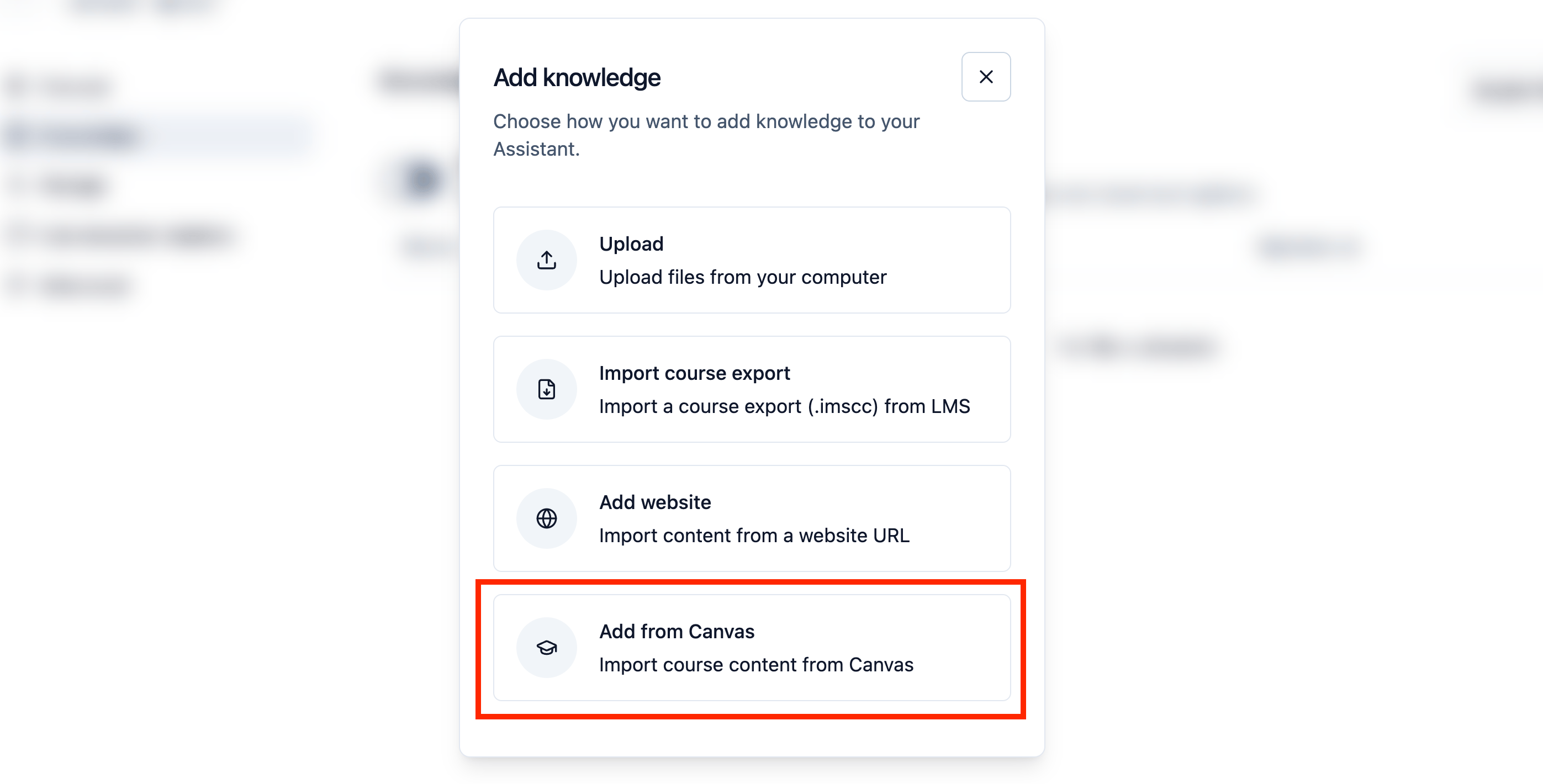
The Add knowledge menu lists Add from Canvas when the API integration is active
Troubleshooting
Connection test fails
Connection test fails
- Verify your Canvas URL is correct and includes
https://(for example,https://yourschool.instructure.com) - Confirm the Client ID and Client Secret are copied exactly with no extra spaces
- Check that the API key is enabled (green toggle) in Canvas Developer Keys
'Add from Canvas' is not available
'Add from Canvas' is not available
- Confirm Part 3 finished successfully and the connection shows as active in Workspace settings > LMS integration
- Make sure the API key is enabled (green toggle) in Canvas
- The Assistant must belong to the Workspace where the API integration was configured
Invalid redirect URI error
Invalid redirect URI error
http vs https).Permission errors when importing content
Permission errors when importing content
Lost the Client Secret
Lost the Client Secret
Can't find Developer Keys in Canvas
Can't find Developer Keys in Canvas