
This guide is intended for LMS administrators. If you encounter any issues during the integration process, please contact support@nectir.io.
Deciding Whether to Rotate
May 2026 update: Some customers are asking about this procedure in response to the May 2026 Instructure security incident. Nothing indicates that LTI 1.3 applications like Nectir AI were affected, and rotation isn’t required by Instructure. If your institution’s security policy requires rotation out of an abundance of caution, the steps below show you how to do it safely.
- Your institution’s security policy requires rotating credentials for connected platforms after a partner discloses an incident
- You suspect your Canvas-side configuration may have leaked
- You’re following a routine credential-rotation schedule
How This Procedure Works
This procedure rotates the Canvas-side Client ID while preserving your existing Nectir AI LTI integration record. Course-to-Group links, role mapping, and Workspace settings stay intact because you edit the existing Nectir integration to use a new Client ID rather than deleting and recreating it.Before You Begin
You’ll need:- Canvas admin access at the same account level where Nectir AI is currently installed
- Nectir AI Workspace admin access (Owner)
- Two browser tabs open: Canvas and Nectir AI Workspace settings
- About 15 minutes. Nectir AI disappears from courses for a short window during the rotation, but you don’t lose any data or links.
Rotation Procedure
1
Record Your Current Canvas App Settings
In Canvas, navigate to Admin > Apps > Manage and select your existing Nectir AI app. Record the following so you can recreate them on the new app in step 4: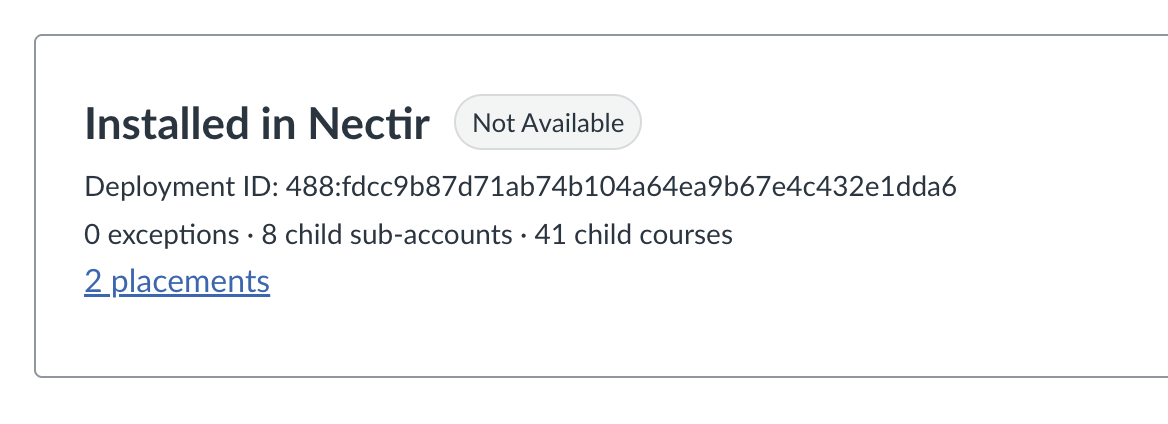
- Nickname (if you set one)
- Root account availability (Available or Not Available)
- Availability Exceptions for any sub-accounts
2
Temporarily Disable the Existing Canvas App
Still on the existing Nectir AI app, go to the Availability and Exceptions tab. Click the pencil icon next to the root account (or next to each Exception) and change the setting from Available to Not Available, then Save.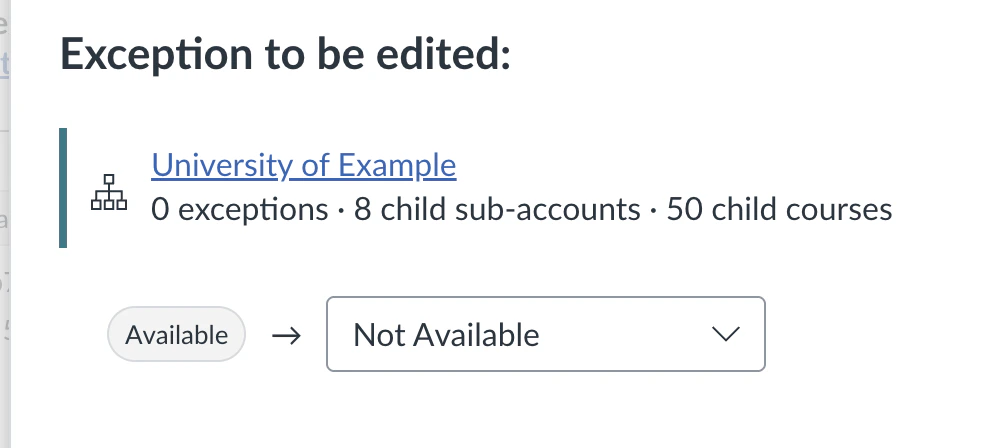
This hides Nectir AI from courses without deleting the app. The rotation remains fully reversible at this point. Don’t delete the app yet.
3
Install a New Nectir AI App in Canvas
- In Nectir AI, navigate to Workspace settings > LMS integration > Add integration, select Connect on the Canvas card, then select LTI integration
- Copy the JSON shown on that screen
- Cancel the flow before saving by clicking the X in the top left corner. You are only using this screen to grab the JSON. Don’t finish creating a new integration on the Nectir side.
- In Canvas, go to Admin > Apps > Manage
- Select Install a New App
- In the Install Method dropdown, select JSON
- Paste the JSON you copied from Nectir AI
- Select Next until you reach the Nickname section, then set all three of the following to
Nectir AI (New)so you and your users can tell the new app apart from the old one in course navigation during the rotation:- Administration Nickname (at the top of the section)
- Placement Names > Account Navigation (scroll down)
- Placement Names > Course Navigation
- Select Install App.
Nectir AI in step 8 after deleting the old app.4
Mirror Your Old App's Settings on the New App
On the new app’s Availability and Exceptions tab, recreate the same root-account state and Exceptions you recorded in step 1. For most installs, this means clicking the pencil icon next to the root account and changing it from Not Available to Available.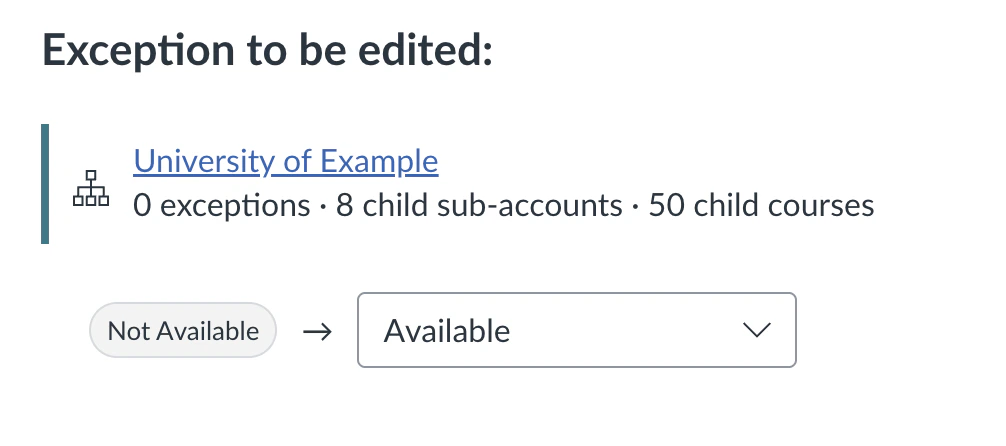
5
Copy the New Client ID
From the new app’s details page, select Copy Client ID. You’ll paste it into your existing Nectir AI integration in the next step.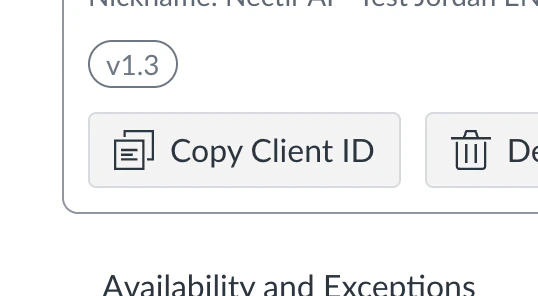
6
Update Your Existing Nectir AI Integration
In Nectir AI, navigate to Workspace settings > LMS integration. Find your existing Canvas LTI integration, open its actions menu (three dots), and select Edit.Paste the new Client ID into the Client ID field. Leave Integration name and Canvas instance URLs unchanged. Select Save changes.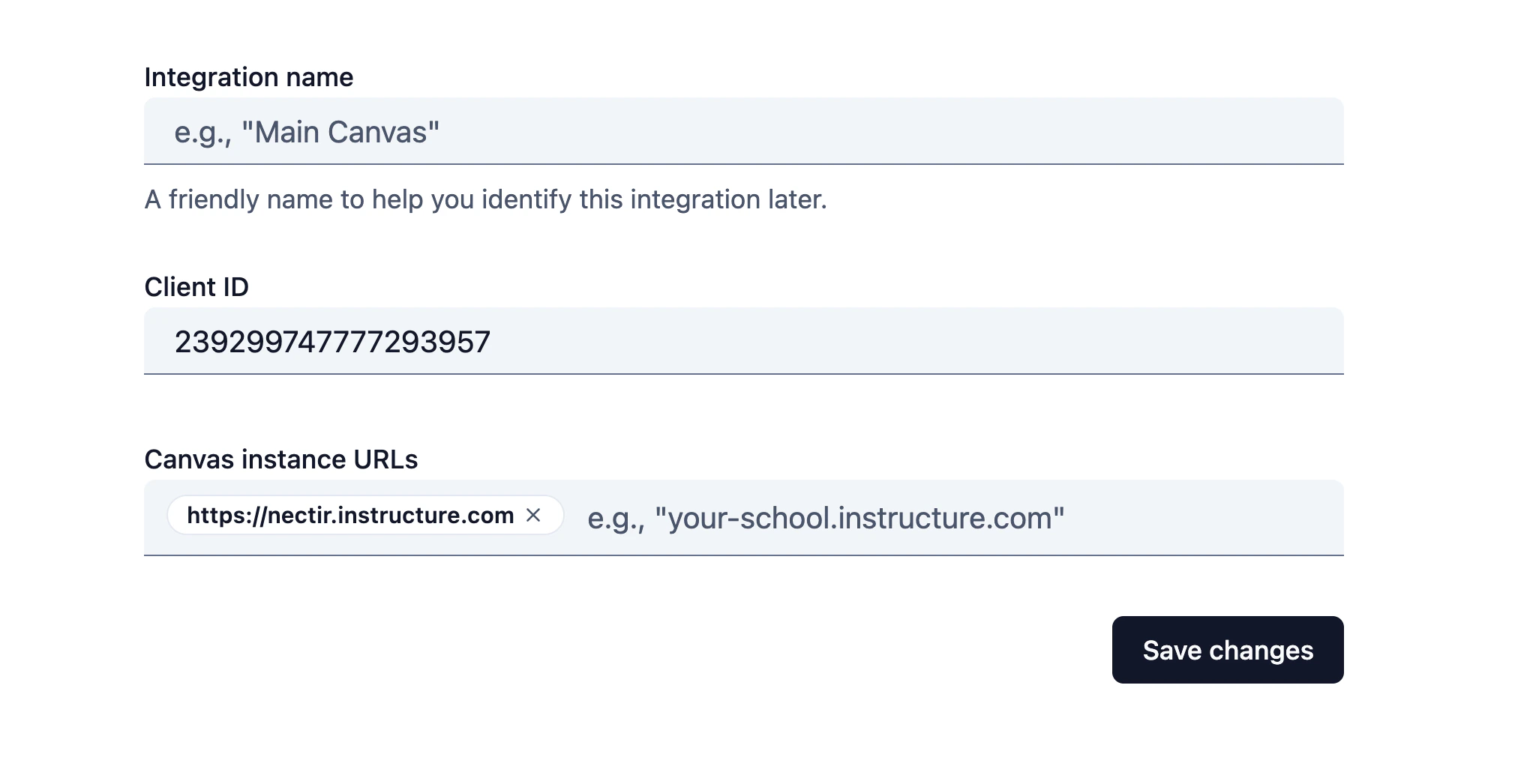
7
Validate the New Integration
Open a Canvas course where your user has an enrollment (ideally as a Teacher). The new app is hidden by default in course navigation, so you’ll need to enable it for the test course first:If Nectir AI (New) doesn’t appear in the hidden items list, the new app isn’t enabled at the account level. Go back to step 4 and confirm the availability is set to Available for the right account or sub-account.If you see a “link or create a Group” prompt or any other error, stop here and use the recovery steps below before continuing.
- In the course, go to Settings > Navigation
- Find Nectir AI (New) in the hidden items section at the bottom and drag it into the visible items above
- Select Save
- From the course’s left navigation, select Nectir AI (New)
If Nectir AI opens to the linked Group, the rotation succeeded. Your course-to-Group connections, role mappings, and Workspace settings are intact.
8
Delete the Old App and Restore the Name
Only after step 7 validates successfully:
- In Canvas, navigate to Admin > Apps > Manage
- Open the original Nectir AI app (the one you disabled in step 2) and delete it
- Open the new app and rename each of the following back to
Nectir AI:- Administration Nickname
- Placement Names > Account Navigation
- Placement Names > Course Navigation
- Save your changes
Nectir AI.If Something Goes Wrong
If launches fail after step 6, you can revert without losing any data:- In Nectir AI, go to Workspace settings > LMS integration, edit your Canvas LTI integration, and paste the old Client ID back into the Client ID field. Save.
- In Canvas, re-enable the original Nectir AI app’s availability by reversing step 2 (set the root account or Exceptions back to Available).
- Turn off or delete the new app you installed in step 3.
- Contact support@nectir.io with your Workspace name and the approximate time of the rotation attempt.
Related Articles
Canvas LTI Guided Setup
The full first-time install guide for the Canvas LTI integration.
Update Your Canvas Integration
The dated log of post-setup configuration changes and notices for your integration.
Canvas Integration Overview
Integration methods, security standards, and data access for IT review.
Canvas Integration Issues
Troubleshooting for Canvas LTI launch and connection problems.