
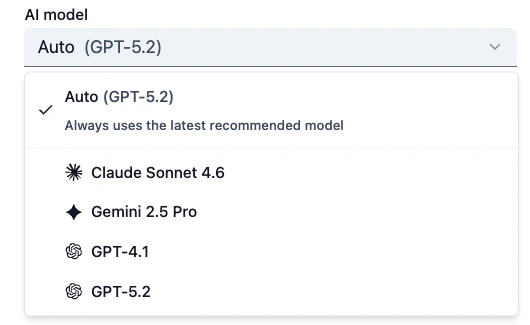
The model picker interface may change as providers and model options evolve over time.
Configuring AI Models
Nectir gives you control over which AI model powers your Assistant. For most users, the default setting is the best choice.Auto (Recommended)
New Assistants default to Auto, which always uses the current recommended model. When Nectir updates or adds models, Auto keeps your Assistant on the best available option without any action from you. Use Auto if you:- Want your Assistant to always use the latest recommended model
- Don’t have a specific reason to choose a different model
- Manage more than one Assistant and don’t want to track model changes across them
Choosing a Specific Model
You can also select a specific AI model from the dropdown. Nectir offers models from different providers, and the available options may change over time as providers release new models. You might choose a specific model if you:- Want consistent behavior from a particular model you’ve already tested
- Are comparing how different models respond to the same prompts
- Have a preference based on your own experience with a specific provider
If you select a specific model and it’s later removed from the platform, your Assistant will automatically switch to the current recommended model.
Selecting an AI Model
- Navigate to your Assistant’s settings
- Click Advanced in the settings sidebar
- Under AI Model, choose Auto (recommended) or select a specific model from the dropdown
- Click Save Changes
Building AI Literacy
Exposing students to different AI models is a practical way to build AI literacy. Because Nectir offers models from different providers, you can encourage students to:- Compare how different models respond to the same question
- Notice differences in tone, depth, and reasoning style across models
- Think critically about which model handles certain types of tasks best
AI Model Temperature
Temperature controls how creative or focused your AI Assistant’s responses are. Most Assistants work well with the default setting, and some models don’t support temperature at all.The Temperature control always appears in Advanced settings, but it may be disabled for models that don’t support it.
Web Search
Web search allows your Assistant to search the internet in real-time to answer questions that require current information, recent events, or data beyond the Assistant’s knowledge base.What's Web Search
What's Web Search
Important: Web search doesn’t run when your Assistant’s knowledge scope is “Document Only,” even with the Web Search toggle on. With “General Knowledge” or “Topic Knowledge,” the Assistant searches the internet when needed.
When to Use Web Search
When to Use Web Search
Enable web search for Assistants that need to:
- Answer questions about current events or recent developments
- Provide up-to-date statistics, prices, or data
- Research topics not covered in your course materials
- Verify or supplement information with external sources
- Help students explore topics beyond your uploaded content
History Course Example
“How do recent archaeological discoveries about Roman engineering relate to what we learned about their social structure in Chapter 3?”
Economics Course Example
“Compare today’s unemployment data with the economic theories we studied. Which model best explains current trends?”
Science Course Example
“Analyze recent CRISPR breakthroughs using the ethical framework from our readings. What new considerations arise?”
Business Course Example
“How do current market conditions for tech companies align with Porter’s Five Forces model we discussed?”
When Not to Use Web Search
When Not to Use Web Search
Consider disabling web search if:
- Your course should focus on uploaded materials
- You want to prevent students from relying on external sources
- Your subject matter doesn’t require current information
- You’re concerned about external information conflicting with course content
Student Examples
Student Examples
When you enable web search, students interact with the Assistant normally. The Assistant automatically determines when a web search would be helpful and performs it in the background.
- Synthesis & Analysis
- Real-Time Context
- Theory to Practice
Student Question: “How does this week’s Supreme Court decision on environmental law relate to the regulatory frameworks we studied in Chapter 5?”
Enabling Web Search
Enabling Web Search
New Assistants start with Web Search on, unless a Workspace Owner changed the default under Workspace Settings > AI Controls > Default Assistant Tools.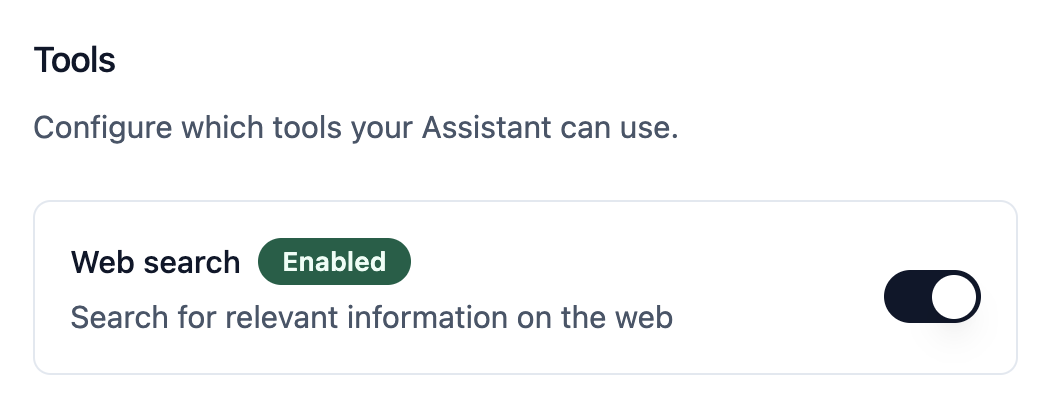
1
Navigate to Advanced Settings
Go to your Assistant’s settings and click on Advanced
2
Enable Web Search
In the Tools section, toggle on Web Search and click Save Changes
Your Assistant can now perform web searches when answering questions
Web Search Sources
Web Search Sources
When your Assistant uses web search, it always shows the sources it referenced, regardless of whether you have the sources feature enabled for uploaded knowledge files.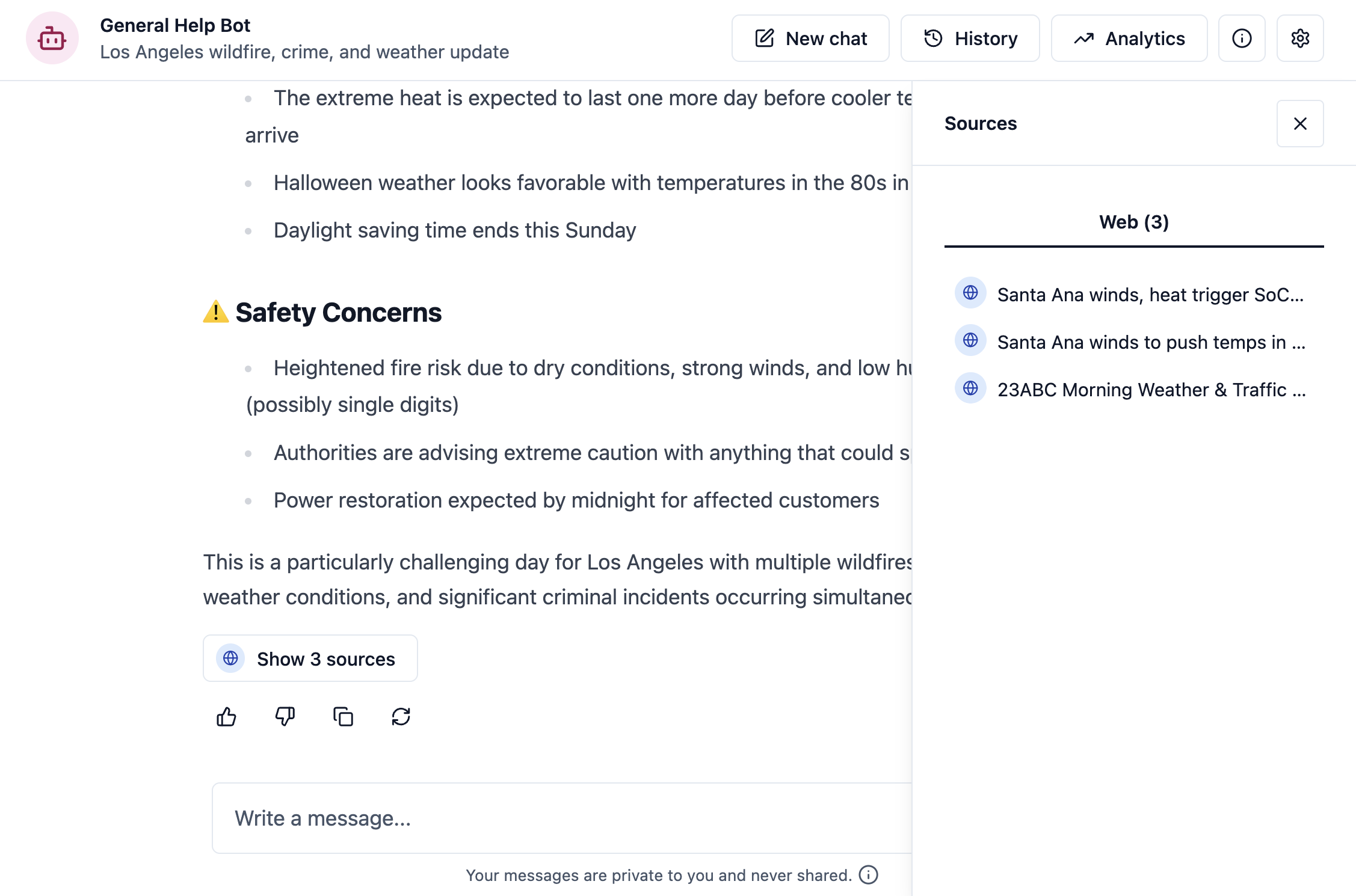
Sources are automatic for web search: Unlike uploaded knowledge files where you can toggle sources on or off, web search results always include the links the AI referenced. This helps students verify the information and understand where the data comes from.
Best Practices
Best Practices
Combine with uploaded materials
Combine with uploaded materials
Web search works best when combined with your course materials. Your Assistant will reference uploaded documents first, then use web search to supplement with current information when needed.
Set clear expectations
Set clear expectations
Tell students that the Assistant can access current information online. This helps them understand the Assistant’s capabilities and encourages them to ask questions about recent events or data.
Consider subject matter
Consider subject matter
Enable web search for subjects that benefit from current information (sciences, business, current events) but consider disabling it for subjects focused solely on historical texts or specific course materials.
Quiz
Quiz allows your Assistant to generate and grade interactive quizzes directly within the chat conversation. Students can request quizzes on topics they’re learning, answer them interactively, and receive AI-powered grading and feedback without leaving the conversation.Quiz is available on every Assistant. It has no toggle in Advanced settings and can’t be turned off.
What's Quiz
What's Quiz
Important: Quiz is designed as a formative learning tool for student self-assessment and practice, not as a replacement for formal graded assessments. Think of it as an interactive study partner that helps students test their understanding and receive immediate feedback during their learning process.
When to Use Quiz
When to Use Quiz
Quiz fits Assistants that support:
- Formative assessment and knowledge checks
- Student self-testing and exam preparation
- Practice reinforcement after reading or lectures
- Interactive learning with immediate feedback
- Self-paced study and concept mastery
Biology Course Example
Student: “Can you quiz me on cellular respiration with 5 multiple choice questions to help me prepare for tomorrow’s exam?”
History Course Example
Student: “Give me a short quiz about the causes of World War I so I can test what I learned from this week’s readings.”
Programming Course Example
Student: “Test my understanding of Python loops with some fill-in-the-blank and short answer questions.”
Literature Course Example
Student: “Create a quiz on the themes in Chapter 3 of The Great Gatsby to check my comprehension.”
How Students Use Quiz
How Students Use Quiz
Students request quizzes in conversation; no particular syntax is required. They ask the Assistant to generate a quiz on a specific topic, specify the number of questions (1-20), and optionally request particular question types. The Assistant generates the quiz, presents questions, and provides AI-powered grading with explanatory feedback after submission.
- Multiple Choice & True/False
- Multiple Select
- Fill in Blank & Short Answer
Student Request: “Quiz me on photosynthesis with 3 multiple choice questions”Quiz Experience:
The Assistant generates questions with labeled options. Students select their answers, submit the completed quiz, and receive immediate grading with explanations for correct and incorrect answers.Feedback Example:
- Question 1: Correct ✓ - Explanation of why the answer is right
- Question 2: Incorrect ✗ - Explanation of the correct answer and why their choice was wrong
- Question 3: Correct ✓ - Additional context connecting to course concepts
Nectir Support Tool
The Nectir Support tool lets your Assistant search Nectir’s support documentation to answer questions about the platform in real-time.Your Assistant always accesses the latest support documentation—no manual updates needed.
What Nectir Support Is
What Nectir Support Is
What it’s for:
- Real-time access to all Nectir support documentation
- Answers questions about platform features, setup, and best practices
- Seamless in-conversation help without leaving the chat
- A replacement for human support (complex issues, bugs, account problems)
- For answering your course-specific content questions
When to Use Nectir Support
When to Use Nectir Support
Enable this tool when you want your Assistant to help users learn how to use the Nectir platform itself.Recommended for:
- Institutions with many first-time Nectir users
- Assistants designed for general student support
- Pilot programs where users are still learning the platform
- Any Assistant where users might ask questions about how Nectir works
- Highly specialized Assistants where users are already platform-savvy
- Mature deployments where support questions are rare
Enabling Nectir Support
Enabling Nectir Support
New Assistants start with Nectir Support on, unless a Workspace Owner changed the default under Workspace Settings > AI Controls > Default Assistant Tools.
1
Navigate to Assistant Settings
As a Workspace Owner or an Owner of the Assistant’s Group, go to the Assistant’s Settings page.
2
Access Tools Configuration
Select the Advanced tab, then scroll to the Tools section.
3
Enable Nectir Support
Toggle on Nectir Support and save your changes.
Your Assistant can now search Nectir’s support documentation when users ask platform-related questions.
Best Practices
Best Practices
- Enable this tool on general-purpose Assistants in environments with new Nectir users
- This tool adds Nectir platform knowledge on top of your Assistant’s normal capabilities. It doesn’t limit the Assistant to only answering platform questions
For complex issues, account problems, or bugs, direct users to support@nectir.io.
Video Tutorial
See Advanced Configuration in Action
Watch how to select AI models and configure temperature settings