
This guide is intended for LMS administrators. If you encounter any issues during the integration process, please contact support@nectir.io.
Canvas LTI Setup
This guide walks you through installing and configuring the Nectir AI LTI app in Canvas. Once complete, courses across your Canvas instance can launch Nectir AI directly from course navigation.Before You Begin
You’ll need three browser tabs open:- Canvas with admin access at the account level where you want to install Nectir AI
- Nectir AI with the Workspace you want to integrate
- This support article to follow along with the steps below
Install the App in Canvas
- In Canvas, navigate to the Admin panel
- Go to Apps
- Select the Manage tab
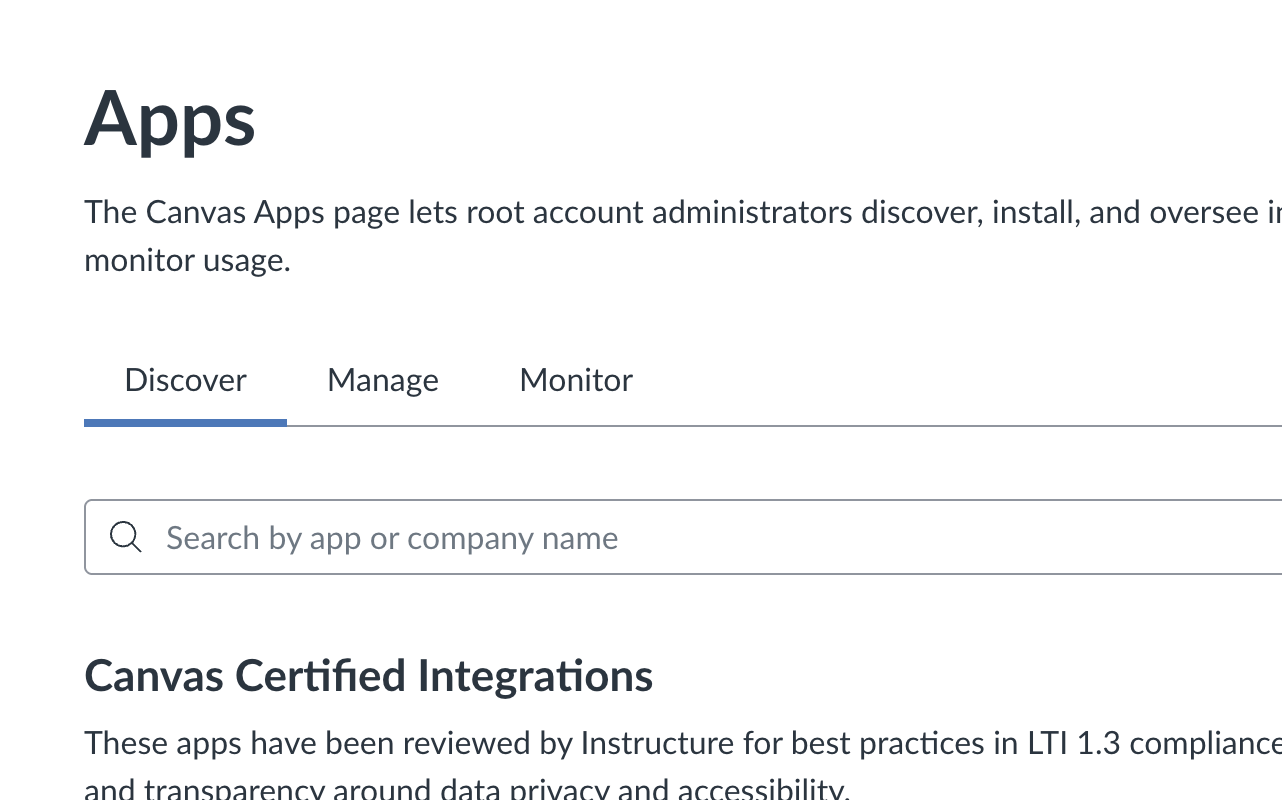
- Select Install a New App
- In the Install Method dropdown, select JSON
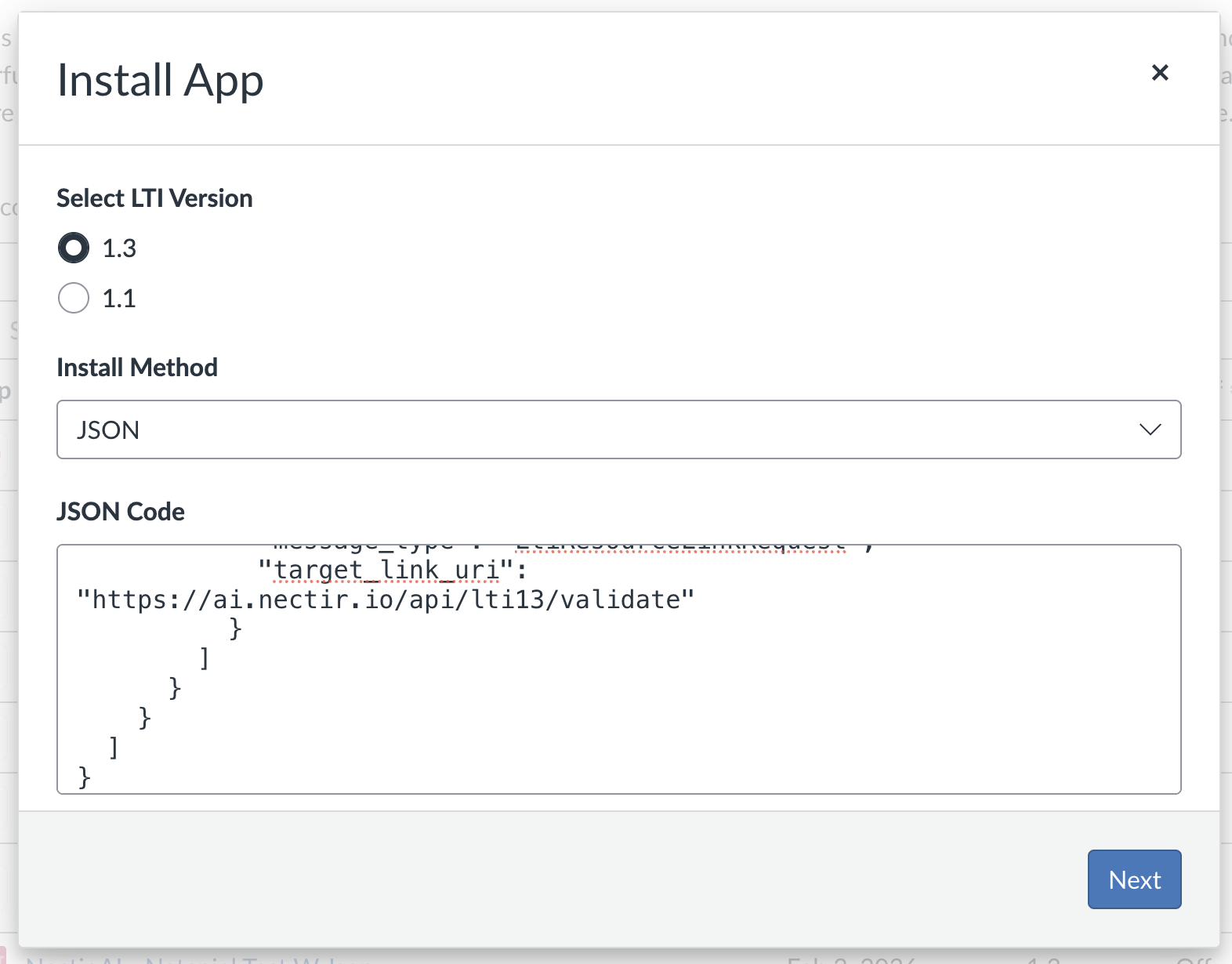
- Copy the JSON configuration below and paste it into the configuration field.
Copy JSON Configuration
Copy JSON Configuration
- Select Next
- In the Custom Fields section, replace
YOUR_WORKSPACE_IDwith your actual Workspace ID from Nectir AI - Select Next through the remaining sections (these are automatically configured from the JSON).
- Select Install App
Enable the App in Canvas
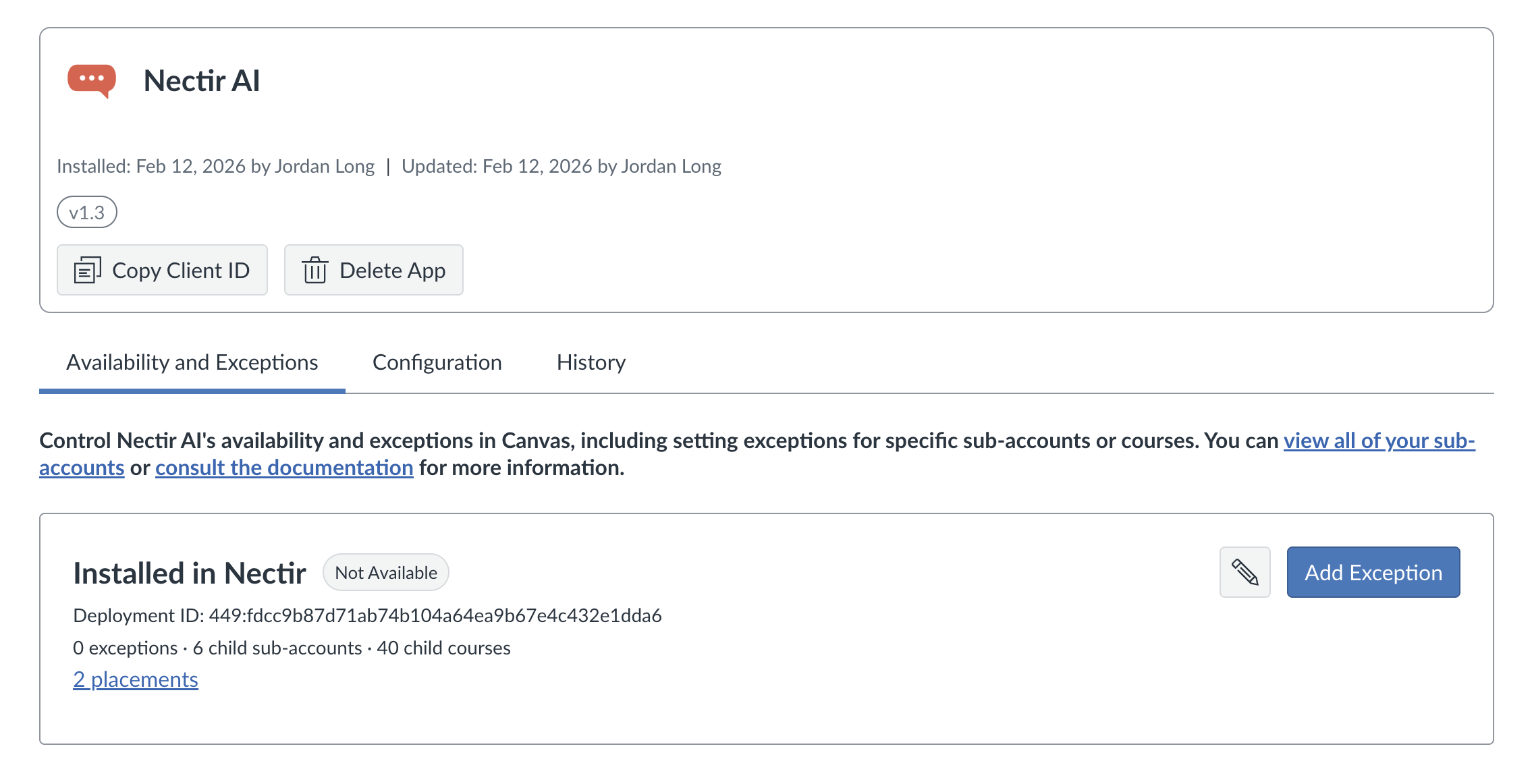
- After installation, you’ll see the Nectir AI app page in Canvas
- Go to the Availability and Exceptions tab
- Click the pencil icon to edit the root account
- Change from Not Available to Available
- Save
- Copy the Client ID from the app details
Complete the Connection in Nectir AI
- In Nectir AI, navigate to Workspace settings > LMS integration > Add integration > Canvas > LTI integration
- Paste the Client ID
- Enter your Canvas URL (for example,
https://yourinstitution.instructure.com) - Select Save and continue
- Select Finish setup
Test the Integration
Open a Canvas course where your user has an enrollment (ideally as a Teacher) and select Nectir AI from the course navigation. Nectir AI should open a page where you can link or create a Nectir Group for that course, as described in Choose Your Linking Option. If something isn’t working:- Getting an error or not seeing Nectir AI? Make sure you completed every step in Complete the Connection in Nectir AI, including Save and continue and Finish setup. Without this, the integration won’t work.
- Landed on a generic Assistant instead of a course Group? This often happens when an admin tests from a course they aren’t enrolled in. Canvas sends course roles to Nectir AI, and without an enrollment, Nectir can’t match you to the right Group. Test from a course where your user has an actual role.
- Something else? Contact support@nectir.io.
Instructor Setup Guide
After completing the LTI integration setup, instructors can follow the Canvas Workspace Setup guide to:- Link their Canvas courses to Nectir Groups
- Configure role mapping
- Set up roster sync
- Manage courses across terms
District Sub-Account Setup
This section is for district Canvas administrators who manage a single Canvas instance with sub-accounts for multiple colleges.
Choose Your Setup Approach
How should students access Nectir AI?Per-College Setup (Recommended)
Each college gets its own Workspace and LTI app. Students only see their college’s Nectir Workspace. Use this for most districts.
District-Wide Setup
All colleges share a single Workspace and LTI app. Only use this for district-wide Canvas courses that enroll students from all colleges.
Per-College Setup
Repeat the following steps for each college in your district.Install and Connect the App
Complete the setup steps above using the Nectir Workspace ID for the college you are setting up. The process is identical to a standard installation.
Scope the App to the College Sub-Account
After installing and connecting the app, restrict it so it only appears within the correct college’s sub-account: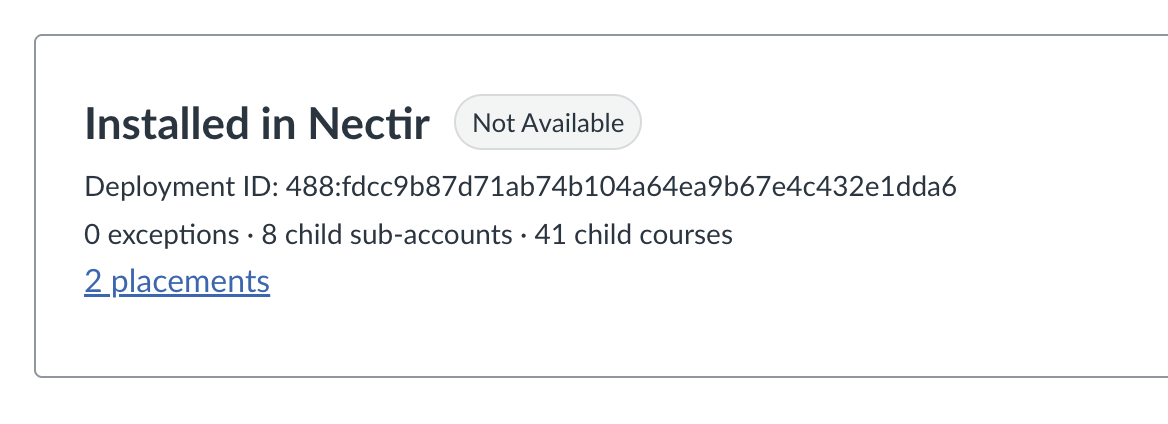
- In Canvas, go to Admin > Apps > Manage
- Select the Nectir AI app you just installed
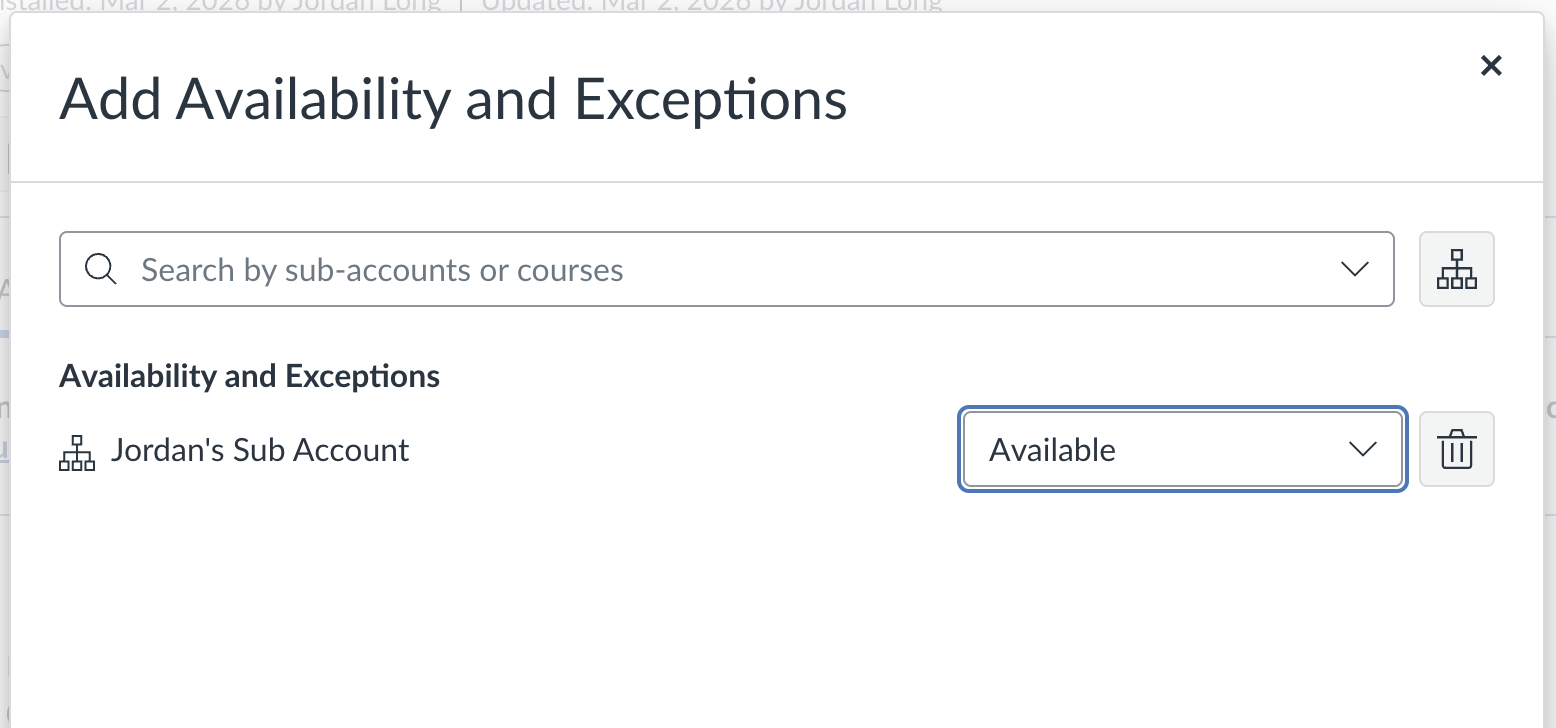
- Go to Availability and Exceptions
- Ensure the root account is set to Not Available. If it shows as Available, select the pencil icon to edit it and change the visibility to Not Available
- Select Add Exception
- Choose the sub-account for this college and set it to Available
- Select Save
Verify the Setup
Access a course within the college’s sub-account and confirm that Nectir AI appears and connects to the correct Workspace.
District-Wide Setup
If your district runs Canvas courses that enroll students from all colleges and you want a single shared Workspace, follow the setup steps in Canvas LTI Setup once at the district root level and enable the app for the root account. You don’t need sub-account scoping.Troubleshooting
If you’re experiencing issues with your Canvas integration: For Canvas-specific problems: go to Canvas Integration Issues for help with:- Assistant doesn’t appear in Canvas course
- Login prompts when accessing through Canvas
- Connection confirmation issues
- Course linking problems
- Pages not loading correctly
- Broken layouts or missing buttons
- Cache and cookie issues
- Browser compatibility problems