
Overview
The way you add Nectir AI to a Canvas course depends on whether your institution has the Canvas LTI integration set up:If you have the Canvas LTI integration
If you don't have Canvas LTI
With the Canvas LTI Integration
If your institution has the Canvas LTI integration installed, there are four ways to add Nectir AI to a course:- Course navigation sidebar: whole-course AI hub linked to a Nectir Group
- Inside a page: embed a specific Assistant on a syllabus, intro, or instructions page
- Inside an assignment: embed a specific Assistant tied to a task or problem set
- Inside a module: add an Assistant as a standalone module item
assistantId custom parameter), Canvas uses deep linking: you pick the Assistant interactively when you embed it. Use Method 2, 3, or 4 below; each ends with an Embed an Assistant modal where you choose which Assistant the placement points to. There’s no custom parameter to configure on the Canvas side.Before You Begin
Your institution’s Canvas administrator must have already completed the one-time LTI setup. Specifically:- Your institution must have installed the Canvas LTI. If you don’t see Nectir AI anywhere in Canvas, your admin hasn’t installed the integration yet. See the Canvas LTI Guided Setup for admin instructions, or skip ahead to Without the Canvas LTI Integration.
- For Methods 2, 3, and 4: the deep linking placements must be in place. New Canvas installs include them automatically. If the Apps button doesn’t show Nectir AI in the Rich Content Editor, or Nectir AI doesn’t appear when you add an External Tool to a module, your institution likely set up Nectir AI before these placements existed. Ask your Canvas admin to apply the Deep Linking Placements update.
Four Ways to Add Nectir
Expand any method below for the full walkthrough.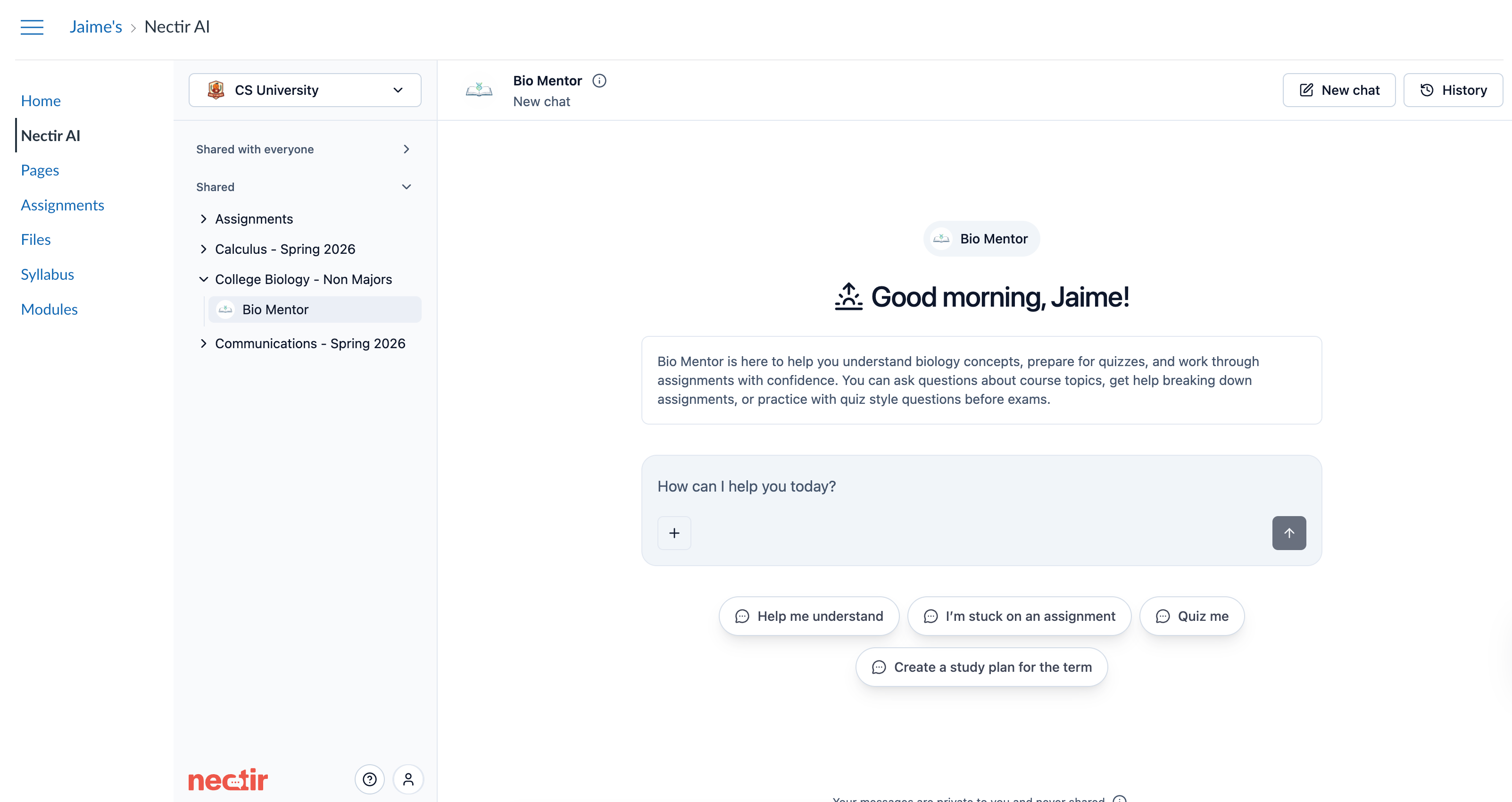
Nectir AI in the Canvas course navigation sidebar, opened to the linked Assistant
Navigate to Your Course
Open Navigation Settings
Enable Nectir AI
- Click the three-dot menu next to Nectir AI and select Enable
- Drag the Nectir AI item up to the active navigation items section
Launch Nectir AI
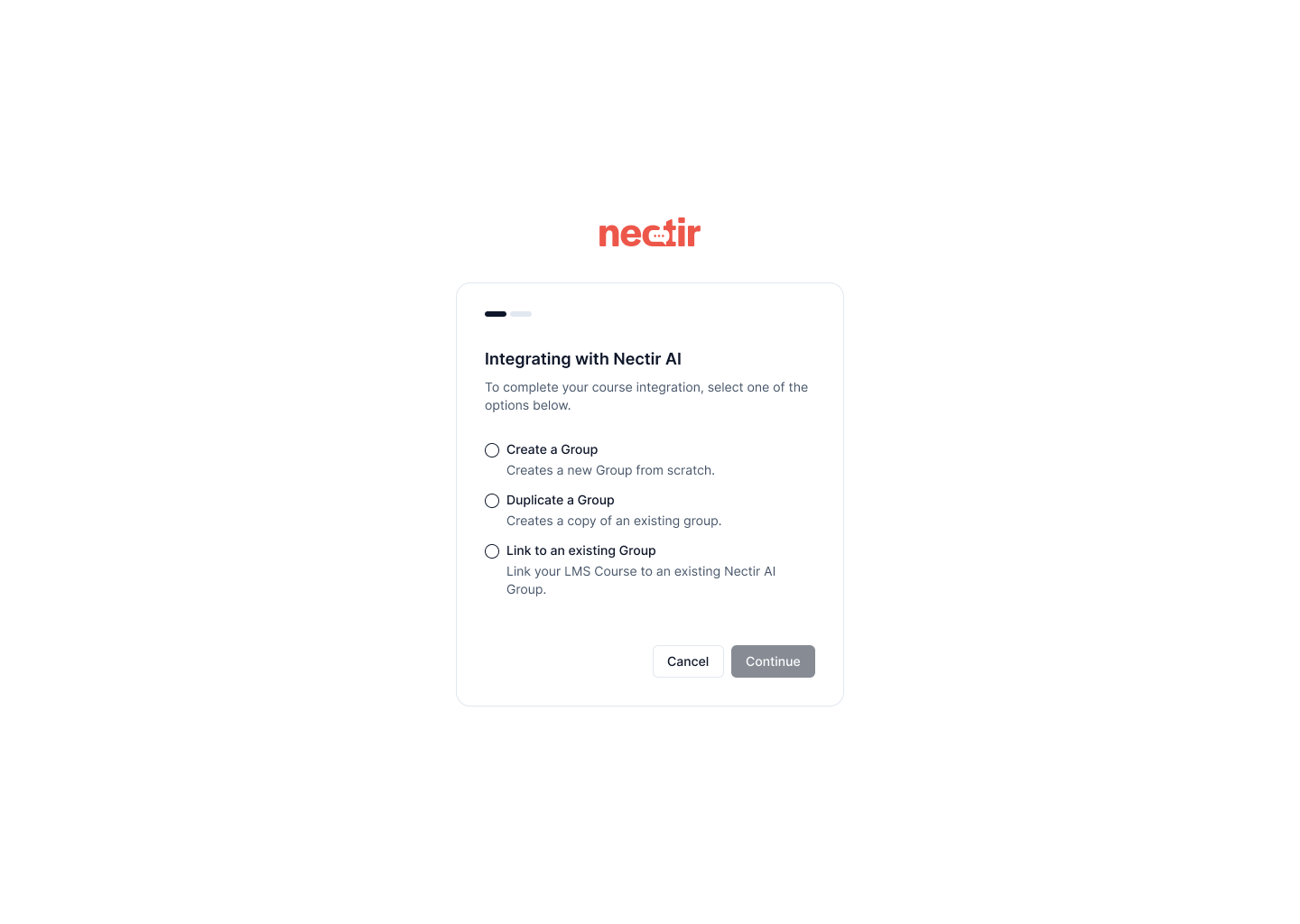
Choose how to link your Canvas course to a Nectir AI Group
- Duplicate From Another Course: Copy a previous Group, with its Assistants and settings, into a new Group for this Canvas course. The original Group keeps its members and conversations (useful for reusing a Group from previous semesters)
- Start From Scratch: Start fresh with a new Group specifically for this Canvas course
- Link to an Existing Course: Connect this Canvas course to a Group you’ve already been working on. Both courses use the same Assistants, and changes show up in both (useful for cross-listed or multi-section courses)
Method 2: Embed in a Canvas Page
Method 2: Embed in a Canvas Page
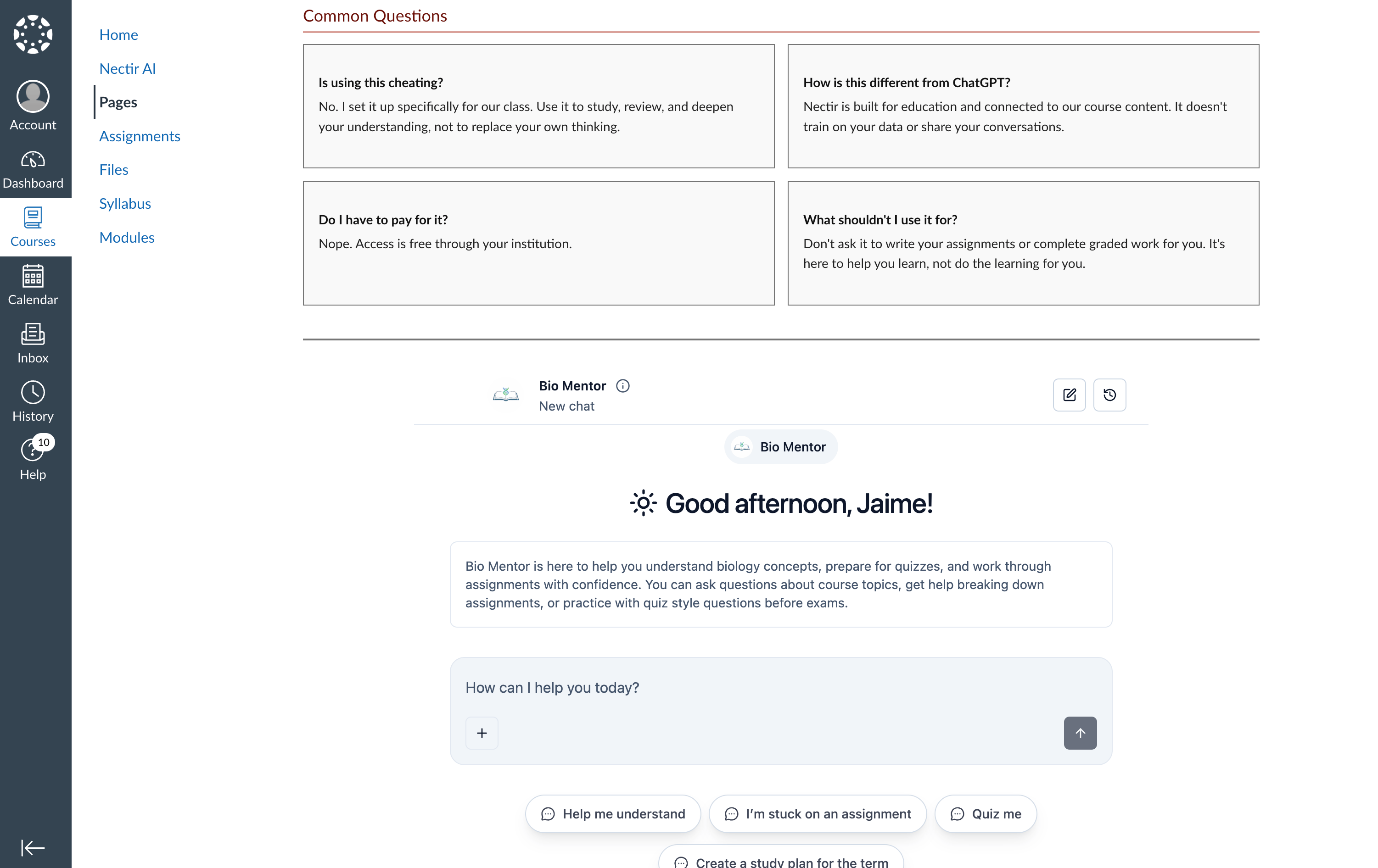
A Canvas page with an Assistant embedded inline below the page content (student view)
Open the Page in the Editor
Open the Apps Menu
Select Nectir AI
Choose Your Assistant
Embed the Assistant
Save the Page
Method 3: Embed in an Assignment
Method 3: Embed in an Assignment
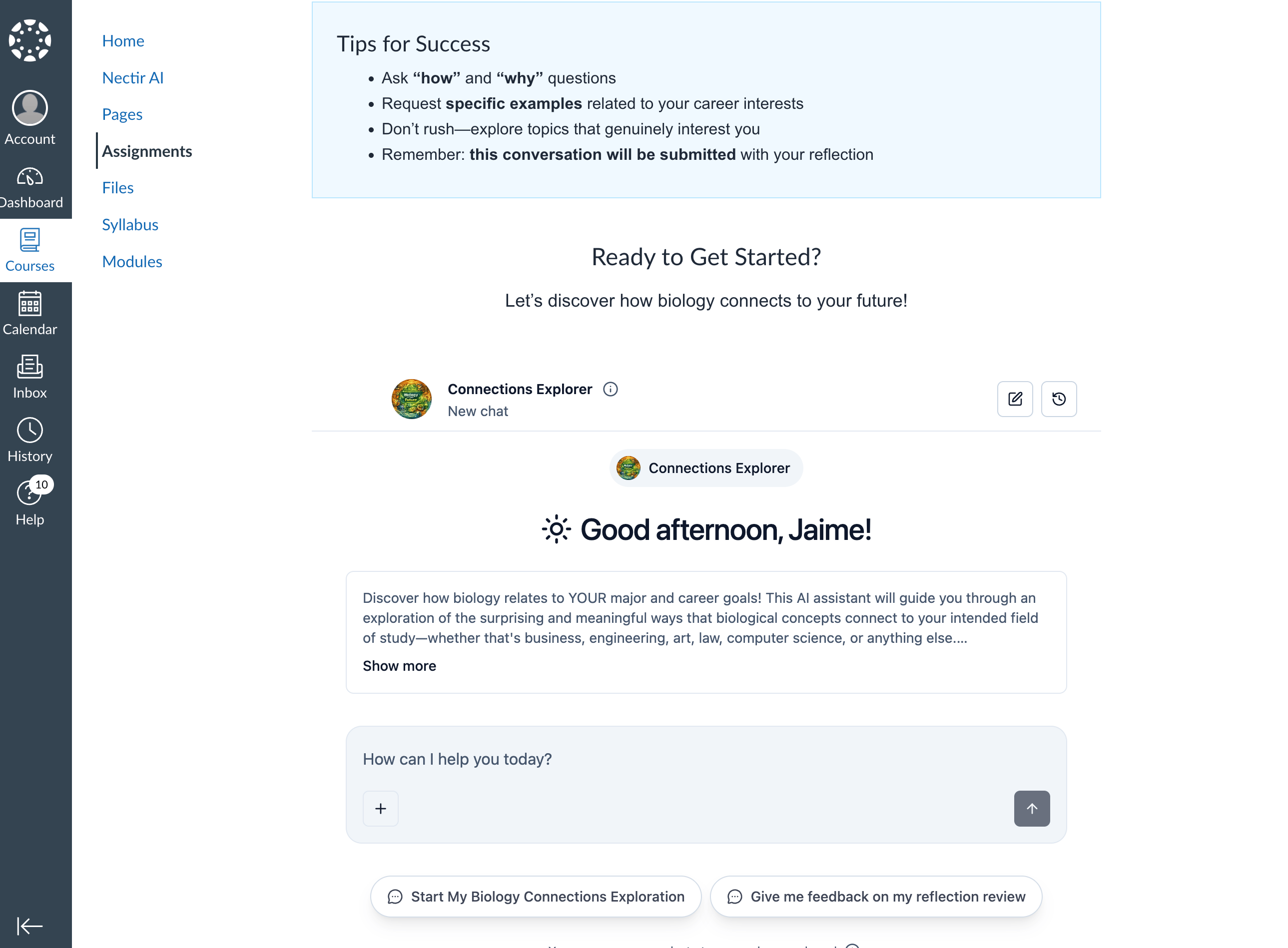
An Assistant launched from inside a Canvas assignment via the Nectir AI embed
Open the Assignment in the Editor
Open the Apps Menu
Select Nectir AI
Choose Your Assistant
Embed the Assistant
Save the Assignment
Method 4: Embed in a Module
Method 4: Embed in a Module
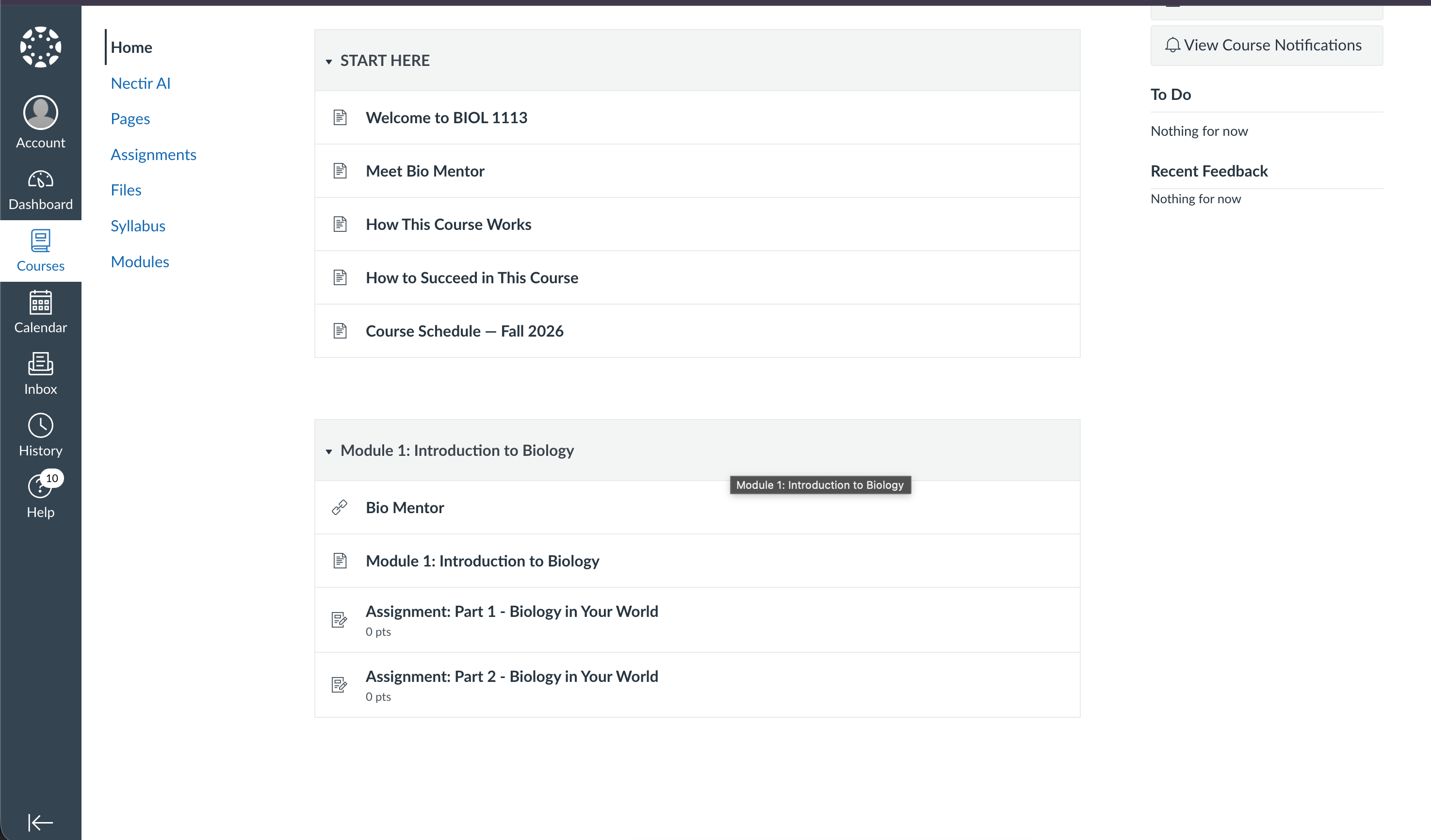
Nectir AI added to a Canvas module as an External Tool item
Open the Modules Page
Add an Item to a Module
Choose External Tool
Select Nectir AI
Choose Your Assistant
Add the Item
Without the Canvas LTI Integration
If your institution hasn’t set up the Canvas LTI integration, you can still get Nectir AI in front of your students through one of three options below.Option 2: Invite Students by Email
Option 2: Invite Students by Email
Open Your Group in Nectir AI
Open the Members Page
Paste Student Emails
Customize the Email (Optional)
Send Invitations
Managing Courses Across Terms
Nectir’s flexible setup framework allows you to link and unlink LMS courses as needed:Linking Multiple Courses
Linking Multiple Courses
- Open your new Canvas course
- Access Nectir AI from the course navigation
- You’ll be prompted to choose how to link the course to a Group
Unlinking Courses
Unlinking Courses
- Go to Group Settings
- Navigate to LMS Integration
- Click the three dots next to the course you want to unlink
- Select Unlink, then confirm with Unlink
Setting Up for the Next Term
Setting Up for the Next Term
- Connect your new course to the same Group you used previously
- Keep using and improving the same Assistants term over term
- Build on previous refinements and knowledge base updates
- Best for: Instructors who want to continuously improve their Assistants based on student interactions
- Create a copy of your previous Group with all Assistants
- Maintain separate versions for each term
- Preserve historical Assistant configurations
- Best for: Instructors who want to keep distinct versions per term or experiment with different approaches
Troubleshooting
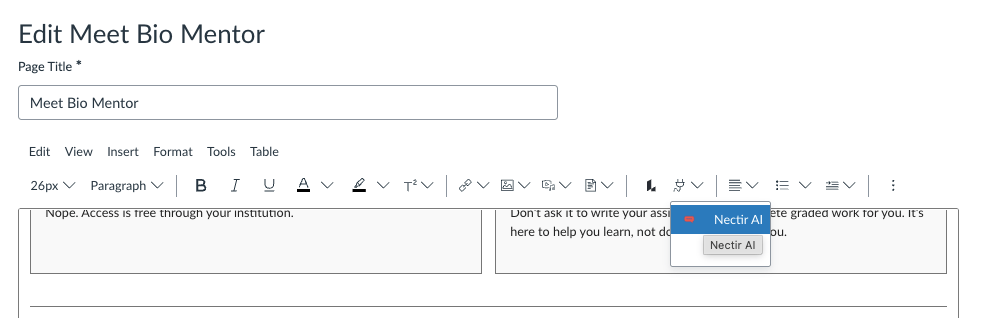
The Apps button (plug icon) in the Rich Content Editor toolbar, with Nectir AI in the dropdown
Nectir AI isn't in the External Tool list when I add a module item
Nectir AI isn't in the External Tool list when I add a module item
The Embed an Assistant modal opens but your Assistant isn't listed
The Embed an Assistant modal opens but your Assistant isn't listed
- Assistants in Groups where you are an owner.
- If you’re a Workspace Owner, every Assistant in a Group you can access, plus Shared with Everyone Assistants that don’t belong to a Group.
- Private Assistants that don’t belong to a Group, including your own. Only their creator can open them, so add the Assistant to a Group or share it with everyone before embedding it.
- Assistants in Groups where you are a member or facilitator (you can chat with them, but you’re not an owner).
- Shared with Everyone Assistants that don’t belong to a Group, unless you’re a Workspace Owner.
- Assistants in Groups you don’t belong to.
Students see "This Assistant isn't available" when they open an embedded Assistant
Students see "This Assistant isn't available" when they open an embedded Assistant
The embed dialog gets stuck on "Retrieving Content" after I select an Assistant
The embed dialog gets stuck on "Retrieving Content" after I select an Assistant
- Allow third-party cookies for Canvas and Nectir AI, then reload the Canvas page. See Allow Third-Party Cookies.
- Disable extensions that block cross-site requests (ad blockers, privacy or tracker blockers) for Canvas, or try the embed in a private/incognito window with extensions disabled.
- Try a different browser to rule out a browser-specific cookie or cache issue.
- The browser and version you’re using
- A screenshot of the stuck dialog
- Whether Nectir AI works when accessed directly at ai.nectir.io
Students can't see the embedded Assistant
Students can't see the embedded Assistant
- The page, assignment, or module item is published (not in draft state).
- The student is enrolled in the Canvas course and has access to the Canvas resource (page, assignment, or module item) where the embed lives.
- Third-party cookies are allowed in the student’s browser. See Browser & Display Issues.
Unable to link your Canvas course to a Group (Method 1)
Unable to link your Canvas course to a Group (Method 1)